
The setting problem that looks like a hardware problem
New computer users frequently go shopping instead of investigating why their display configurations are not working correctly, most likely because of a height issue – the cursor doesn’t seem to line up right, so they get another taller stand. They also may think they need to buy a different monitor because their text appears fuzzy when looking at it. Also, they may think they need to buy a new monitor because the display is too jerky. In all three cases, these problems can usually be traced back to one of a small number of issues that are usually missed: the displays are not stacked correctly in the software, and/or one of the displays is not set to the correct resolution, and/or the scale is not set close enough to one another between displays (example: 100% and 125%), and/or one of the displays is using a different refresh rate than the other.
So, the money lesson is do not buy something until you are absolutely sure that something is not working from a settings issue.
This is particularly apparent when mixing an older external monitor with your laptop screen because those types of configurations generally work well together, but they can also create the greatest degree of mismatch in both text size and sharpness in addition to cursor travel from one display to another, where one display is very high density and the other is relatively low density and the larger display has a much lower resolution than the smaller display. Therefore, there is no need to replace the larger display just yet; what you need is a better way to tune their relative settings.
Use the ALIGN Reset before you buy anything
- A – Arrange the displays so the on-screen boxes match their real positions on your desk. Windows specifically notes this helps the mouse move smoothly across screens, and macOS lets you arrange displays in Displays settings. (support.microsoft.com)
- L – Lock in the right resolution first. On Windows, the recommended resolution is usually the right starting point; on Mac, Apple says the default resolution is generally best. (support.microsoft.com)
- I – Improve apparent size with scale or text controls, not by dropping to a blurry resolution. Windows exposes both Scale and Text size, and Mac offers display and accessibility controls for larger content. (support.microsoft.com)
- G – Give one screen the main role. On Mac, Displays settings let a screen act as the main display and let you relocate the menu bar; Windows also allows a main display selection in Display settings. (support.apple.com)
- N – Normalize motion and color. Check refresh rate on each monitor, then test HDR only if your screen and workflow actually benefit from it. (support.microsoft.com)
| What feels wrong | Check first | Why it happens | Lowest-cost fix |
|---|---|---|---|
| The cursor hits an invisible wall or jumps strangely | Display arrangement | The software map does not match the physical desk | Drag the display boxes until the crossing point matches reality. (support.microsoft.com) |
| Text is huge on one screen and tiny on the other | Scale, then text size | The screens have very different density or scale settings | Return to the recommended or default resolution, then adjust scale or text size. (support.microsoft.com) |
| The external monitor looks blurry | Resolution | It is often running below its recommended or native mode | Switch back to the recommended or default resolution before doing anything else. (support.microsoft.com) |
| One display feels choppy or oddly cheap | Refresh rate | The two screens may be running at different rates | Set a stable rate each display supports, then retest. (support.microsoft.com) |
| Colors look washed out on only one screen | HDR or color mode | One monitor may be in HDR while the other is not | Toggle HDR off for routine office work and compare again. (support.microsoft.com) |
| Menus, taskbar, or new apps keep appearing on the wrong screen | Main display | The OS is treating the less useful screen as primary | Make the screen you use most the main display. (support.apple.com) |
Start with the screen map, not picture quality
If you only change one thing today, make it the display map. On Windows, Microsoft says to use Identify and drag the monitors into the arrangement that matches your real desk so the mouse moves smoothly across screens. On Mac, Displays settings let you arrange the displays, choose which display shows the Finder and app menus, and relocate the menu bar. That is not cosmetic. It determines whether moving across the seam feels natural or irritating all day. (support.microsoft.com)
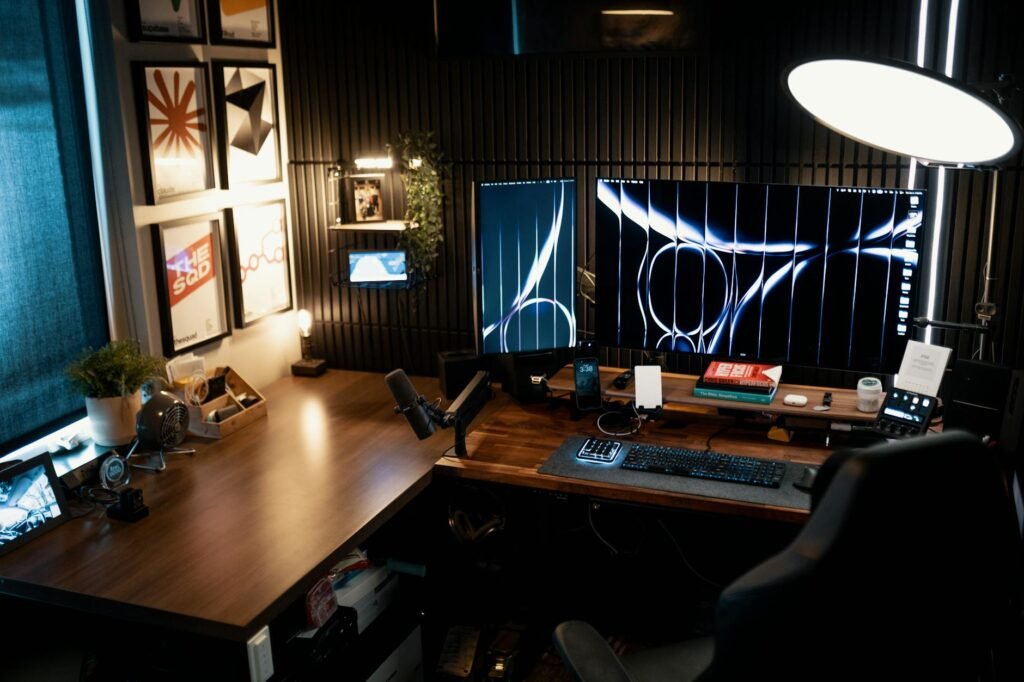
- Open Display settings on Windows or Displays settings on Mac, then identify which screen is which. (support.microsoft.com)
- Drag the on-screen boxes so they match the physical left-right order and the real vertical offset. If one monitor sits on a riser, the boxes should not be perfectly level unless the screens truly are. (support.microsoft.com)
- Choose the screen you use for the bulk of your work as the main display, so menus, taskbar behavior, and app launches feel predictable. (support.apple.com)
- Click Apply, then move your cursor slowly across the seam at three heights: top, middle, and bottom. If the movement surprises you, the layout is still wrong.
A realistic example: say you use a 14-inch laptop display at 2560×1600 and add a 27-inch 1080p monitor you bought on sale for $179. You place the big screen slightly lower and to the right, but in settings the boxes are perfectly level. The result is a setup that feels broken even though nothing is defective. Your pointer reaches the edge where your hand expects the second screen, then gets stuck unless you move slightly up or down. Fixing the map costs nothing. Replacing the monitor to solve that exact problem would be wasted money.
Resolution and scaling are where beginners lose the plot
When text looks wrong, many people change the wrong setting first. Windows says it is usually best to stick with the recommended scale and recommended resolution, and it warns that lower-than-native resolutions can make text less sharp or cause black borders or stretching. Apple says the default resolution is generally the best choice on Mac, while scaled options can make items larger or smaller depending on what you need. In other words, start from the cleanest image your display is meant to show. (support.microsoft.com)
Then adjust for comfort, not symmetry. Your two screens do not need to show identical text sizes to feel usable, but they do need to be close enough that your eyes are not constantly re-focusing when you move across. If your laptop is effectively showing giant interface elements while the external is showing tiny ones, you will feel that mismatch in every browser tab and spreadsheet. A better rule is this: open the same webpage on both screens, set each display to its recommended or default resolution, then nudge scale or text size until body text feels reasonably similar from your normal chair position. (support.microsoft.com)
If you only need larger text, use text-size or accessibility controls before you drop the whole display to a lower resolution. Windows provides a Text size setting, and Mac offers accessibility display, text, and zoom tools for exactly this reason. (support.microsoft.com)
Refresh rate and HDR can make one screen feel cheap
If one monitor feels smoother, snappier, or less fatiguing, check refresh rate before you judge panel quality. Windows lets you choose refresh rate per display in Advanced display settings, and Mac does the same when the connected display supports refresh changes. Apple also notes that if the rate is set too high, the screen can go black because the display does not support it. Windows notes that changing refresh can also alter the available resolution. The practical takeaway is to stop assuming both displays are running the same mode just because they are plugged in. (support.microsoft.com)
HDR is another common trap. On Windows, HDR behavior depends on both the PC and the display, and Microsoft’s HDR guidance explicitly addresses mixed HDR and SDR setups. If your desktop looks washed out on only one screen, or one panel looks dramatically different for no obvious reason, test with HDR off on the display you use for email, docs, and web work. For many people, that restores a more normal desktop and removes one more variable from the setup. Save HDR for the screen and workflow that truly call for it. (support.microsoft.com)
A sensible upgrade example before you spend more money
Consider a simple home-office case. You already own a good laptop and buy a budget external monitor for $179. After a week, the setup feels disappointing, and you start eyeing a $329 replacement plus a $90 arm. Before spending another $419, run the ALIGN Reset. Put both displays at recommended or default resolution. Match the software layout to the desk. Make the larger screen the main work display. Bring text closer in apparent size by adjusting scale or text settings. Check whether the dock is limiting refresh. In many cases, that turns an annoying setup into a perfectly serviceable one for spreadsheets, writing, email, and video calls. If it still feels wrong after that, your next purchase is better informed and more targeted.

When settings are not enough
- Some pairings will never feel seamless. A very sharp laptop panel next to a large low-resolution monitor may still feel mismatched even after good tuning.
- Your computer model, dock, cable, and chosen resolution and refresh combination can limit what is possible. Apple says external-display support depends on the Mac model and on the resolution and refresh rate of each display; Microsoft also tells users to check cables and dock connections first. (support.apple.com)
- If your Mac only mirrors through a hub or dock, Apple specifically says to connect the display directly to a port on the Mac and test again. (support.apple.com)
- If a Mac screen goes black after you changed resolution, Apple says to wait briefly for automatic reset, then press Escape to revert. Safe Mode is the fallback if it does not recover. (support.apple.com)
- If a display is not detected, Windows provides a Detect option in Multiple displays, and Mac can scan for displays from Displays settings. (support.microsoft.com)
- If the real issue is readability or eye strain, lean on accessibility tools instead of forcing a blurry global workaround. Windows Text size and Mac accessibility display and zoom settings are there for a reason. (support.microsoft.com)
Common mistakes that keep the setup feeling off
- Lining up the tops of the on-screen boxes because it looks neat, instead of matching the actual crossing point where your cursor should move.
- Lowering resolution to make text bigger, even though Windows warns that lower-than-native modes can look less sharp, stretched, or boxed in. (support.microsoft.com)
- Trying custom scaling too early. Microsoft says custom scale exists, but it does not recommend it as the first move. (support.microsoft.com)
- Leaving one screen at 60 Hz and the other at a higher rate without realizing it. Motion differences are noticeable even in basic window dragging. (support.microsoft.com)
- Assuming washed-out color means bad hardware when HDR or a different color mode may be the real cause. (support.microsoft.com)
- Shopping for a replacement monitor before checking whether the dock, cable, or laptop model is the true bottleneck. (support.apple.com)
How to pressure-test your fix in five minutes
- Open the same webpage on both screens and compare body text, not just headline size.
- Drag the cursor across the seam at top, middle, and bottom to check whether the map matches the desk.
- Move one browser window, one document, and one spreadsheet back and forth to test motion and readability.
- Launch a couple of everyday apps and confirm they open where you expect.
- Work for one uninterrupted hour before you decide the problem is solved or the hardware is wrong.
This step is important because a setup can pass a two-minute glance test but fail when used in an actual work session. An audit question that should be asked is not whether the monitors themselves look great, but instead whether the text, the travel of the pointer, the placement of applications, and the motion are all so consistent that it is not noticed at all; if they are not noticed at all, the setup is likely okay. However, if a single annoyance continues to be noticed, purchase only the hardware necessary to fix that specific annoyance.

Check your laptop or desktop specs before you buy a new dock, ultrawide, or high-refresh monitor. Apple says external-display support depends on the model and on the resolution and refresh combination in use, and Microsoft advises confirming cables and dock connections before troubleshooting deeper. (support.apple.com)
Bottom line
If your dual-monitor setup feels wrong, do not start by shopping. Start by matching the display map to your desk, restoring the recommended or default resolution, bringing apparent text size closer with scale or text controls, setting the right main display, and checking refresh rate and HDR. Those are the settings most beginners miss, and they are also the settings most likely to turn a frustrating two-screen setup into a comfortable one without spending another dollar. (support.microsoft.com)
FAQ
Should both monitors use the same resolution?
Usually not. The better starting point is to use each display at its recommended or default resolution, then adjust scale or text size for comfort. Windows warns that lower-than-native resolutions can reduce sharpness, and Apple says the default resolution is generally best on Mac. (support.microsoft.com)
Why does my mouse get stuck when I move it between screens?
Because the software map does not match the real desk. Windows says arranging displays correctly helps the mouse move smoothly across them, and the same basic rule applies on Mac. (support.microsoft.com)
Why does only one monitor look washed out?
A common cause is HDR or a different display mode being active on one screen but not the other. Windows has separate HDR controls and specifically discusses mixed HDR and SDR setups. (support.microsoft.com)
Is it worth buying a new monitor if the setup still feels bad after the reset?
Sometimes, yes, but only after you rule out settings and connection limits. A large mismatch in panel sharpness, size, or supported refresh can still make a pair feel awkward, and model or dock limits can also be the bottleneck. Check your computer and dock support first. (support.apple.com)
My Mac only mirrors through a hub. What should I try first?
Apple says that if the display is connected to a hub or dock and you can use it only to mirror the built-in display, connect the display directly to a port on the Mac and test again. (support.apple.com)
References
- Microsoft Support: How to use multiple monitors in Windows – https://support.microsoft.com/en-us/windows/how-to-use-multiple-monitors-in-windows-329c6962-5a4d-b481-7baa-bec9671f728a
- Microsoft Support: Change your screen resolution and layout in Windows – https://support.microsoft.com/en-us/windows/change-your-screen-resolution-and-layout-in-windows-5effefe3-2eac-e306-0b5d-2073b765876b
- Microsoft Support: Change the refresh rate on your monitor in Windows – https://support.microsoft.com/en-us/windows/change-the-refresh-rate-on-your-monitor-in-windows-c8ea729e-0678-015c-c415-f806f04aae5a
- Microsoft Support: HDR settings in Windows – https://support.microsoft.com/en-us/windows/hdr-settings-in-windows-2d767185-38ec-7fdc-6f97-bbc6c5ef24e6
- Microsoft Support: Change the size of text in Windows – https://support.microsoft.com/en-us/windows/change-the-size-of-text-in-windows-1d5830c3-eee3-8eaa-836b-abcc37d99b9a
- Microsoft Support: Present on multiple monitors and view speaker notes privately – https://support.microsoft.com/en-au/office/present-on-multiple-monitors-and-view-speaker-notes-privately-ccfa1894-e3ef-4955-9c3a-444d58248093
- Apple Support: Displays settings on Mac – https://support.apple.com/guide/mac-help/displays-settings-on-mac-mh40768/mac
- Apple Support: Extend or mirror your Mac desktop across multiple displays – https://support.apple.com/en-om/guide/mac-help/-mchlb5f905a1/mac
- Apple Support: Change your Mac display’s resolution – https://support.apple.com/guide/mac-help/change-your-displays-resolution-mchl86d72b76/26/mac/26
- Apple Support: Connect a display to your Mac – https://support.apple.com/en-us/ht202351
- Apple Support: Use dual monitors with your MacBook Air and MacBook Pro with M3 chip – https://support.apple.com/en-us/117373
- Apple Support: Change Display settings for accessibility on Mac – https://support.apple.com/en-mide/guide/mac-help/unac089/mac