
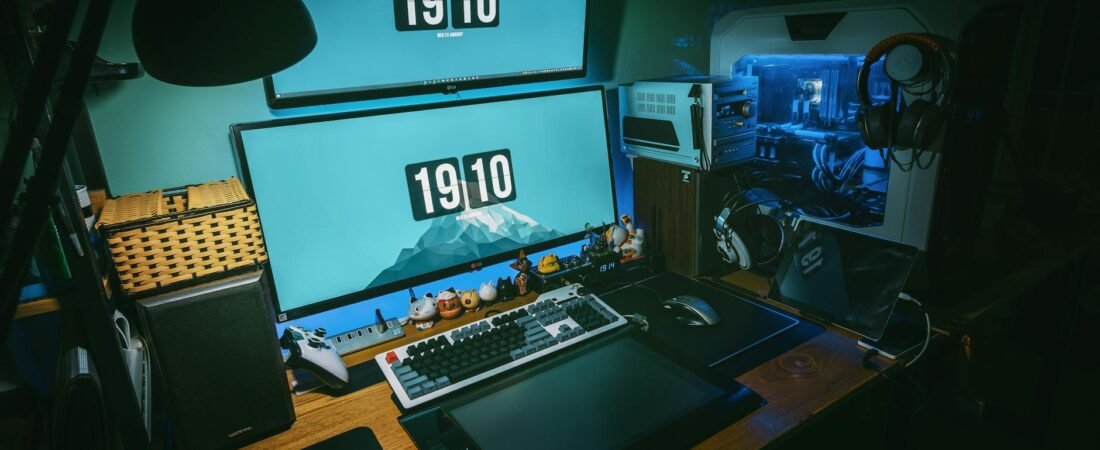
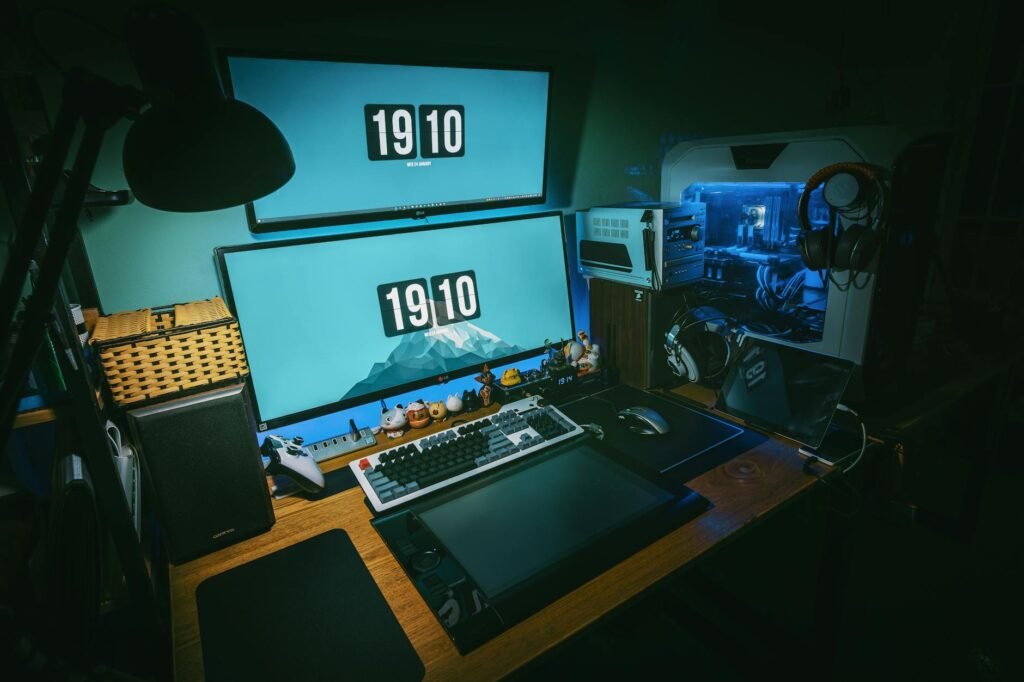
The real problem is usually underneath the accessories
Accessories are usually finish pieces. They can improve feel at the margin, but they do not fix a desk that shakes when you flick the mouse, a chair that pitches you forward, a monitor that sits too low, or a room that blasts glare across the screen. OSHA notes that poor screen height, unsupported posture, and reflected light can push users into awkward positions and add fatigue, headaches, and eye strain. (osha.gov)
To put it differently, in cash terms, numerous gaming setups will have an upside-down budget; the least significant layer (the top layer) will have the biggest budget share because it’s the most enjoyable to purchase and has the easiest-to-photograph; which means that people might ultimately have matching accessories sitting on top of an “empty desk” (meaning, there are no additional layers underneath) and a used/old chair. Consequently, while these products may appear to be upgraded piecewise, when one considers the gaming setup holistically, it seems incomplete.
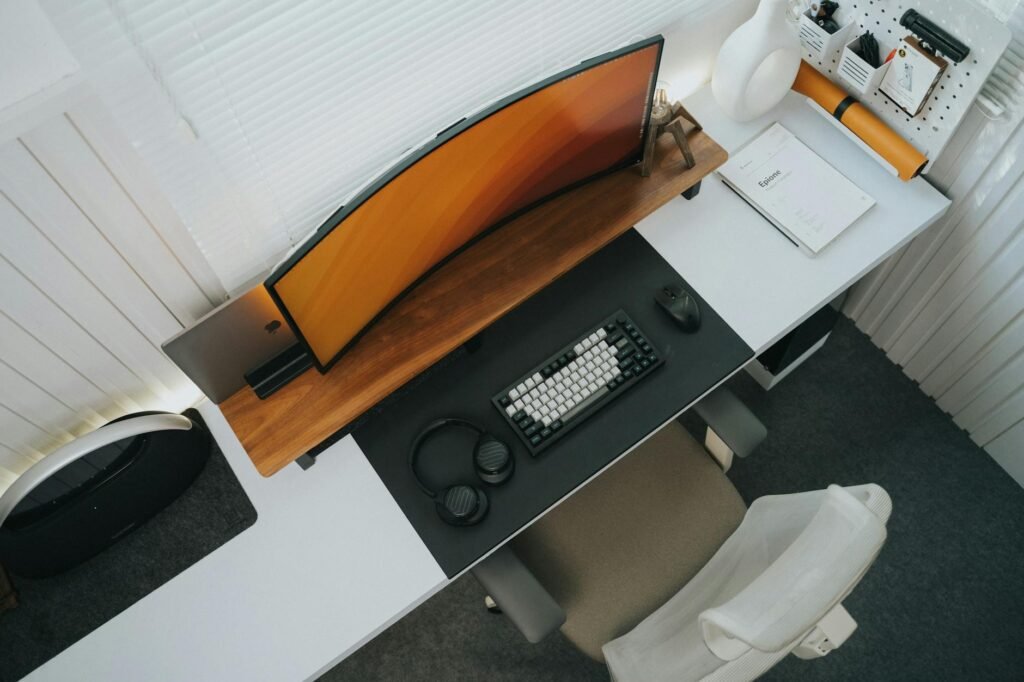
Use the SETUP Scorecard before you buy one more thing
You can use this rule tonight: Rate each category using a scale of 1 (Active harm to comfort/daily use) to 5 (Deliberate, no friction). When rating, remember that you want to figure out which part of your setup will improve with the next dollar spent; not necessarily the best rating.
| Category | 1 point | 3 points | 5 points | Best next spend if low |
|---|---|---|---|---|
| Stability | Desk or chair wobbles, monitor shakes, power strip slides around | Minor movement but mostly usable | Desk, chair, and monitor feel planted and quiet | Desk, chair, bracing, or monitor arm |
| Ergonomics | Screen too low or too close, feet unsupported, reach feels strained | Good enough for short sessions | Screen centered, comfortable distance, feet and back supported | Chair, riser, monitor arm, or footrest |
| Touchpoints | Hard desk edge, poor mouse glide, rough arm support | One or two annoying contact points | Main surfaces you touch feel smooth and intentional | Desk edge pad, mat, arm support, seat cushion |
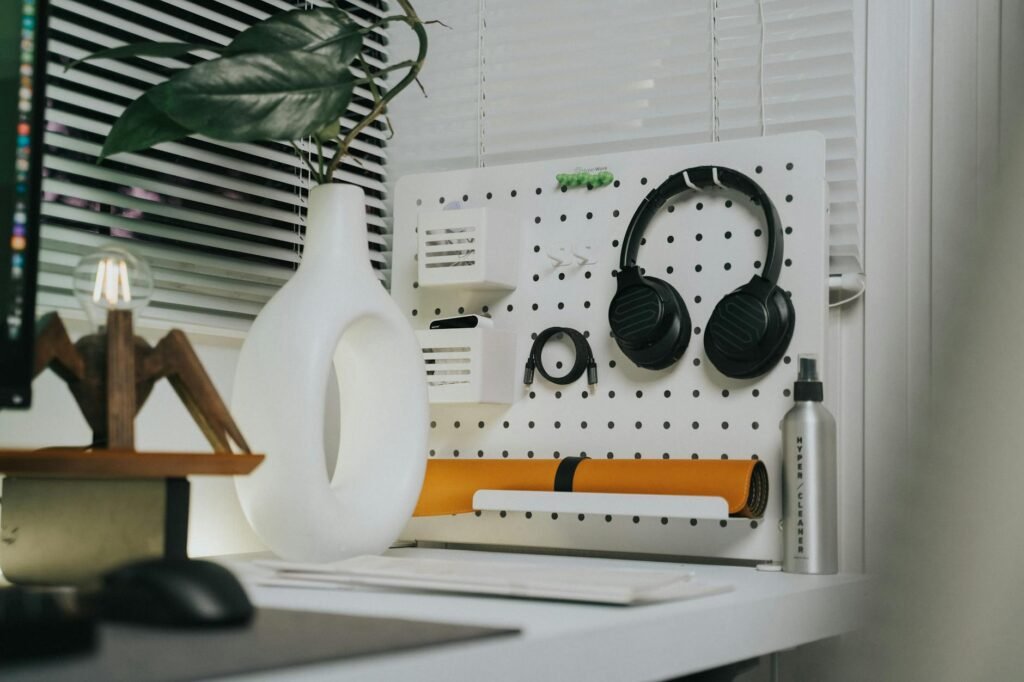
| Utility flow | You hunt for chargers, headset, controller, or cables every session | Some friction, but manageable | Everything you use most is within one easy reach | Cable tray, hook, dock, drawer, mounted power strip |
| Presentation | Visible clutter, mixed lighting, random colors and materials | Partly organized but still busy | Clean sightlines, consistent lighting, intentional empty space | Declutter, cable management, one lamp or bias light |
How to utilize the score: A score of 20 through 25 will demonstrate that upgrading the aesthetic styles is appropriate. Whereas a score between 15 – 19 is appropriate to purchase only items that alleviate frictional effects. If your score is less than 15, you should stop buying look-first accessories. An additional rule to be mindful of is that if your stability and/or ergonomics are rated as a 1 or 2 your next dollar should go towards improving either or both of those areas of your rating before purchasing a more aesthetically appealing item.
Why expensive accessories can still leave the setup feeling cheap
- The desk is moving. Cornell’s ergonomics tips specifically call for a stable, no-bounce work surface. If the monitor vibrates every time you type, the whole setup reads as flimsy no matter what sits on top of it. (ergo.human.cornell.edu)
- The screen is fighting your body. OSHA says the monitor should generally be directly in front of you, at a comfortable distance, with the top of the viewing area around eye level or slightly below. If the screen is too low, too high, or pushed too close, the setup feels tiring instead of premium. (osha.gov)
- The lighting is working against the display. OSHA warns that glare, bright windows, and reflected overhead light can wash out the screen and cause awkward viewing posture. (osha.gov)
- Your cheapest surfaces are still the ones you touch most. Many people upgrade the visible gear first and leave the chair seat, desk edge, and mouse glide feeling bad. That is backwards.
- The room still has friction. If you need multiple motions just to start playing, the setup never feels settled. Premium often means fewer annoyances, not more gadgets.
A $479 example: same budget, better order
Consider a realistic example. A gamer spends $479 over five months on a $129 keyboard, $79 light bars, a $59 desk mat, a $45 headset stand, $62 in controller charging accessories, $49 speaker risers, and $56 in cable gadgets. The setup still feels cheap because the real foundation never changed: a $95 particle-board desk that flexes, a dining chair that sits too low, and a monitor on a stock stand that forces a downward neck angle. This is also why memory is a bad budgeting tool. The CFPB recommends reviewing actual bank and card spending and comparing it with your plan, because small purchases disappear into the month faster than people expect. (consumerfinance.gov)

| If the setup feels like this | The likely cause | Higher-value next spend | What to skip for now |
|---|---|---|---|
| Everything shakes when you type | Desk or monitor support is weak | Sturdier desk, bracing, or monitor arm | Keycaps, desk decor, extra RGB |
| You feel tired after 30 to 45 minutes | Chair height, screen height, or foot support is off | Chair, footrest, riser, or monitor arm | Another keyboard or mouse |
| The desk always looks messy by noon | No cable path or storage logic | Cable tray, mounted power strip, hook, drawer | A second desk mat or display shelf |
| The monitor looks washed out or cheap | Glare and bad room lighting | Blinds, lamp repositioning, one indirect light source | More bright light bars |
| The setup feels crowded even with nice gear | Wrong desk depth or too many objects in reach zone | Remove items, widen clear space, relocate storage | More tabletop accessories |
| Photos look better than real sessions feel | You spent on appearance before comfort and flow | Fix the lowest SETUP scores first | Anything bought only for looks |
Now reallocate the same $479: $170 for a used solid desk, $145 for a refurbished adjustable chair, $35 for a monitor arm, $24 for a footrest, $28 for a cable tray and ties, $32 for one lamp or bias light, and $45 left for a hook, small storage, or savings. That version will usually feel far better in daily use even if it looks less dramatic in product photos. The money is doing structural work instead of cosmetic work.
Do the 60-minute reset before spending again
- Sit down the way you actually play, not the way you pose for photos.
- Take one photo from your seated position. Circle every visible cable, unused gadget, empty product box, and decorative item that steals space.
- Count start-session friction. How many actions does it take to begin playing? Headset, controller, charger, water, and one notebook or remote should be easy to reach.
- Set monitor position first. OSHA says the display should generally be directly in front of you, at least 20 inches away, with the top of the viewing area around eye level or slightly below. (osha.gov)
- Check support next. OSHA says feet should be supported by the floor or a footrest, and the back should be supported while seated. (osha.gov)
- Kill glare before buying lights. Reorient the desk so the screen is at a right angle to windows or direct light, and use blinds or shades if needed. (osha.gov)
- Make one list with only three columns: problem, cheapest fix, and estimated cost. If an item does not solve a named problem, it goes on a later maybe list.
- Check your bank and card history before you buy. The CFPB recommends comparing real spending with the budget rather than guessing from memory. (consumerfinance.gov)
Common mistakes that keep a setup looking low-end
- Buying another visible accessory when the desk still wobbles.
- Treating product photos as the benchmark instead of your seated point of view.
- Mixing very bright RGB, glossy surfaces, and overhead glare, which can make the whole station look harsher and cheaper. (osha.gov)
- Adding a larger monitor without enough desk depth. OSHA notes that viewing distance and desk space matter because screens that sit too close can force awkward posture. (osha.gov)
- Trying to solve discomfort with posture gadgets before adjusting the chair, monitor, and foot support.
- Trusting a five-star listing too quickly. The FTC recommends checking multiple sources, looking at reviewer history, and watching for sudden bursts of recent reviews that may be manipulated. (consumer.ftc.gov)
When the room, not the accessories, is the real limit
Some setups stay mediocre because the constraint is the room. Small bedrooms, shared apartments, thick carpet, echo, window glare, and temporary rental rules can keep a station from feeling polished even with decent gear. Cornell’s home ergonomics guidance notes that environmental factors such as glare, noise, and air quality affect comfort and productivity, and OSHA says lighting conditions can directly change posture and screen visibility. (hr.cornell.edu)
If you find yourself in a similar position, do not pursue an ideal battlestation (hard to do). Look for other alternatives within your constraints such as using a clamp-on monitor mount rather than wall mounting one, using a lamp instead of doing multiple light bars, using a rolling drawer instead of having to buy a wider desk, or having an overall budget before making an additional large purchase. In addition, if your main frustration is stuttering, noise from the fan, or heat produced by the PC, that next dollar could go towards the inside of the system rather than the top of your desk.
How to pressure-test your next upgrade
A good upgrade is one that decreases measurable friction. You should conduct a seven session audit and after each session record three things: what annoyed you, what you touched most often, and what caused you to change your posture. If you find two repeated issues, then that will be your next focus area for upgrades. If not, you will most likely not need to upgrade yet.
- Review your statements or receipts to see what the setup has actually cost so far. The CFPB recommends looking back over several months and comparing the budget to reality. (consumerfinance.gov)
- Before buying, read reviews from more than one source and check whether the reviewers look real and recent. That matches FTC guidance. (consumer.ftc.gov)
- Buy from sellers with clear return windows and keep the packaging until you test the item in a real session.
- Repeat the same one-hour game or work session after the upgrade. If the annoyance count did not drop, return or resell the item.
- Keep one before-and-after photo from your seated angle. If the improvement only shows in close-up product shots, it may not matter in daily use.
Informational only: This article is general education, not personalized financial, ergonomic, medical, or credit advice. If setup purchases are going on a credit card you cannot pay in full, or are crowding out bills, savings, or debt payoff, pause the upgrade cycle. The CFPB says nonprofit credit counseling organizations can help with budgeting and debt management. (consumerfinance.gov)
Bottom line
A setup that is stable, comfortable, user-friendly and visually appealing will feel expensive to someone who plays video games. The way a gamer sets up their gaming equipment also makes a difference; the accessories are the finish and not the frame. Establish a base first (to give you the structural support you need), reduce friction on the base, and then use your finances (all your hard work) for styling when the structure functions. This order is usually the difference between an upgraded appearance of equipment versus an upgraded feel of the equipment.
FAQ
Should you replace the chair or the desk first?
Use the SETUP Scorecard. If the desk or monitor support is shaking during normal use, start there. If your posture falls apart, your feet are unsupported, or the screen position is forcing your neck down or back, start with the chair, foot support, or monitor height. OSHA’s workstation guidance supports fixing support and screen position early. (osha.gov)
Do cable management products really change how a setup feels?
When they take away the actual friction, absolutely. If the cable tray, mounted power strips, or headset hooks help to shorten your setup time, keep the sightline clear and/or eliminate cables draping onto your desktop, then they definitely are worth it, particularly since they can enhance productivity. They aren’t some kind of miracle worker but are usually a better value than other more visible accessories.
Is RGB what makes a setup feel cheap?
Not by itself. Cheap-feeling setups usually suffer from inconsistency and glare, not from color. One controlled light source can look polished. Multiple bright sources bouncing off glossy surfaces can make the desk feel harsher and more cluttered. OSHA specifically warns that glare and reflected light reduce screen visibility and can push awkward viewing posture. (osha.gov)
Can a budget setup still feel good?
Absolutely. A budget setup can feel better than a much pricier one if the desk is stable, the screen is set at a comfortable height and distance, and the room avoids obvious glare. Used or refurbished basics often beat new cosmetic extras. For the shopping side, the FTC recommends checking multiple review sources instead of leaning on star ratings alone. (osha.gov)
What if you already overspent on accessories?
Stop adding to the pile. Return what you still can, resell pieces you do not use, and review your bank and card transactions so you know the real total. The CFPB recommends looking at actual spending rather than what you think you spent. If the purchases are spilling into debt, a nonprofit credit counselor may be worth considering. (consumerfinance.gov)
How long should you wait before buying the next upgrade?
You should wait until you have gone through a few normal sessions using the current setup before being able to determine what specific issue(s) your next purchase will repair. If you cannot summarize the issue in one (1) sentence, it is likely a desire rather than a solution to a problem that needs resolving.
References
- OSHA computer workstation monitors guidance – https://www.osha.gov/etools/computer-workstations/components/monitors
- OSHA workstation environment and glare guidance – https://www.osha.gov/etools/computer-workstations/workstation-environment
- OSHA neutral workstation positions guidance – https://www.osha.gov/etools/computer-workstations/positions
- Consumer Financial Protection Bureau on assessing your spending – https://www.consumerfinance.gov/owning-a-home/prepare/assess-your-spending/
- FTC consumer advice on evaluating online reviews – https://consumer.ftc.gov/articles/how-evaluate-online-reviews
- FTC consumer advice on online shopping and comparison shopping – https://consumer.ftc.gov/online-shopping
- Cornell home ergonomics tips PDF – https://hr.cornell.edu/sites/default/files/2022-12/home_ergo_tips_-_hr.pdf
- Cornell 12 tips for an ergonomic computer workstation – https://ergo.human.cornell.edu/DEA6510/dea6512k/ergo12tips.html
- CFPB on what credit counseling is – https://www.consumerfinance.gov/ask-cfpb/what-is-credit-counseling-en-1451/