
TL;DR
- The expensive mistake is treating neck pain like a chair problem when the real issue is often a monitor that sits too high, too far off-center, or both. OSHA and Mayo Clinic guidance points to a simpler baseline: keep the primary screen directly in front of you, roughly arm’s length away, with the top of the active screen at or slightly below eye level. (osha.gov)
- Poor focus is often a comfort problem in disguise. If you are lifting your chin, leaning forward, twisting toward a second screen, or squinting through glare, your attention keeps getting pulled away from the work itself. OSHA notes that prolonged static viewing and glare can contribute to fatigue, eye strain, headaches, and awkward postures. (osha.gov)
- If a laptop is your main computer, the screen and keyboard should not stay locked together all day. OSHA and CDC/NIOSH both point readers toward desktop-style setup principles, including separate input devices and, ideally, a separate monitor or at least a way to raise the screen while keeping the keyboard usable. (osha.gov)
- If you’re looking to purchase additional equipment, run through the FRONT Monitor Audit before making any purchases in the manner described in this post. Many setups can be enhanced by making free changes first such as removing a riser, centering the monitor, rotating the table away from the window, and using your laptop as a side monitor instead of a primary monitor.
Many people shop for new furniture in response to pain. They will cost out an ergonomic chair or new desk, perhaps buy a fancy monitor arm or some blue light accessories. This spending sometimes provides relief from pain, but usually, they do not address the actual cause of their pain. The monitor is currently in whatever position is naturally created by the stand/shelf/laptop docking station. Most of the time, this means that the screen is either too high, too far from the side or too far away. All of these small offsets will accumulate throughout the course of a working day as well.
The result is not just soreness. When you keep making tiny corrections to see clearly, work feels harder than it should. You reread lines. You lean in for detail work. You shift your shoulders to compensate for a screen that is not centered. OSHA specifically warns that prolonged static viewing can fatigue the muscles that support the head, and that glare can make images harder to see, leading to eye strain, fatigue, and awkward postures. (osha.gov)
The real mistake is placing the monitor where the furniture puts it
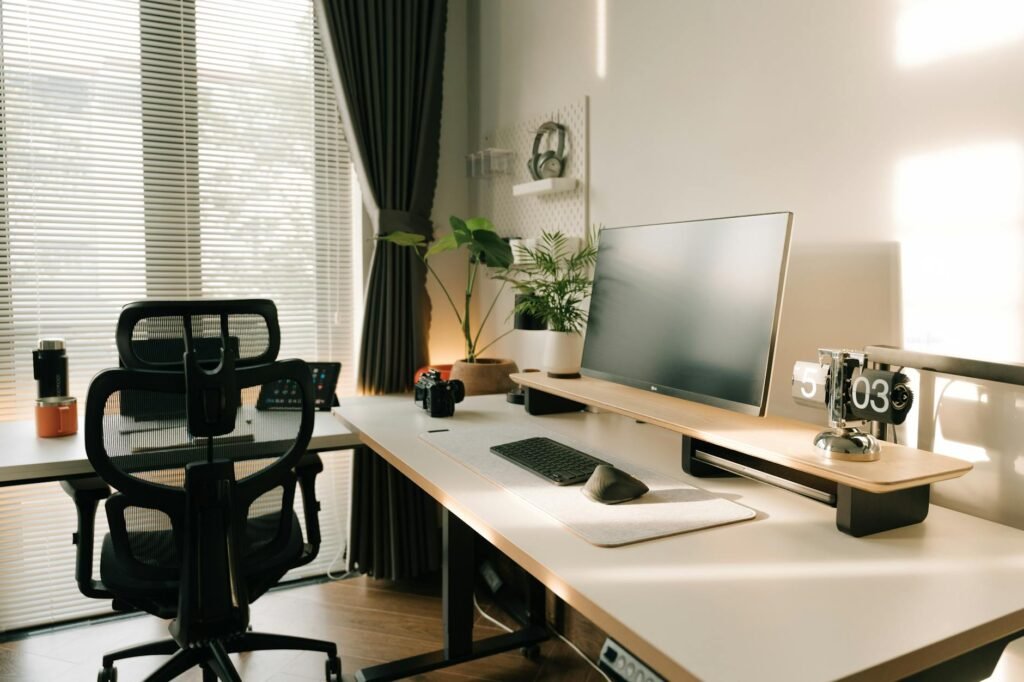
The single biggest monitor mistake is convenience placement. In plain English, that means the screen ends up wherever the shelf, stand, laptop hinge, or spare corner allows, and your body adapts around it. Official workstation guidance is more consistent than a lot of online advice: put the monitor directly in front of you, keep it about arm’s length away, and set the top line of the active screen at or slightly below eye level so you can read without bending your head or neck up or down. (osha.gov)
This is why a setup can look tidy and still feel bad. A monitor on a stylish riser may be too high. A dual-screen layout may force you to live with a mild neck twist all day. A laptop centered on the desk may keep the keyboard convenient while locking the screen far too low. None of those errors looks dramatic. Together, they can be enough to turn normal screen time into a daily strain pattern. (osha.gov)
Use the FRONT Monitor Audit
Use the following five-point test to evaluate your current monitor placement and score your setup; each item you pass earns you a point. If you score 5, your monitor placement likely isn’t the primary issue; a score of 3 or 4 indicates you more than likely have at least one issue that can be resolved; if you score 0 to 2, then poor screen placement is likely a major reason.
| Check | Pass looks like | Fail clue | Fast fix |
|---|---|---|---|
| F = Front and centered | Your primary screen is straight ahead, not off to the side | Your nose points one way while the screen sits another | Move the primary monitor to the center; slide the second monitor beside it |
| R = Reach distance | You can read comfortably without leaning in | Your chin juts forward to read small text | Set the screen roughly arm’s length away and increase text size if needed |
| O = Ocular drop | Top line of the active screen is at or slightly below eye level | You lift your chin to read the upper third of the screen | Lower the monitor or remove the riser |
| N = No glare, no squint | The display is easy to read without head tilt or squinting | Windows or overhead lights reflect on the screen | Rotate the desk, close blinds, or change lamp angle |
| T = Tech split | If you use a laptop full time, the display and keyboard are separated | You hunch over a laptop because screen height and keyboard height fight each other | Use an external keyboard and mouse, or add an external monitor |
The most revealing letter is usually O. If you need to raise your chin to read the top of the screen, the monitor is almost certainly too high. OSHA notes that a monitor set too high forces the head and neck backward and fatigues the muscles supporting the head. That is the classic desk setup that looks professional and feels terrible by midafternoon. (osha.gov)
What the wrong setup usually looks like in real life
The most common bad setup is not random. It is a monitor on a shelf, stack of books, or fixed stand that leaves the top of the screen above eye level, plus a keyboard centered below it. The second most common is a dual-monitor desk where the screen used most often sits off to one side, so the neck stays slightly rotated for hours. OSHA’s checklist is clear on both points: the primary monitor should be directly in front of the user, and if multiple monitors are used, the primary one stays in front while the others sit directly beside it. If time is split evenly, they should sit side by side within a comfortable viewing angle with minimal head movement. (osha.gov)
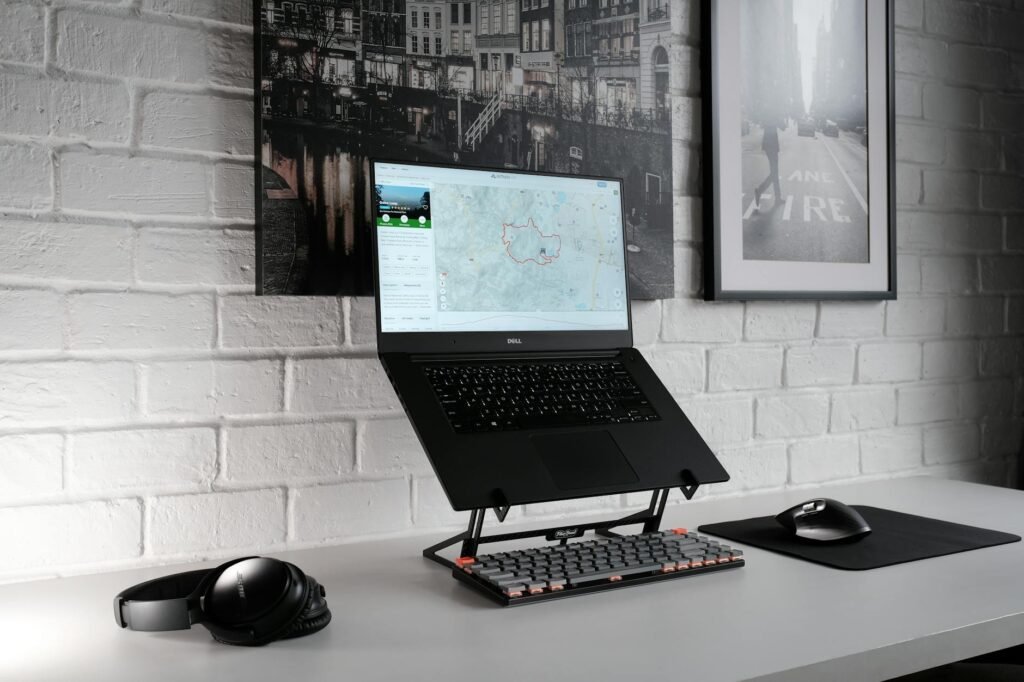
The laptop version is even more common at home. Because the keyboard and screen are attached, one of them has to lose. If the keyboard is at a comfortable height, the screen is too low. If the screen is raised high enough, the keyboard ends up too high unless you add separate input devices. That is why CDC/NIOSH says an external monitor is more ideal for display and why OSHA says a laptop used as a primary computer should follow the same ergonomic principles as a desktop setup with a separate keyboard and input device. (osha.gov)
Reset the desk in 10 minutes
- Sit first, then adjust the screen. Set your chair so your shoulders are relaxed and your feet are supported. Do not try to fix a bad chair height by moving the monitor alone. (mayoclinic.org)
- Center the screen you use most. If you work mainly from one monitor, that monitor goes straight in front of you. If you truly split time evenly across two monitors, center both together and keep them close enough to avoid constant neck turning. (osha.gov)
- Lower the display before you buy anything. Remove decorative risers, take the monitor off the computer case, or swap to a lower stand. OSHA explicitly warns that placing the monitor on top of equipment often raises it too high. (osha.gov)
- Set the viewing distance by comfort, not by guesswork. Roughly arm’s length is a solid baseline, and you should be able to read without leaning your head, neck, or trunk forward. (osha.gov)
- Kill glare next. Put the screen at a right angle to windows or bright lights, and adjust blinds or lamps so you are not squinting through reflections. (osha.gov)
- If you live on a laptop, separate the screen from the typing position. Use an external keyboard and mouse, or connect to an external monitor. A simple book or box can raise a display when needed. (cdc.gov)
- Add microbreaks. OSHA notes that long periods of static posture fatigue the neck and shoulders, and short rest breaks can reduce discomfort without hurting productivity. Stand up, blink, and move for a minute before you are already stiff. (osha.gov)
A realistic budget example: fix the line of sight before you spend big
Suppose Nina works from home 40 hours a week and is ready to spend $650 on a premium chair because her neck is sore by 3 p.m. Her actual setup problem is simpler. She uses a 27-inch monitor on a 5-inch riser, plus a laptop centered below it for typing. That leaves the main screen high and the keyboard position low enough to pull her gaze up and down all day. Instead of starting with the chair, she removes the riser for free, buys a $32 external keyboard, an $18 mouse, and a $28 laptop stand so the laptop can sit off to the side as a reference screen. Total outlay: $78.
Now the primary monitor sits directly ahead, the laptop is no longer the main typing surface, and Nina can test whether the low-cost fix worked before spending another $572. If her self-rated discomfort falls from 6 out of 10 to 2 out of 10 over a week, that is useful evidence that placement was the main problem. If nothing changes, then a chair, desk height issue, vision correction, or a medical concern moves higher on the list. This is the personal finance angle people miss: diagnose first, shop second.
| What you notice | Likely placement issue | First fix | Spend only if needed |
|---|---|---|---|
| You lift your chin to read the top of the screen | Monitor too high | Lower the monitor and remove risers | Buy a monitor arm only if the stand will not go low enough |
| You lean toward the screen by afternoon | Monitor too far away or text too small | Move it closer and enlarge text | Consider a larger display only after testing distance and scaling |
| Your neck is sore more on one side | Primary screen is off-center | Center the main display and move the second screen beside it | Add a second arm or wider desk only if spacing is impossible |
| You squint or get headaches when sunlight changes | Glare or poor contrast is fighting visibility | Turn the screen perpendicular to windows and adjust blinds or lamps | Add a glare filter only if room changes are not enough |
| You hunch over a laptop for most of the day | Keyboard and screen are competing for the right height | Use an external keyboard and mouse, or dock to a monitor | Buy a stand or dock if a stack of books will not hold the screen safely |
| Text is still blurry after you fix placement | Vision issue may be part of the problem | Schedule an eye exam and review computer-distance needs | Consider task-specific lenses if recommended by an eye doctor |
Where the low-cost fix stops working
Monitor placement is not magic, and there are real failure cases. If you wear bifocals or progressives, a monitor height that works for someone else may still force you to tilt your head back. OSHA and Mayo Clinic both note that bifocal users often need the monitor lower than standard guidance. Very large displays can also change the viewing angle enough that the usual eye-level shortcut becomes less precise. And if your work requires constant reference to paper, phone calls, or equal use of two screens, the whole workstation has to be arranged around that task, not around a single-screen ideal. (osha.gov)
- If you wear bifocals or progressives, try lowering the monitor an extra inch or two and tilting the screen up slightly toward you. (osha.gov)
- If you use two monitors unevenly, keep the main one in front and treat the other as secondary, not equal. (osha.gov)
- If you truly split time equally across two monitors, place them side by side and center yourself between them. (osha.gov)
- If your desk is shallow, an arm or wall mount may be justified because distance matters as much as height. (osha.gov)
- If your pain does not improve after a careful reset, look beyond the monitor: chair height, keyboard reach, phone use, vision correction, or a medical issue may be involved. (mayoclinic.org)
Common mistakes that make the setup worse
- Buying a monitor riser before checking whether the monitor is already too high.
- Centering the laptop because you type on it all day, then wondering why your neck stays bent down. OSHA treats primary laptop use as a desktop-style ergonomic problem, not a special exemption. (osha.gov)
- Putting the pretty monitor in front and the screen you actually use off to the side.
- Ignoring glare because the room looks bright and clean. Reflections matter more than aesthetics when you are trying to read for hours. (osha.gov)
- Assuming a dual-monitor setup is automatically better for productivity, even if it creates a permanent neck rotation.
- Trying to solve blurred text with posture alone when you may need a vision check. AOA notes that uncorrected vision problems can increase digital eye strain symptoms. (aoa.org)
- Taking breaks only when pain is already loud. OSHA and NIOSH point to shorter, strategically spaced breaks as a better approach for discomfort management. (osha.gov)
How to pressure-test your setup instead of guessing
You may want to reconsider your thoughts on a 5-minute impression. You can run a simple 2-day audit to find out. For day 1 leave things as they are, and rate how you feel at 10 AM, 2 PM and 6 PM on a scale of 0-10. You need to observe how often you have leaned forward, lifted your chin and turn towards one screen over the other.
For day 2, do a full reset of the environment and complete the same list of ratings as done on day one. While you are working as you typically do, take a profile and head-on picture of yourself. If both pictures continue to demonstrate your chin being elevated, neck rotated or eyes squinting from glare, then your desk is showing its true colours!
- Score discomfort three times a day for one week, not one afternoon.
- Count your compensation habits: chin lift, lean-in, shoulder hike, neck turn, and squint.
- Use one clear success rule: a 2-point drop in end-of-day discomfort or noticeably fewer compensation habits means the change is worth keeping.
- If symptoms stay flat after a good-faith reset, stop guessing and move to the next layer: vision, chair height, input devices, or medical evaluation. (mayoclinic.org)
Bottom line
The monitor placement mistake that drives neck strain and poor focus is usually not dramatic. It is the quiet decision to let the screen sit where the furniture wants it instead of where your line of sight stays neutral. Start with the basics: primary screen directly in front, roughly arm’s length away, top line at or slightly below eye level, glare under control, and laptop components separated when possible. Those changes are often cheaper than the shopping spree they replace, and they are easier to verify with a one-week audit. (osha.gov)
FAQ
Should the top of the monitor or the center of the monitor be at eye level?
For most users, the safer baseline is the top line of the active screen at or slightly below eye level, with the center of the screen somewhat lower. OSHA describes the center of the monitor as normally 15 to 20 degrees below horizontal eye level. (osha.gov)
How far should my monitor be from my face?
A practical starting point is about arm’s length. OSHA says the monitor should be far enough away that you can read without leaning your head, neck, or trunk, and Mayo Clinic gives a broader working range of about 20 to 40 inches. (osha.gov)
Do I need a monitor arm?
Not always. Many people can fix the problem by lowering the screen, removing a riser, or repositioning the desk. A monitor arm becomes useful when your current stand will not go low enough, your desk is too shallow, or you need better control for a dual-monitor arrangement. (osha.gov)
What is the right setup for two monitors?
If one screen clearly does most of the work, keep that monitor directly in front and the second one beside it. If you split time evenly, place the monitors side by side within a comfortable viewing angle and minimize head movement. (osha.gov)
Can I use a laptop by itself all day?
You can for short stretches, but it is rarely the best full-day setup because the screen and keyboard cannot both be in ideal positions at once. OSHA says primary laptop use should follow the same ergonomic principles as desktop use with a separate keyboard and input device, and CDC/NIOSH says an external monitor is generally more ideal for display. (osha.gov)
If I still get headaches and eye strain after moving the monitor, what should I do?
Check glare, brightness, contrast, and break habits first. If text is still blurry or discomfort persists, consider an eye exam. AOA notes that uncorrected vision problems can worsen digital eye strain symptoms, and OSHA notes that glare can contribute to eyestrain and headaches. (aoa.org)
Do breaks really matter, or is placement the whole story?
Breaks matter because even a good setup becomes a static posture over time. OSHA says prolonged viewing without breaks can fatigue the neck and shoulder muscles that support the head, and OSHA’s hazard guidance cites NIOSH findings that short, strategically spaced breaks can reduce discomfort without decreasing productivity. (osha.gov)
References
- OSHA Computer Workstations: Monitors – https://www.osha.gov/etools/computer-workstations/components/monitors
- OSHA Computer Workstations: Evaluation Checklist – https://www.osha.gov/etools/computer-workstations/checklists/evaluation
- OSHA Computer Workstations: Work Process – https://www.osha.gov/etools/computer-workstations/work-process
- OSHA Computer Workstations: Workstation Environment – https://www.osha.gov/etools/computer-workstations/workstation-environment
- CDC NIOSH: Working from Home – https://www.cdc.gov/niosh/bulletin/2020/working-from-home.html
- Mayo Clinic: Office ergonomics – https://www.mayoclinic.org/healthy-lifestyle/adult-health/in-depth/office-ergonomics/art-20046169
- American Optometric Association: Computer vision syndrome – https://www.aoa.org/healthy-eyes/eye-and-vision-conditions/computer-vision-syndrome?s2=P1395529667_1683590408547055389&sso=y
- OSHA Computer Workstations: Hazards and Solutions – https://www.osha.gov/computer-workstations/hazards-solutions