
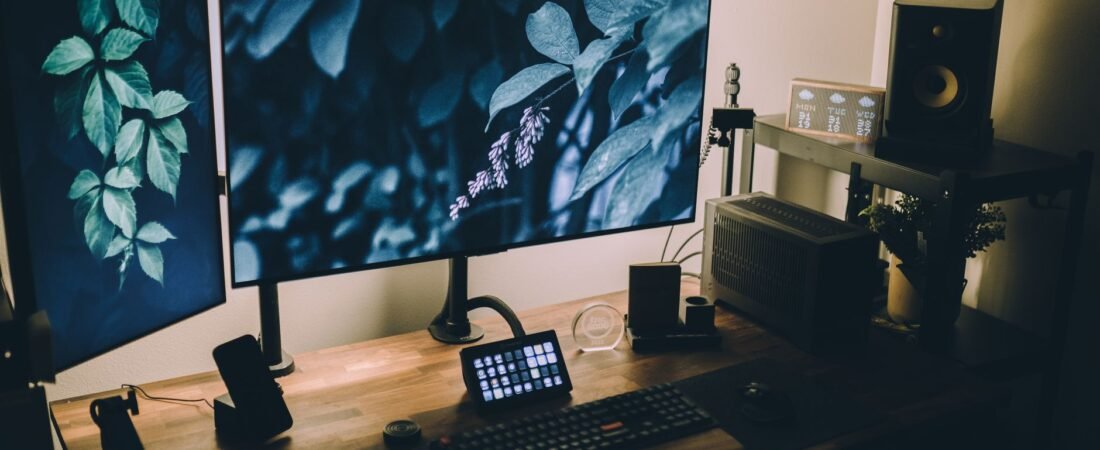
Having two monitors should make doing work much more manageable; however, if you use them and feel awkward using the monitor, you may think that you need an even larger desk, a more expensive chair and/or a completely different pair of screens. This usually isn’t the case; more often than not, your centre of your work is not aligned properly with your centre of your body. According to OSHA workstation guidelines and some of the university’s ergonomic program, they keep repeating these: Place the screen you use most often directly in front of you, keep the top of the screen at or slightly below eye level; place the screen approximately one arm’s length away from you; and have no glare coming from the window or lamp. If you break any of these rules, you are very likely to have a set-up that will seem contrary to your energy level, although, it may look really good in a picture.
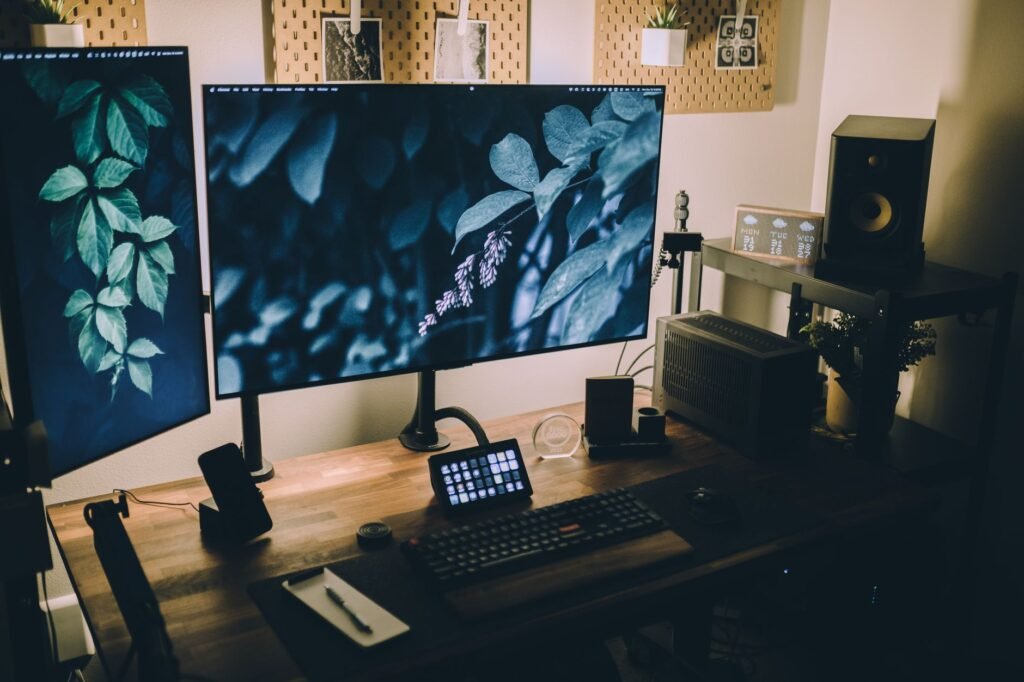
Why dual monitors feel wrong even when nothing looks obviously wrong
The four most common reasons that people fail to set up an awkward situation correctly are; first, the primary display is not located directly in front of your face. Second, the keyboard and mouse are straight out from the top edge of the desk instead of the middle of your main job task. Third, the two display units are at completely different heights and distances, or even at different angles too. Finally, the light source is creating a glare on the display, making it harder for you to see what you are seeing, which also causes your neck and shoulders to change their positioning in order to compensate for the stress being put on your eyes due to the funny-looking projection from that display. What we learn from UCLA with respect to visual Ergonomics is that when you have visual (eye) stress, you will also have physical (neck and shoulder) stress as well. If your eyesight is trying to see something and doesn’t like what it is seeing, both your neck and shoulders will begin to make poor decisions based upon visual input received by your eyes.
As such a result, many people use broad phrases to describe an awkward setup: “I can work with it, but there is no sense of being settled.” This sensation is generally caused by many minor readjustments. For example, you lean forward to read the first monitor. You turn slightly to your left for your main task. You stretch to access the mouse due to the secondary monitor taking space on the desktop. Individually, none of those motions seems particularly large. However, over the duration of an entire workday, those motions can easily create a situation where your two-monitor workstation appears less efficient than your single-monitor workstation.
Start with the 70-50-30 Layout Rule
The plan I’m about to give you is gonna be a simple framework that can be used in less than one minute. I refer to this as the 70-50-30 Layout Formula. It’s all about having your info on the correct screen as opposed to having it perfect. That is, you should place your information in its proper position before doing anything else.
- 70: If one screen gets about 70 percent or more of your workday, center that screen with your nose, keyboard, and chair. The secondary screen becomes support space, not shared center space.
- 50: If your use is close to 50/50, put the seam between the monitors at your midline and keep the pair in a shallow V so you turn your head less.
- 30: If one screen is secondary, angle it inward about 30 degrees instead of leaving it flat and far out to the side.
- Bonus rule: Build around your longest daily task, not around the prettiest symmetrical setup. Symmetry looks clean on a desk. It is not always the most comfortable working position.
This has been consistent with UC Davis and also with UC guidance regarding dual screen displays, where the primary display is in front of the user (at least pointed toward them) when only one display is being used or both displays are being used equally – where one is in the center aligned with the keyboard and the other is in an equal position – side-by-side. The single decision of where the display(s) are positioned makes up for the majority of complaints about “my setup feels off.”

Use this decision table before you buy anything
| Your work pattern | Best layout | What usually feels wrong when it is misaligned | Lowest-cost first fix |
|---|---|---|---|
| One main screen, one support screen | Center the main screen and keyboard; angle the second screen inward to the side | Neck turns toward the main screen all day; mouse feels too far away | Re-center the primary screen and pull the secondary closer |
| True 50/50 use of two same-size monitors | Center the seam between the screens; keep both close and slightly angled | You keep twisting farther than expected because the monitors are spread too wide | Tighten the V shape and reduce the gap |
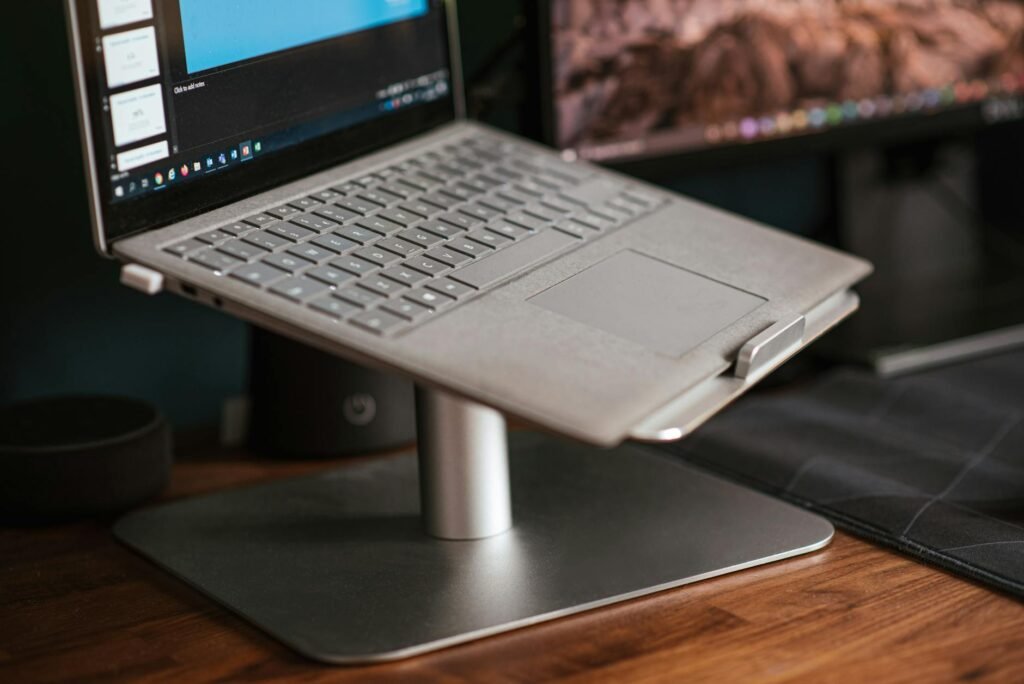
| Laptop plus external monitor | Use the external display as primary; raise the laptop if you need it often | One screen is low, one is high; eyes and neck keep changing levels | Add a laptop stand or books plus an external keyboard and mouse |
| Different monitor sizes or heights | Make the better, more-used screen primary and demote the other to occasional tasks | Equal use feels awkward because the visual centers do not match | Stop treating them as equal; use one as the clear main screen |
| Shallow desk or oversized displays | Prioritize one centered screen, or simplify to one larger display | You lean forward or feel visually crowded even when posture is good | Increase viewing distance with an arm, deeper placement, or fewer active screens |
The fastest reset: a 10-minute awkwardness audit
- Sit back fully in your chair. Put your feet flat and let your shoulders relax before you judge the layout.
- Decide which screen gets most of your work. Do not answer based on which screen is newer or prettier. Answer based on time spent and visual focus.
- Line your nose, keyboard, and main screen up on the same centerline.
- Set the top of the main screen at or slightly below eye level. University of Iowa and Pittsburgh guidance both frame this as a neutral neck position, not as a decorative desk choice.
- Place the screen around an arm’s length away, then adjust slightly for text size and comfort. If you keep leaning in, increase zoom before you pull the monitor uncomfortably close.
- Angle the secondary display inward. A small angle reduces head turning more than most people expect.
- Check glare. OSHA recommends placing the screen at right angles to windows and light sources and keeping task lighting from reflecting off the display.
- Work for 20 minutes. If you still drift toward one side or lean forward, the setup is not finished yet.
A realistic example: fix the layout before replacing the monitors
Imagine a composite situation where a remote bookkeeper is working at an environment with a 48-inch desk and two, 24-inch monitors. The remote bookkeeper spends approximately 75 percent of the day in spreadsheets or accounting software on the left monitor. The right monitor has email, chat apps, and numerous browser tabs. The desk was arranged symmetrically, with the gap between monitors being directly in front of the chair and keyboard, which was centered on that gap.
By lunch, the worker’s head had turned slightly left for most tasks, the mouse had drifted too far right, and the right shoulder felt tight from reaching around the keyboard. The first impulse was to replace both monitors with a large ultrawide that might cost around $500 in a hypothetical budget comparison. But the cheaper test came first: move the left monitor to center, angle the right monitor inward, bring both screens a few inches closer, and add a basic dual arm for about $90 in this example. If a laptop stand or riser were also needed, total cost might still stay near $120 to $140.
Though the reset process doesn’t create an additional pixel for the screen; it eliminates micro-twisting (of constant nature) from your screen. The correct progression to determining if my monitor can support a comfortable configuration (in terms of costs) would be first testing the layout; accessories; then replacing hardware only after I have verified that my monitor cannot support a comfortable configuration.
What to change first, in the order that usually works
- Choose the primary screen based on actual use. If one display handles your core work, make it the center of the setup.
- Move the keyboard and mouse with the screen. Many people reposition the monitors and forget the input devices, which leaves the shoulders and wrists doing the compensating.
- Correctly set up screen height next. Your upper monitor should be positioned so your body can maintain an appropriate “neutral” head position, the top edge of the computer monitor should be at or below eye level for the majority of users; the setup may be different for those who use bifocal or progressive lenses, as their computer monitors will need to be positioned lower on the screen.
- Fix distance before blaming the monitor size. If the display is readable only when you lean in, increase text size, resolution scaling, or app zoom before deciding the screen must be closer.
- Control light. Shift the desk, close blinds, move the lamp, or change the angle of the panel before you buy anti-glare accessories.
- Only after that should you spend money on tools like a monitor arm, laptop stand, riser, document holder, or replacement display.
Informational only: Desk discomfort can have medical causes. If you have persistent pain, numbness, tingling, frequent headaches, or vision changes, consider an eye exam and a qualified medical or ergonomic evaluation.
Common mistakes that make a decent setup feel bad
- Centering the gap between monitors when one screen clearly gets most of the workday.
- Treating a laptop and a full-size monitor as equal screens even though their heights and viewing distances are different.
- Pushing both monitors too far outward in pursuit of a wide, dramatic desk look.
- Raising screens without adjusting tilt, which can encourage a forward-head position on lower-mounted displays.
- Letting the mouse sit far outside your comfortable reach because the monitors and speakers took over the middle of the desk.
- Ignoring glare and brightness mismatch, then trying to solve eye strain with posture alone.
- Buying a new monitor first before checking whether the desk depth, keyboard position, and viewing angle are the real problem.
When a layout fix is not enough
At times, it’s not bad habits that create the awkward experience for someone but rather, a work setup that is not physically able to function in a comfortable way. When using large monitors on shallow desks, you may find the monitors end up visually close to each other; using a taller external display and a laptop could cause your vision to be moving up and down frequently; when wearing progressive lenses, height recommendations for the monitor at that particular distance might seem wrong; and some occupations may do better when you have one main display in the center plus an additional occasional reference screen versus having two equal working zones.
- If your desk is too shallow, a monitor arm may buy you needed distance without replacing the desk.
- If your two screens are mismatched, stop forcing equal use and designate one as clearly primary.
- If you mainly use one app at a time, one larger centered monitor may be more comfortable than two separate displays.
- If you keep referencing paper or a tablet, a document holder or tablet stand may solve the real problem better than a third screen.
- If symptoms continue after a careful reset, ask for a professional ergonomic assessment instead of making random gear purchases.
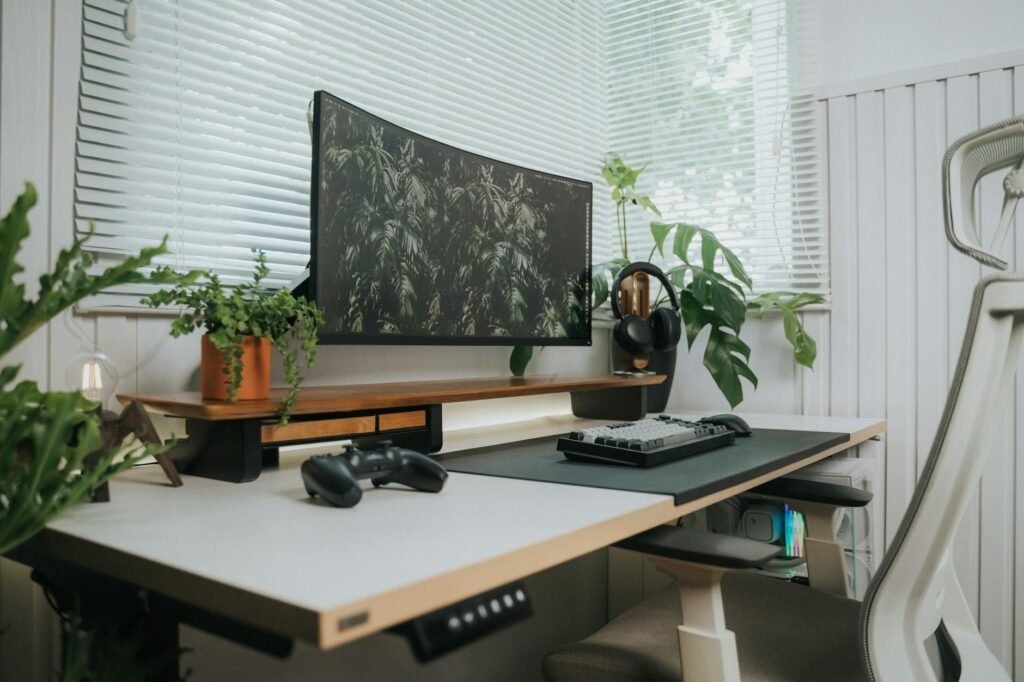
How to verify the fix instead of guessing
In normal day-to-day work, utilize a simple pressure test for 3 consecutive work days. Each day take a photo of yourself performing your job from the side and rear, not posed. The photo of your side view must be neutral – that is, your head must be resting at a neutral position, not pushed forward. In the rear view photo, you must not be twisted towards the screen that has the most of your work.
- At the end of each session, rate neck tension, shoulder tension, and eye fatigue on a simple 1 to 5 scale.
- Notice whether your primary tasks happen with eye movement only or require frequent full head turns.
- Check whether you are leaning forward to read. If so, fix text size, distance, or glare before changing the entire layout again.
- Watch your mouse hand. If the elbow keeps floating away from your body, your input devices are still in the wrong place.
- If scores are not improving after several normal work sessions, simplify the setup or get outside help.
Bottom line
An unbalanced dual-monitor setup frequently means that the way you have it set up is counterproductive to how you are working. The answer is typically not just “buy more screen”; it is generally setting up a primary or true main monitor, anchoring your body and key board directly to that work area, angling the other monitor towards you, positioning it at an appropriate distance and height to keep your neck in a neutral position, and removing any glare on either monitor. Following the 70-50-30 Layout Rule is a great first step. Testing the layout over a few work sessions is suggested prior to spending money on anything else as an improvement.
FAQ
Should both monitors be centered in front of me?
Only if you truly use them about equally. If one screen handles most of your work, center that screen and place the second one beside it at an inward angle.
Is it okay to use a laptop as my second monitor?
Yes, but it often feels awkward if the laptop sits much lower than the main display. If you use the laptop often, raise it and use an external keyboard and mouse.
How far away should dual monitors be?
A practical starting point is roughly an arm’s length, then adjust for text size, vision needs, and comfort. If you keep leaning in, try larger text or scaling before moving the screen too close.
Do monitor arms actually help, or are they just desk clutter?
If you’re having problems with height and depth or getting two monitors closer together on your desk, they provide a lot of assistance. However, if the true issue is simply that you don’t have a monitor centered or your keyboard and mouse aren’t positioned correctly, the assistance they provide is limited in this case.
When should I give up on dual monitors and switch to one screen?
If your desk lacks depth, your screens don’t match well together; you typically use one app at a time; and when you’ve finished properly resetting everything and have also tried out the new setup for about 5 days, there could be a potential for further adjustments, however minimal.
References
- OSHA eTools: Computer Workstations
- OSHA eTools: Computer Workstations Evaluation Checklist
- OSHA eTools: Workstation Environment
- UC Davis Safety Services: Dual Monitor Setup
- University of Iowa liveWELL: At-Home Ergonomics
- University of Pittsburgh: Posture At Your Workstation
- UCLA Ergonomics: Eye Discomfort