
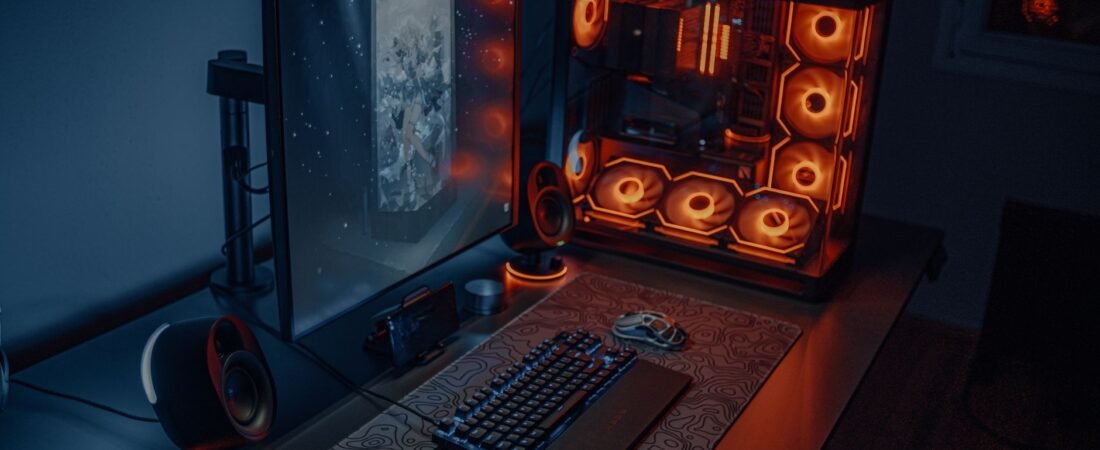
If your setup looks cheaper than the money you have already put into it, the problem usually is not the PC. It is the room, the lighting, the cables, the desk surface, and the number of things competing for attention. The good news is that these are usually much cheaper to fix than replacing a tower, GPU, or monitor. That approach also lines up with EPA guidance, which suggests considering hardware or software upgrades instead of buying a brand-new computer when possible. (epa.gov)
TL;DR
- A premium setup is mostly about visual discipline: fewer visible cables, calmer lighting, matched finishes, and better spacing.
- Use the Three-Second Premium Test before you buy anything. If the setup looks messy at first glance, new accessories will usually add more clutter.
- For most people, the best first dollars go to cable cleanup, a large desk mat, indirect LED lighting, and monitor positioning.
- If you buy used or open-box accessories, verify return policies, check actual item photos, and do not trust reviews blindly. (consumer.ftc.gov)
This article is for general information, not personalized financial, electrical, or ergonomic advice. If your setup plan involves overloaded outlets, damaged cords, or new wiring, stop and talk to a licensed electrician.
What actually makes a setup look expensive
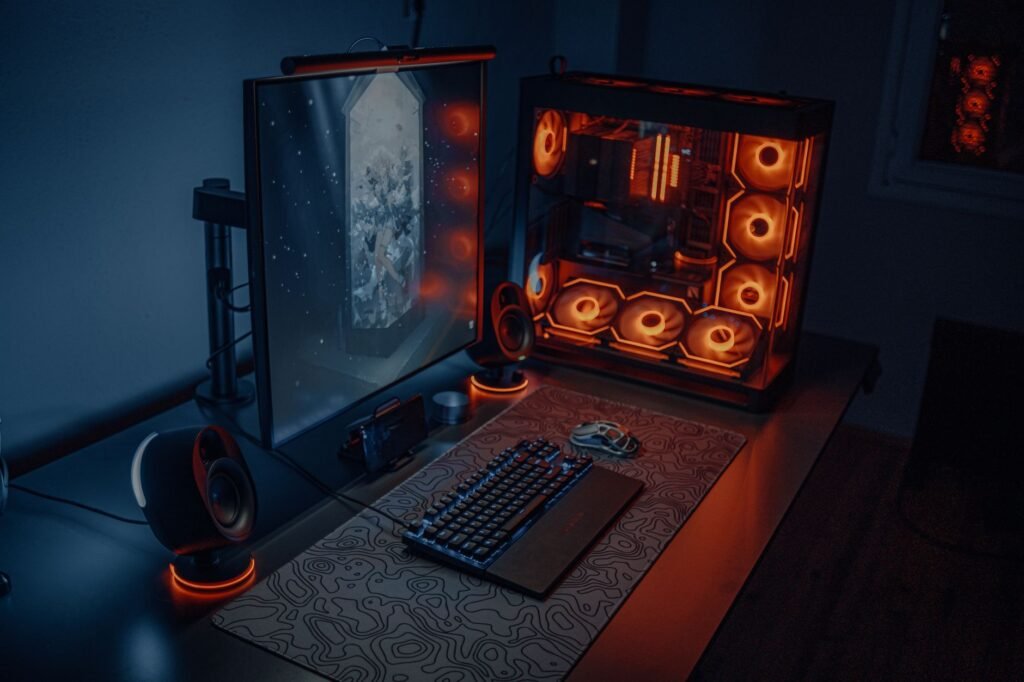
Although a PC may be a middle-of-the-road computer, its high-quality appearance will still have certain commonalities with other high-end concerns. For example, all high-end companies will typically use the following: simple sightlines; one cohesive lighting plan; a limited colour scheme; and minimally occupied desks (allowing eyes to relax). To sum it up, luxury appearance is achieved through elimination rather than addition of components.
- Hide the mess first. A visible tangle of cables instantly lowers the perceived quality of the whole desk.
- Pick one lighting direction. Indirect backlighting or one lamp usually looks better than several competing RGB sources.
- Keep one dominant finish. Matte black, white, or light wood can all work. Mixing all three often looks accidental.
- Scale accessories to the desk. A tiny mousepad on a large desk or oversized speakers on a narrow desk makes the setup feel pieced together.
- Leave some empty space. Premium rooms rarely look crowded.
Use the Three-Second Premium Test before you spend
While standing in the door and just looking at the display for 3 seconds, score each area between 0 and 2. If you do not have a high score on the displays, then do NOT buy anything else to decorate yet. First, work on fixing the visual fundamentals.
| Category | 0 points | 1 point | 2 points |
|---|---|---|---|
| Cables | Loose wires are obvious from the front or side | Some cleanup, but a power brick or cable bundle is still visible | No obvious cable clutter from the seated view |
| Lighting | Mixed colors or harsh hotspots | One main light source, but glare or uneven color remains | Soft, indirect light with one consistent color temperature |
| Monitor line | Off-center, too high, or perched awkwardly | Centered but crowded by nearby clutter | Centered cleanly with balanced spacing |
| Desk surface | Crowded, with retail boxes or random gear visible | Partly clear | Mostly clear with one large mat or defined work zone |
| Materials | Too many finishes and colors | Two finishes that mostly work together | One coherent palette across the visible pieces |
| Background | The wall, shelf, or floor behind the desk looks messy | Improved but still distracting | The background supports the desk instead of competing with it |
Score Meaning: 0-5 – Your space needs to be reset (meaning that anything purchased in public view should have something already in place; you may need to do so first). 6-9 – One or two thoughtful updates may improve your setup. 10-12 – Your setup has been designed well as it exists today, but could suffer with further purchases. The last group would benefit more from maintaining than purchasing.
A smart budget beats a new tower
A good rule of thumb is 70/20/10. Put about 70% of the budget toward what the eye notices immediately, such as lighting, surface cleanup, and monitor position. Put 20% toward support pieces that stay visible, such as a monitor arm or small organizer. Use the last 10% for hidden cleanup items, such as Velcro ties, adhesive clips, or felt pads.
Example: a renter with a two-year-old desktop, one 24-inch monitor, and a basic laminate desk gives the setup a Three-Second score of 5 out of 12. Instead of saving for a new PC, they set a makeover cap of $140 and allocate it this way: $18 for a large desk mat, $24 for a cable tray and ties, $26 for a dimmable LED bias light, $42 for an open-box monitor arm, $12 for a headset hook and small drawer tray, and $14 for matching storage bins. Total: $136. The PC does not change at all, but the desk now reads as one organized station instead of six unrelated items.
| Budget cap | Best first moves | What changes visually | What to skip |
|---|---|---|---|
| $25 | Declutter, remove stickers, route cables, add matching ties or clips | Less visual noise immediately | Novelty lighting and desk toys |
| $75 | Add a large desk mat and one indirect light source | Creates one clean surface and one lighting plan | Tiny accessories that multiply clutter |
| $150 | Add cable management, bias lighting, and better monitor positioning | Most people get the biggest premium jump here | Cheap extra speakers, fake carbon-fiber skins |
| $250 | Only after the basics: consider a better chair, used desk, or storage piece | Improves the room around the setup | Replacing a working PC just for aesthetics |
The six changes that usually create the biggest upgrade
- Start with subtraction. Remove product boxes, spare controllers, old mail, and anything that does not belong at the desk every day. Premium-looking setups tend to show only the tools that actually live there.
- Unify the desktop with one large mat. A full-size mat visually combines your keyboard, mouse, and smaller items into one zone, which can make even inexpensive peripherals look more intentional.
- Hide what hangs. Route charging cables under the desk, mount the power strip out of sight if the desk allows, and keep only one charging cable visible on top.
- Fix the monitor before adding decor. A centered monitor with balanced negative space does more for the look than most decorative gadgets.
- Select one temperature for your lighting! A warm-neutral (typically) creates a much calmer look than a combination of blue RGB (ceiling lights) (cool) and white. Use colour as an accent instead of as a primary source of illumination in a room if you’re a fan of it!
- Match the small stuff. A cheap setup can still look polished when the visible organizer, headset hook, lamp, and bins share one finish and one color family.
There is also a practical reason to handle lighting and monitor placement carefully. OSHA says the top of the monitor should be at or slightly below eye level, with the center of the monitor normally 15 to 20 degrees below horizontal eye level. OSHA also recommends reducing glare by keeping direct light sources from reflecting on the screen. For lighting, DOE says residential LEDs use at least 75% less energy and can last up to 25 times longer than incandescent lighting, and DOE notes that dimmers and timers can help save energy and money when full brightness is not needed. (osha.gov)
A good default is one indirect LED source behind the monitor, one general room light, and no second strip unless you can explain exactly what it adds.
Common mistakes that make a setup look cheaper
- Using RGB as a substitute for actual room lighting.
- Keeping the monitor on top of the PC case even when it puts the screen too high.
- Buying several small organizers instead of one clean storage solution.
- Leaving a visible power strip, router, or cable coil in the main desk angle.
- Mixing glossy white, faux wood, carbon-fiber vinyl, and matte black finishes on one small desk.
- Overfilling shelves with collectible boxes and then calling it minimalist.
- Keeping a tiny mousepad on a wide desk, which makes the scale feel off.
- Buying a second decorative item before fixing the first obvious problem.
When cleanup is not enough
Sometimes the desk is not the real problem. If the room is dark in the wrong places, the desk is too shallow, or the background is chaotic, no amount of small accessories will make the setup look expensive. At that point, the right answer may be one larger fix, not five smaller ones. OSHA says monitors should be directly in front of you and at least 20 inches away, so a cramped desk can be both unattractive and uncomfortable. (osha.gov)
- If the desk is too shallow, a monitor arm can buy you space before you replace furniture.
- If the wall behind the setup is busy, a simple curtain panel, framed print, or single shelf can calm the background more than another desk accessory.
- If the floor area is the mess, closed storage usually looks better than open baskets.
- If the laminate top is scratched or peeling, a desk mat or vinyl surface cover can be a reasonable bridge until the desk itself needs replacement.
- If the power situation requires extension cords running across the room, solve that first. A prettier setup is not worth a worse safety layout.
How to buy accessories without wasting money
- Buy in this order: cleanup, lighting, monitor position, then decor. If you reverse it, you will often spend more and like the result less.
- When shopping on a marketplace, read the seller terms, shipping costs, and return policy before checkout. FTC guidance also says to look for actual item photos, not just stock images, and to treat labels such as refurbished, used, as-is, or close-out as signs that the item may not be in top condition. (consumer.ftc.gov)
- Pressure-test reviews. The FTC warns that some reviews are fake, deceptive, or manipulated. Check multiple sources, look for strange bursts of recent reviews, and be skeptical of products that suddenly have hundreds of nearly identical ratings. (consumer.ftc.gov)
- Consider used, open-box, and reuse-friendly options for noncritical items such as monitor arms, desks, lamps, and storage. EPA guidance to consider upgrades instead of buying brand-new electronics is a useful mindset for this whole project. (epa.gov)
- Keep a one-in, one-out rule for visible accessories. If a new lamp, speaker stand, or decor item comes in, remove one other thing from the desk.
How to pressure-test the makeover
- Take two photos before you buy anything: one from the doorway and one from your seated position. Those are usually the angles that reveal clutter and poor cable routing.
- After the reset, repeat the Three-Second Premium Test. If the score did not rise by at least two points, the money probably went to the wrong category.
- Sit for a normal 30-minute session. If the new look forced the monitor too high, too low, or into glare, the setup is less successful than it appears in photos. OSHA recommends keeping the top of the screen at or slightly below eye level and the display away from reflective glare. (osha.gov)
- Turn the room lights on and off. Good setups still look balanced in both daytime and nighttime conditions.
- Count visible cables from the front. If you can still see three or more, cable management is probably not finished.
- Check the power path. CPSC warns that overloaded extension cords and power strips can create a serious fire hazard, and its guidance says extension cords should be used only when necessary and on a temporary basis. (cpsc.gov)
Do not chase a premium look by daisy-chaining power strips, hiding damaged cords behind furniture, or running permanent desk power through a temporary extension cord. That is a safety problem, not an aesthetic trade-off. (cpsc.gov)
Bottom line
If you want your gaming setup to look premium, start by assuming the PC is not the problem. Clean the sightlines, control the lighting, improve monitor placement, and cut visible clutter. That is usually cheaper, safer, and more durable than replacing working hardware, and it matches the broader EPA advice to consider upgrades before buying brand-new electronics. (epa.gov)
FAQ
Should I buy a monitor arm or a desk mat first?
Fix any major issues with your monitor being positioned incorrectly; too high, asymmetric, taking up too much deep. Then, consider using a large desk-mat as it offers an inexpensive way to visually unify your desktop quickly.
Are RGB lights always a bad idea?
No, they tend to provide more visual appeal when used as an accent light versus being the only light source in a room. If your desk is glowing brightly but your face, walls, and keyboard are all black, the result will tend to be perceived as being less expensive than if it had been lit properly.
Is buying used or open-box setup gear worth it?
Often, yes, especially for desks, monitor arms, lamps, and storage. FTC guidance says to review seller terms, shipping fees, and return policies, and to inspect actual photos of the item when shopping on a marketplace. (consumer.ftc.gov)
Can I keep using an extension cord behind the desk permanently?
Treat that as a warning sign. CPSC says overloaded extension cords and power strips can pose a fire hazard, and extension cords should be used only when necessary and on a temporary basis. (cpsc.gov)
Will LED lighting make a noticeable difference in cost?
For most desk setups, the bigger gain is not dramatic monthly savings but better-looking light with lower energy use and longer life. DOE says residential LEDs use at least 75% less energy and can last up to 25 times longer than incandescent lighting. (energy.gov)
If I leave a screen saver or a paused game running for the vibe, does it save power?
No. ENERGY STAR says a screen saver does not save energy, and many games left running in the background can keep a computer from going to sleep even when paused. Sleep settings are the better move if you care about appearance and power use. (energystar.gov)
References
- EPA: Electronics Donation and Recycling – https://www.epa.gov/recycle/electronics-donation-and-recycling
- DOE: LED Lighting – https://www.energy.gov/energysaver/led-lighting
- DOE: Lighting Controls – https://www.energy.gov/energysaver/lighting-controls
- CPSC: Power Up With Safety – https://www.cpsc.gov/s3fs-public/ExtensionCordsPowerStrips.pdf
- CPSC: Extension Cords Business Guidance – https://www.cpsc.gov/Business–Manufacturing/Business-Education/Business-Guidance/Household-Electrical-Products/Extension-Cords
- OSHA: Computer Workstations – Monitors – https://www.osha.gov/etools/computer-workstations/components/monitors
- OSHA: Computer Workstations – Workstation Environment – https://www.osha.gov/etools/computer-workstations/workstation-environment
- FTC: How To Evaluate Online Reviews – https://consumer.ftc.gov/articles/how-evaluate-online-reviews
- FTC: Buying From an Online Marketplace – https://consumer.ftc.gov/articles/buying-online-marketplace
- ENERGY STAR: Computers – https://www.energystar.gov/products/computers