
Start with the monitor's display; don't start with a Windows reset. First, check the monitor's input and cables. Windows+Ctrl+Shift+B resets the graphics driver and may restore the picture. Once there is a picture, the most common repair is to roll back the graphics driver. Treat the timing of the failure as a clue, not as proof, of a failed GPU or Windows installation.
If another visible screen shows that the installer is still working, let it finish. AMD documents brief image loss during installation. Darkness that persists after completion needs investigating, but a blink alone isn't a reason to cut the power. There's no useful universal five-minute deadline here.
What does the screen actually show?
Picture me, in an example, crouching behind my desk and using my phone's flashlight to check my monitor. At this point, I really don't want to have to reinstall Windows, and I'm already kind of irritated at the lack of picture and the annoying blank screen. However, the monitor says “No signal.” Not “Windows failed” as I had previously thought. Now I'm relieved and feel less irritated, and I put my repair plan aside.
- If a monitor says “No signal,” it isn't getting a usable video signal on its input. It doesn't necessarily mean Windows has failed.
- A completely black screen with a mouse pointer: Some video is reaching the monitor. It may be worth investigating the cable before concluding it's a bad cable.
- The Windows startup is displaying an image: that doesn't mean that the video driver, display mode, or Windows startup is not all failing.
- LogoMissingCompletely: don't forget to consider both display-path and startup issues. A missing logo by itself does not mean the PC passed the hardware checks.
Fans and lights do not prove that the PC has loaded into Windows. I'd rather have a visual response than a soothing hum.
Try the checks that don't change your files
For “No signal,” start with the monitor's own menu: select the input matching your cable, such as HDMI or DisplayPort, and reseat the external cable at both ends. With multiple displays, try just one. If you're using a dock or adapter, a direct connection to a compatible PC video output removes that extra link from the problem. On a desktop, keep the monitor connected to the graphics card rather than moving it to a motherboard port that may not provide video.
Borrow a known-working cable or use another available monitor if you can. I wouldn't buy replacements yet. A working direct connection gives you a route back into Windows, but it doesn't by itself prove that the dock or cable is defective.
If you can hear Windows loading in the background, try Windows+Ctrl+Shift+B (beep). Then try Ctrl+Alt+Del to access the Security screen. This can take you to a Power menu to restart Windows. If you don’t hear beeps or see a flicker, try projector check, Windows+P, then P and Enter. If you don’t see anything, try the next shortcut, pause to look for a picture, and try not to cycle through them blindly. No feedback from the shortcuts doesn’t mean that Windows hasn’t loaded or your GPU has failed.
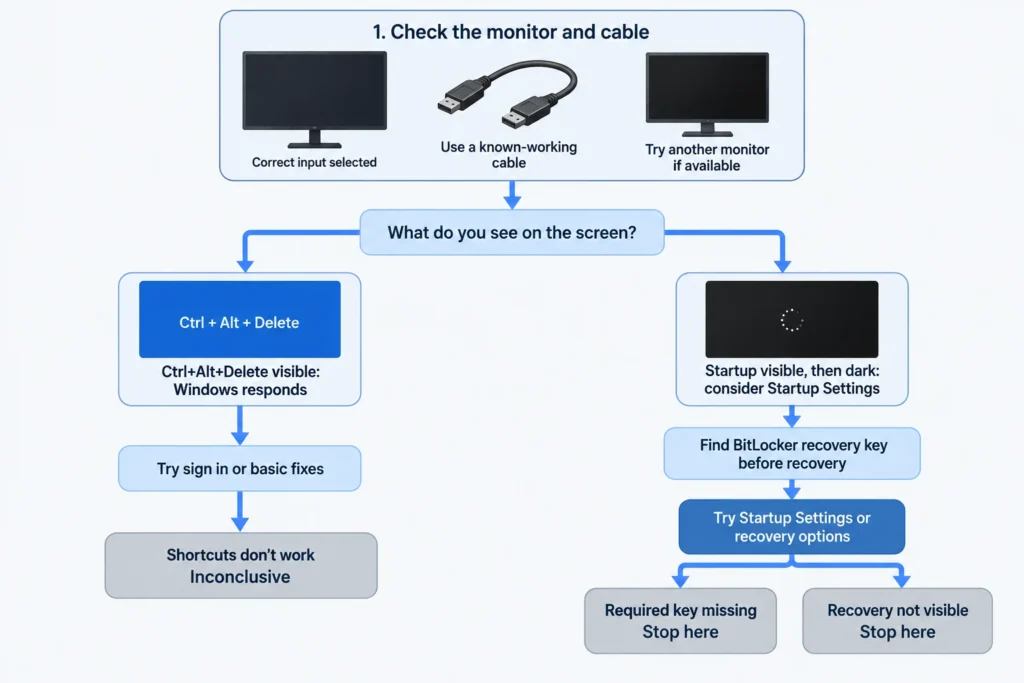
If Ctrl+Alt+Delete brought up a cursor, that means video is getting through but Windows may not be loading all the way. Try restarting Windows Explorer by going to Task Manager and clicking on it, or if it isn’t listed, choose Run new task and type in “explorer.exe.” If your desktop loads, check the Windows shell before replacing the cable.
Before recovery, find your BitLocker key
Before restarting into recovery, locate your BitLocker recovery key if the PC is encrypted. Recovery tools and Startup Settings can request it, and I'd rather you find it on your phone now than discover you're locked out halfway through the repair. Look for the 48-digit key in the Microsoft account associated with the PC, a saved file, a printout, or your work or school organization's records. If a prompt appears, match its recovery key ID to the saved key.
If you can reach the sign-in screen or desktop, hold the Shift key, then select Restart from the Power menu. You will be brought to the Windows Recovery Environment. Select Troubleshoot, Advanced options, then Startup Settings and Restart.
If Windows never becomes visible and you only see the startup logo, Microsoft has a last resort method. You must hold the power button down to shut the computer off at the startup logo. Repeat this procedure two times and the third time, it should go to Automatic Repair. If you don’t see Advanced options, don’t try this. Interrupting a Visible firmware/Windows update can cause an unexpected shutdown and lost data, so this isn’t a workaround to keep trying. If recovery is still not visible, stop.
Low-resolution video and Safe Mode test different things
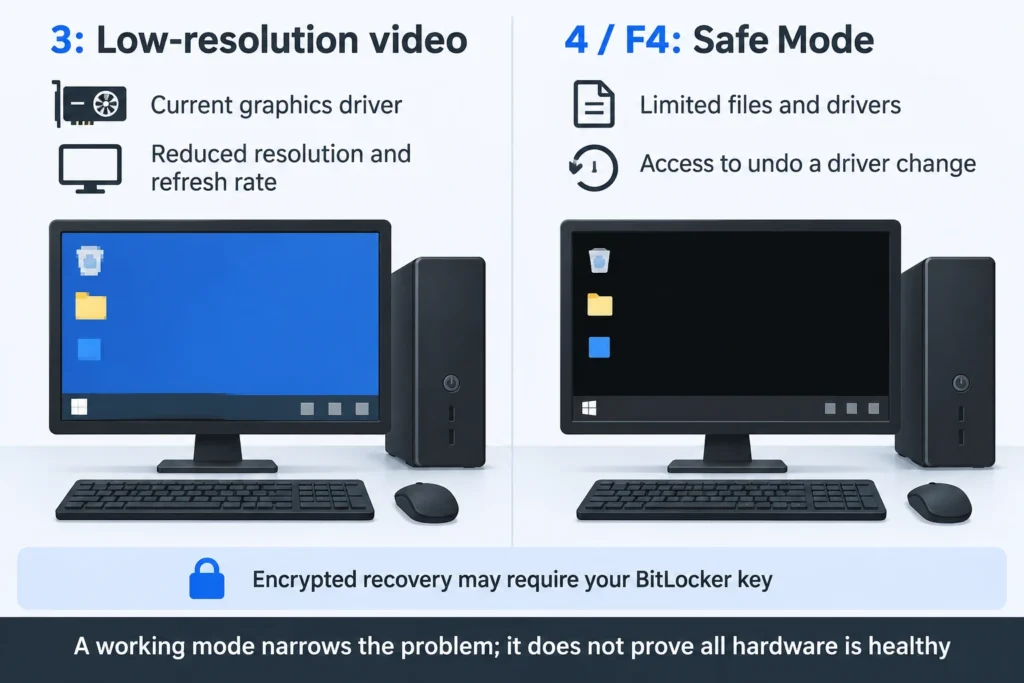
Option 3 in Startup Settings is to enable low-res video. The graphics driver stays in use, but resolution and refresh rates get lowered. Try this if you can see the startup screen but then lose the picture while Windows adjusts display modes. If it works, you can set the resolution as needed.
OPTION 4, or F4, starts Safe Mode with a limited set of files and drivers. This is what you want when you need to undo an update. You need to know the differences. Low resolution video, for example, tests a less demanding display mode with the current drivers, while Safe Mode changes the startup environment. Neither test proves that the whole GPU is healthy.
Undo the specific driver change first
If Windows is accessible, I'd undo the specific change before widening the repair. Open Device Manager > Display adapters, open the adapter you updated, go to Properties > Driver > Roll Back Driver. Finish the process and restart normally. You will need administrator permission. If both integrated and dedicated graphics appear, that isn't a reason to remove both drivers.
A Roll Back Driver button being grayed out means that Windows doesn't have a copy of an older driver. You can obtain the older driver from the GPU or PC manufacturer. I'd start with the exact model of the PC/Laptop, because generic packages can affect OEM customizations. Make sure to match the GPU and version of Windows. Don't ignore warnings when installing drivers, especially Intel's DCH versus Legacy. Without knowing your model and driver version, I can't say what the right driver package is.
Microsoft also documents selecting Uninstall device in Device Manager and restarting so Windows attempts to reinstall the driver. That's not rollback, it may bring back the same version. This is why I wouldn't begin with third-party cleanup utilities or driver updaters while a targeted official repair is available: the goal is to undo one change, not make several more.
If driver repair is not available or does not work, then a restore point before the update gives a broader way back. In recovery, select Troubleshoot > Advanced Options > System Restore and review the programs affected. System Restore changes system settings and can uninstall or remove drivers and apps. Personal files are not changed. You will need to provide a restoration point and if required your BitLocker key. You need to be aware that this is System Restore and not a reset of the PC.
What counts as fixed, and when to stop
Getting a normal restart to a usable desktop is progress. Use that opportunity to back up important files. then reconnect extra displays one at a time to test their resolution and refresh rate. If darkness returns with only one connection or display mode, you have progress to work with. Don't lose that progress by making random changes to different drivers.
If a known working display path still shows neither the starting up or recovery process, don't try repair options blindly. Use the PC manufacturer's model-specific no-video diagnostics, or request service and note if a startup logo was observed and which connection checks were made. I can't do a data-preserving repair from this symptom when you can't see the recovery process and a required encryption key is missing. Pause there. A screen you can't see is not a reason to erase Windows.
Sources and references
- Microsoft: Troubleshooting blank screens in Windows
- Microsoft: Windows startup settings
- Microsoft: Windows recovery environment
- Microsoft: Find your BitLocker recovery key
- Microsoft: Update drivers through Device Manager in Windows
- Dell: Resolve No Power, No POST, No Boot or No Video Issues
- AMD: Install AMD Radeon Software on Windows Based System
- Dell: How to Fix Multiple Monitors Not Being Detected (2026-09-17)
- Intel: How to Roll Back a Driver to a Previous Version in Windows 10 and Windows 11 (2025-02-05)
- Intel: Graphics Driver Installation Error: Your system has a driver that is locked to manufacturer specification (2024-09-04)
- Microsoft: System Restore