
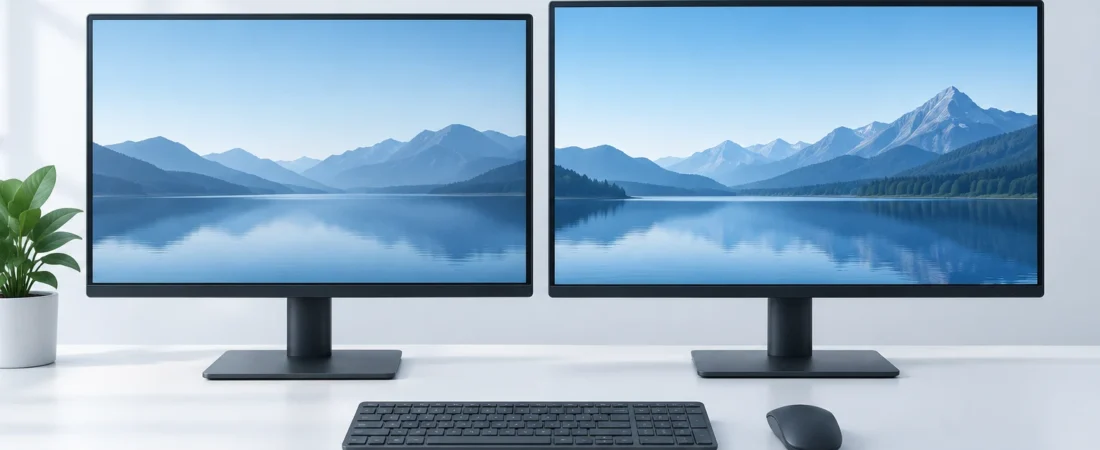
Different scaling percentages are required for different monitors. Generally speaking, try to keep your displays set to their native resolutions and adjust Scale accordingly. Also, just because two settings appear to have the same scaling percentage, doesn’t mean you should put them there. If you have to sacrifice the legibility of text to get two settings to appear to agree, don't do it. If one app looks blurry or awkward on both of your monitors, the issue may lie with the app and not your displays.[1][3]
Imagine I’m answering an email on a dense screen while keeping a reference document on an older monitor. Both say 100%, but I keep leaning toward the email to read its toolbar. That’s an irritating price for matching numbers. I’d enlarge the main screen’s interface and judge the result by the work, not the settings’ symmetry.
The percentage doesn’t tell you the physical text size
Pixels make up a resolution and a display can be physically large with a high resolution. A monitor can be smaller with a lower resolution, but have the same pixel density. Different monitors of the same resolution can render text and other on-screen elements at different sizes, even when both monitors are scaled to 100%.[2]
Here’s a useful starting comparison: two 27-inch, 16:9 monitors, one 2560 × 1440 and one 3840 × 2160. The 4K panel has 1.5 times the pixel density: 3840 ÷ 2560 = 1.5. So 100% on the 1440p screen and 150% on the 4K screen should give approximately similar physical interface sizes in scaling-aware apps at the same zoom. That’s a calculation, not a guaranteed preference, or a promise of identical sharpness.[2]
To adjust your screen size or position in Windows 11, go to Settings > System > Display > Identify, select the screen, and then select Scale & Layout. Resolution should be set to the Native value (usually Recommended) and a scale percentage should be chosen. Setting resolution to something other than native can decrease the quality of the text.[1][8]
A size change and a blur problem aren’t the same thing
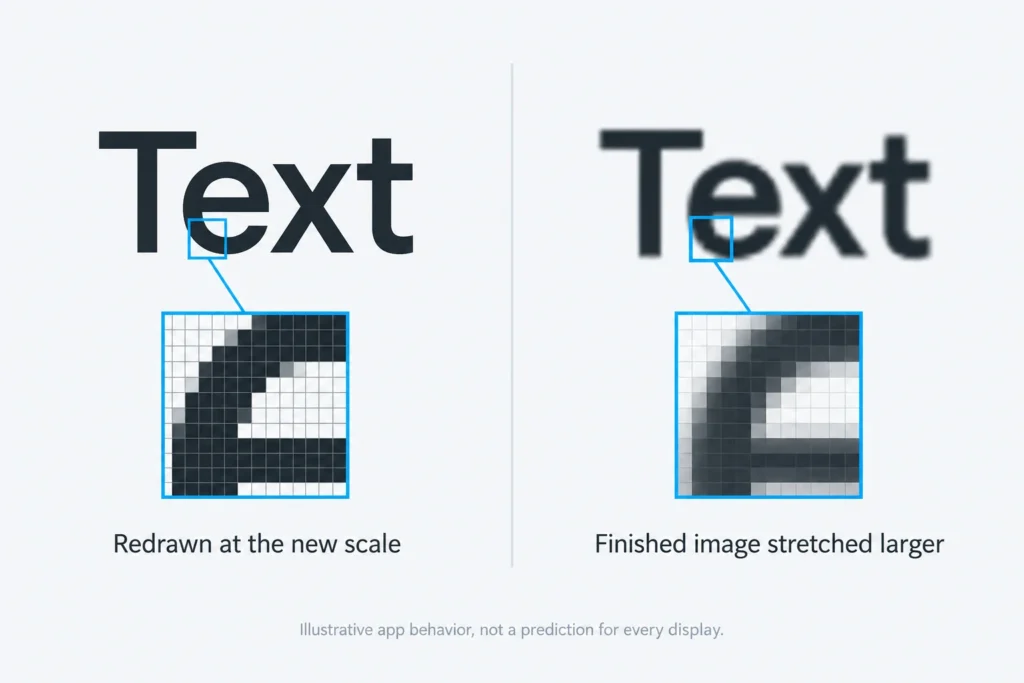
A window changing size as you move it isn’t automatically a fault. A per-monitor-aware app can redraw its text and controls for the destination screen, changing its pixel dimensions to suit that screen’s scale. I’d look at whether the letters remain sharp and the controls usable, rather than whether the window keeps exactly the same dimensions. If it straddles both screens, it generally uses one display’s scale, not a different scale for each half.[3]
Blur is a different clue. DPI-unaware apps draw at a fixed base scale, while system-aware apps generally use the primary display’s scale established at sign-in. Windows may then stretch the finished image to accommodate another scale: the letters get bigger, but they don’t gain freshly drawn detail. That’s why readable size and crisp text can come apart. Older utilities often have this limitation, though age alone doesn’t tell you what an app supports; even separate windows within one app can behave differently.[3]
Compare the troublesome app with Windows itself
With document zoom level set where you need it, switch between the settings windows to see if any issues appear. If the Settings app maintains sharpness, while the other app blurs and controls become cramped, then it is likely an issue with the other app. If Settings and the other unrelated apps all blur, then it is likely an issue with the monitors. Try setting the resolution of both displays to their native resolutions again, and see if a different display adjustment is needed.[1][3]
Save your document, close the app completely, and open it on the monitor you want to use it on. Then compare how the app behaves. A good result would be for the blurriness to go away, but that doesn't necessarily mean true per-monitor scaling is supported. Some apps can be designed to maintain the primary display's scale factor for the session. Try signing out of your account and signing back in to see if that changes scaling for apps that are behaving weirdly. A restart is not always successful. Different percentages don't mean you made a mistake.[3][4]
Keep the compromise where it costs you least
I wouldn't use a generic high-DPI override because it helped with another application. One example is that Classic Outlook offers Best and Worst Appearance and Compatibility modes under File > Options > General. Compatibility mode disables dynamic scaling and can help with older Add-ins, but can leave Outlook blurry on a Secondary display. Photoshop has an option to enable per-monitor scaling, however Adobe states that Windows high-DPI overrides are unsupported and can misalign interface elements. So, in this case, you are making a different kind of trade-off.[5][6][7]
Keep in mind the display where you do the most work, and set it to the text and menu size that works best for you. If an application works best in that mode, I'd say keep it there. If other applications are more flexible, I'd place them on the other display. You can always make space for one application on your primary display instead of buying a second monitor. The percentages don't need to agree, they just need to be useful to you.
Sources and references
- Microsoft: Change your screen resolution and layout in Windows
- Microsoft: DPI and device-independent pixels
- Microsoft: High DPI Desktop Application Development on Windows (2026-09-10)
- Microsoft: Make text and apps bigger
- Microsoft: Outlook options (General)
- Adobe: High-density monitor support and per-monitor scaling (2026-02-23)
- Adobe: Windows 10 | High DPI scaling issue (2023-05-24)
- Microsoft: Make Windows easier to see