
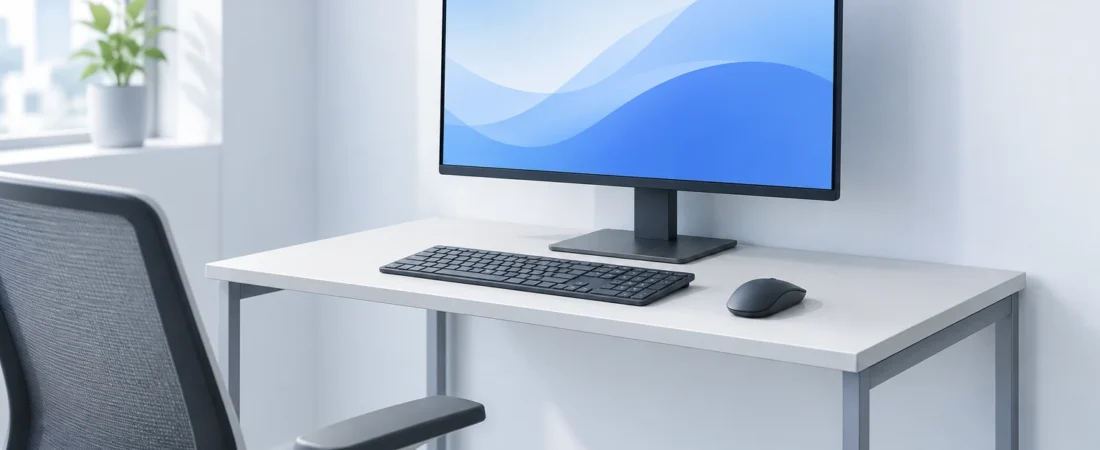
You can generally keep your full-size keyboard as long as the layout still allows your hands to be in a natural position, and as long as your actual mouse movements and an comfortable distance from the screen are still satisfied. Generally, I’d recommend moving your existing equipment around to see what works best for you. A keyboard tray moves the inputs off the desktop and an arm removes the monitor base, but neither automatically increase the distance from the screen. A narrower keyboard would mostly buy width.[1][2][3][8]
Imagine me nudging the side of the keyboard to the left to move the number pad out of the way of my mouse. The typing keys are then off to the left, and pulling the monitor forward only makes the screen feel closer. I’d be annoyed enough to stop shuffling things and get a tape measure. The number pad has not become the enemy; I’m trying to address two space issues with one move.
Measure what you use, not just the desk
To help you visualize your space, sketch the equipment from the front. For the monitor base, draw it as if it were standing separate from the screen. Dell’s P2425H/HE for example, has a base that is 249.80mm (about 9.83 inches) wide, but a front-to-back base depth of 177.00mm (about 6.97 inches). You wouldn’t want to misread the dimensions and distort your space budget.[4]
- To ensure you’re measuring the space you actually use, check where the stand interrupts that space. An irregular base may leave some space to the side that may be usable.
- Operating Width: Measure with a keyboard, then use your mouse in your normal, everyday work and gaming. Mark the area swept by the whole mouse, not just the size of its body or mouse pad.
- Rear clearance: Account for bends in the cord, connected wall plugs and the space between the desk and the wall. Don’t account for space that would force the cord against the wall or crush a plug.
- Viewing distance: Measure from your eyes to the front surface of the screen, while sitting at your normal typing position.
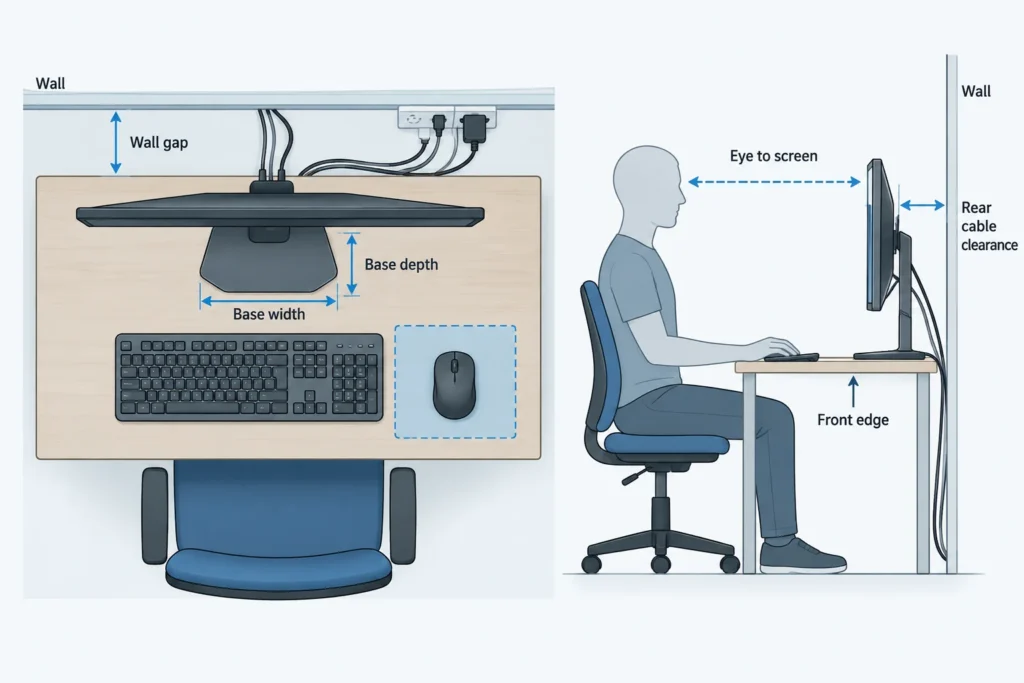
OSHA states that the preferred viewing distance is 20-40 inches, with supported seating, and legible text. This is guidance, not an official cutoff. With a 20-40 inch depth desktop, your eyes may still not be at the preferred distance. You can adjust your monitor settings to scale the display, rather than leaning forward to compensate.[1]
Try a layout change before an equipment change
Try moving the stand toward the rear, stopping before any part of its base loses support or its cables become strained. Then put the main typing keys in front of you and the mouse nearby on your preferred side. The whole keyboard case doesn’t need to be centered: I’d rather give your hands a useful position than give the number pad a perfectly symmetrical one.[2][3][4]
Spend a few minutes on your usual task. Does the keyboard still hit the base, does the mouse run out of room, or is the screen still too close? That remaining snag tells you which change is worth considering. A tidier surface isn’t much of a win if you’ve just moved the inconvenience from one hand to the other.
| Change | What it can recover | What it doesn’t guarantee |
|---|---|---|
| Narrower keyboard | Side-to-side mouse space | More input depth or screen distance |
| Keyboard-and-mouse tray | Desktop input space; potentially more viewing distance if you sit farther back | Enough mouse travel, leg clearance, or room in front |
| Monitor arm or different support | Space occupied by the original base | A screen position farther back |
| Deeper or wider desk | The missing dimension, if chosen from your measurements | A good layout without checking the equipment |
A tray borrows space from below and in front
A tray is worth considering when the stand blocks the keyboard and you have room to sit farther back. Pulling both inputs toward you can let your chair move back too, increasing eye-to-screen distance without moving the monitor. If your seating stays put, you haven’t gained viewing distance, you’ve only changed where the inputs sit. I’d check the tray’s extended working position first, not be won over by how neatly it disappears under the desk.[1][2]
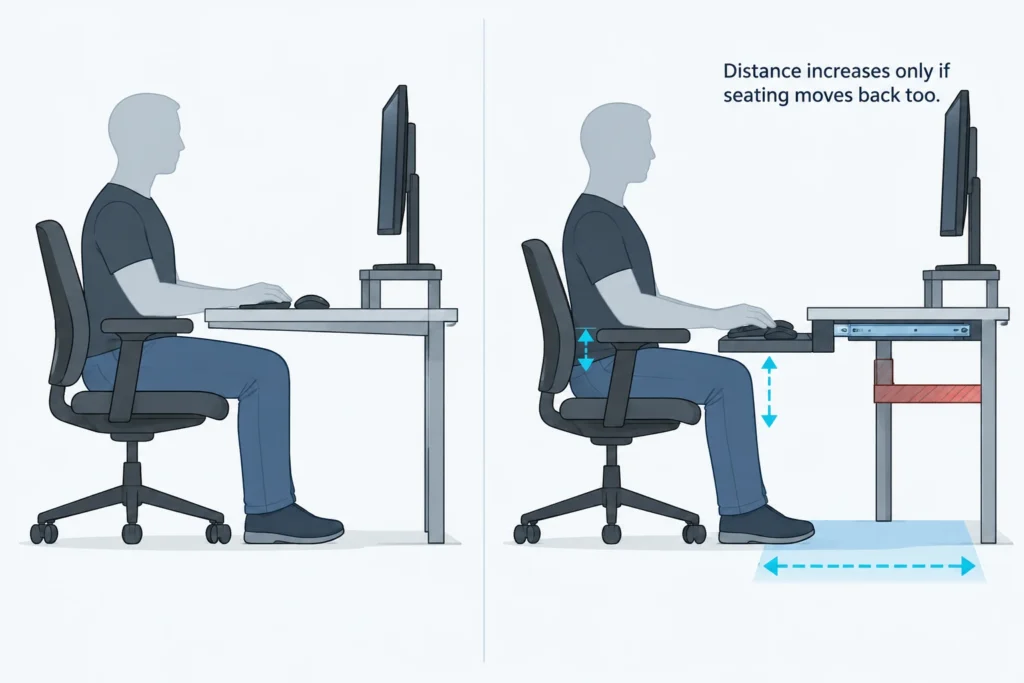
“Fits a keyboard and mouse” deserves a little arithmetic. Logitech’s full-size MX Keys for Business is 16.94 inches wide, and UPLIFT’s Big Standard tray is 27 inches wide. That leaves 10.06 inches before gaps or allowances. If you needed 12 inches for mouse movement, a hypothetical example, not a recommendation, the tray would be 1.94 inches short. Both objects might fit. Your mouse movements wouldn’t.[5][6]
The underside can rule out a tray before you spend any money. In the KBT009 instructions, UPLIFT specifies 11 or 21-inch tracks and roughly a half-inch setback at a straight front edge, and other conditions at curved edges and crossbars. Compare the full track and its travel path with your desk frame and drawers. Allow for clearance for your thighs and chair arms. This model’s load limit is 10 pounds. If you are unsure of the desktop construction or screw penetration is unknown, hold off on drilling. Thickness alone doesn’t tell you if the attachment will hold.[2][7]
Narrow trays don't necessarily mean giving up the keyboard. OSHA defines an adjacent mouse platform as an alternative, as long as the mouse and its movements remain within the workspace. Leaving it far forward on the desktop while the keyboard comes toward you, would simply mean trading crowding for reaching.[2][3]
An arm must put the screen where you need it
I appreciate monitor arms for obstructions at the base of the monitor. I'm less amused by their application to provide extra desk depth. Compare the proposed screen position with your current position. Just because the arm can reach that far, doesn't mean the screen can actually be positioned that far from the user.[8]
Compatibility includes the monitor’s mounting interface and weight without its stand, the arm’s adjustment range, and its desk attachment. The documented Ergotron LX configuration accepts 7-25 pounds, so a monitor can be too light as well as too heavy; that range doesn’t apply to every arm. Allow cable slack through the movement you intend to use, without pinching cables at a joint. An arm you can’t reposition without tugging a plug hasn’t really given you that adjustment.[4][8]
If the arm’s mounting area is glass, hollow, or damaged, assume that a clamp is NOT acceptable. Leave the monitor on its original stand, and make sure that the desk and support documents establish a compatible attachment. A slipping or failing mount can drop the monitor. An improvised reinforcement plate to the desktop doesn’t guarantee that the desktop can support the monitor.[8]
When the desk is the part that needs changing
I’d give up on shopping for accessories if no compatible arrangement manages to preserve your keyboard, mouse movement, and workable viewing distance. Deeper desks may be the honest answer if the screen can’t move back and your seating can’t move back (with a tray, provided the room can accommodate that depth). If mouse travel is the limiting factor, you need more width. Choose from your marked layout, not from the hope that another desk labeled ‘compact’ will somehow fit differently.
Before you buy, outline the proposed surface or tray with tape or cardboard and rehearse the positions without any of the equipment. You should be able to type normally, carry out your standard mouse moves, and view the screen without any of the equipment. If you still have to choose among those three, you’re not buying the accessory. The accessory hasn’t improved the fit.
Sources and references
- Occupational Safety and Health Administration: Computer Workstations: Monitors
- Occupational Safety and Health Administration: Computer Workstations: Keyboards
- Occupational Safety and Health Administration: Computer Workstations: Pointer/Mouse
- Dell: Dell P2425H/HE Outline Dimension (2024-03-25)
- Logitech: MX Keys for Business Data Sheet (2024-04)
- UPLIFT Desk: Big Standard Keyboard Tray Specification Sheet
- UPLIFT Desk: Keyboard Tray System with Quick Adjust Mechanism KBT009 Instructions
- Ergotron: LX Desk Monitor Arm User Guide, revision AG (2025-09)