
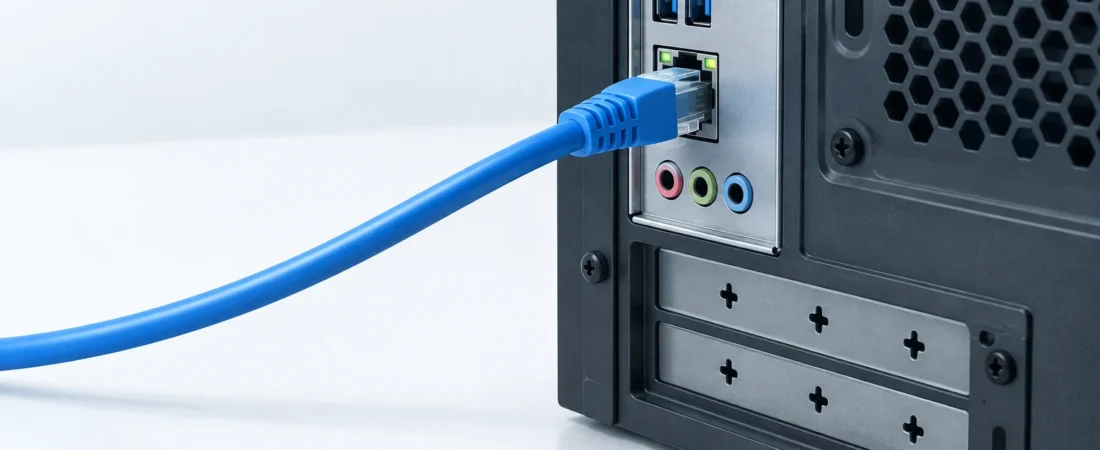
An Ethernet link speed of 100 Mbps means your PC and the device on the other end of the link has agreed to communicate at 100 Mbps. A faster internet plan can't raise that local limitation. If Windows says 1 Gbps, a speed test showing 100 Mbps doesn't indicate your Ethernet adapter is limited to 100 Mbps. In that case, I would check if there’s a discrepancy between the negotiated link speed and the actual throughput, and only consider buying something if the negotiated link speed is 1 Gbps.[2]
Get the number that describes your Ethernet link
In Windows, you can open the Network Adapter Settings by simultaneously pressing Window+R and typing ncpa.cpl and then pressing Enter. Double-click the Ethernet adapter that you’re using and look for the Speed setting in the Status tab.[2]
You can also open PowerShell and execute Get-NetAdapter -Physical | Select-Object Name, InterfaceDescription, Status, LinkSpeed to see the physical adapters and their link speed. Look for the Ethernet adapter that says “Linked” and check its LinkSpeed. A link speed of 1 Gbps means 1,000 Mbps, and that doesn’t mean all downloads will occur at that speed.[1][2]
You can also check the units in your download app. Mbps means megabits and MB/s means megabytes. To do the conversion, divide megabits by eight. 100 Mbps means 12.5 MB/s, and a download rate showing 11 MB/s doesn’t mean that the connection is 11 Mbps.
Picture me in an imagined version of this problem, crouched behind a desk with a router shopping page open and a cable trapped under a monitor stand. I'm annoyed enough to buy something. Instead, I close the shopping tab and trace where that cable actually goes. The useful question becomes much smaller: which connection can't do gigabit?
Trace the cable, not the router's marketing
Trace what you actually have: Your PC Adapter or Dock, Patch Cable, Wall Jack and Wall Run, Patch Cable, Switch, Router LAN Port, and Router WAN connection to the Modem/ONU. If you do not use it, you do not have to trace it. Wall jacks are passive parts of a cable path and do not actively negotiate a speed.[2][6]
Look up the specs of the active part of the connection: your PC Adapter or Dock, Switch, Router, and Modem/ONU. Note the Port Specification: 10/100 stops at 100 Mbps, and 10/100/1000 supports Gigabit. I wouldn't trust the router to do Gigabit just because the box says it has fast Wi-Fi.[5][7]
With TP-Link's Deco E4 V4, the case is pretty clear: the box says it has AC1200 Wi-Fi, but it has two 10/100 Mbps WAN/LAN ports. This is the case for this model and revision, not all Decos. The number on the box answers a different question.[5]
Why a damaged cable can still work at 100 Mbps
The cable can be connected without being fully functional. Common copper 100BASE-TX Ethernet uses two twisted wire pairs, while 1000BASE-T gigabit needs all four. Damage or bad termination on the additional pairs can leave you with a working 100-Mbps link but no gigabit. That isn't a guaranteed fallback: other faults cause errors, dropouts, or no connection at all.[4][6]
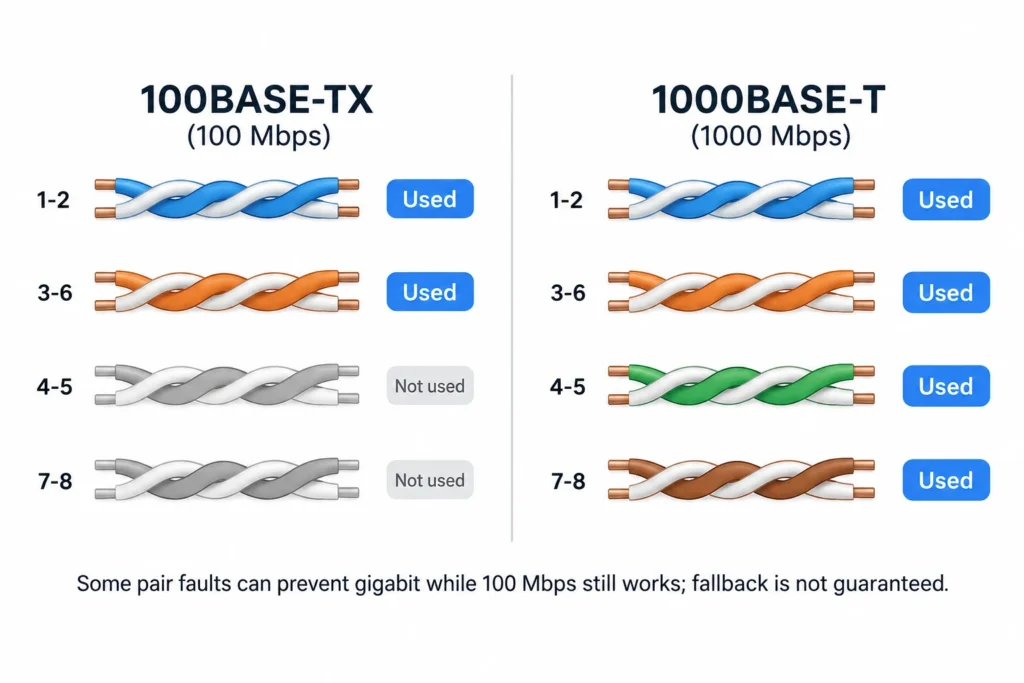
Cat5e can support gigabit, so this isn't automatically a reason to buy Cat6 or anything more expensive. I would trust a cable that has a working gigabit link between the devices, versus an untested cable. The label describes the cable specs, not if the terminations are working.[4][7]
Change one thing and watch the link speed
Once you confirm both end point ports support gigabit, reseat plugs on endpoints. If the link stays at 100 Mbps, borrow a working combination, and try replacements if needed. After each change, let the connection stabilize and read Windows Speed again. Write down which cable, port, device and result.[3][7]
- Create a working reference. Connect another computer to a gigabit LAN port using a short cable. A 1 Gbps reading gives you a working cable and port. A 100 Mbps reading does not.
- Put your PC on that cable and port. If it is 1 Gbps, investigate the original path. If your PC is only 100 Mbps, look at the adapter, connection, driver and settings. This does not mean failed hardware.
- On the working reference setup, swap in just the suspect cable. Repeatable drops to 100 Mbps indicate the cable or its termination is the problem. Put the working cable back, and try just the suspect port. If a drop happens here, then it is related to the port configuration or condition.
- Add the original desk path back a piece at a time. Test both available patch leads before you blame the wall run. A switch creates a different link, so check the port status where available. Bypassing a dock, switch and wall run may restore gigabit, but it doesn't tell you which component was the problem.
If you don't have a known working configuration with another computer, the checks may narrow the problem area without pointing to a definite problem area. I would not condemn the adapter. If you believe the wall path is suspect and both of the patch leads pass substitution tests, have a cabling technician perform a pair-aware wire map and test for gigabit. A continuity test may miss a split pair. Even if a wiremap test is performed, it doesn't guarantee gigabit performance.[6]
Leave gigabit negotiation automatic
If the comparison is with your PC, open Device Manager → Network adapters → your Ethernet adapter → Properties → Advanced. Check the Speed & Duplex settings. If Auto Negotiation is available, use that instead of a manual setting to 100 Mbps. The names may vary depending on your driver. If “1.0 Gbps Full Duplex” is not listed, don’t assume that your Ethernet adapter is broken.[3]
I wouldn't force gigabit to fix this. A dropdown can't turn a 100-Mbps port into a gigabit one. If Auto Negotiation still yields 100 Mbps on the working reference cable and port, install the Ethernet driver for your PC or motherboard and try again. Continued failures point to the PC side of things, though it could be a connector or an adapter.[3][4]
Gigabit at the PC does not clear the whole path
Your PC can negotiate 1 Gbps with a nearby switch while the switch's connection to the router runs at 100 Mbps. The router's WAN connection to the modem or ONT can also negotiate at 100 Mbps. Windows can't show you these links. Check the switch's and the router's management interfaces and test the links.[2][8]
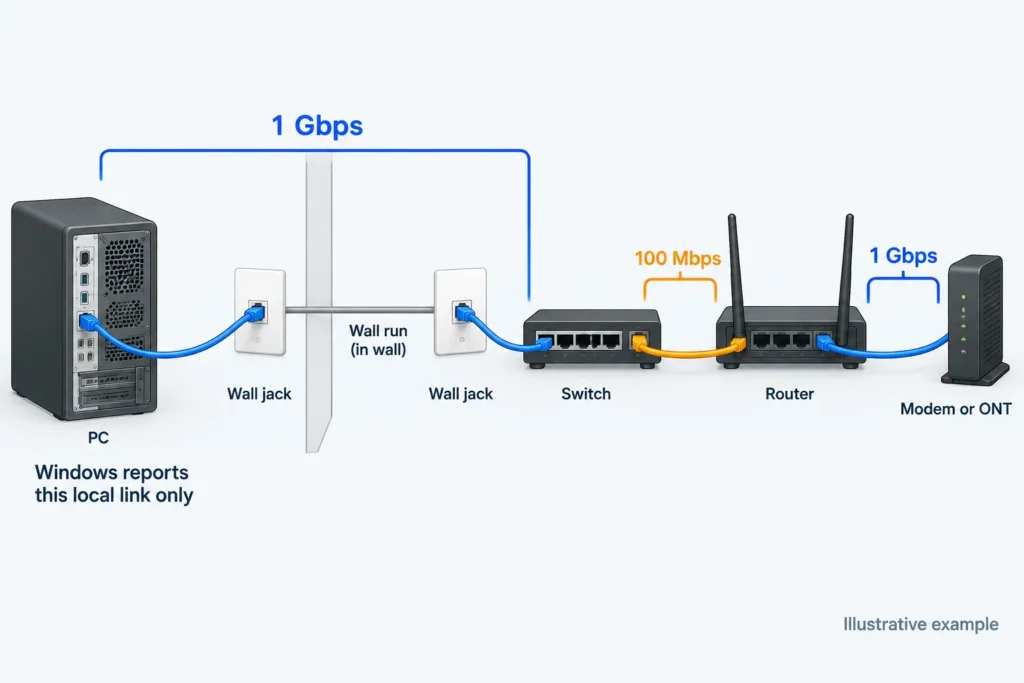
A configured QoS bandwidth limit can constrain throughput without changing the negotiated Ethernet speed. If all the relevant links on the network report gigabit or higher, perform an internet speed test with any background downloads paused and, if possible, your VPN disconnected. You're not trying to fix a 100-Mbps PC link, but rather looking into throughput constraints, including that of the service and router.[2][8]
I would replace the adapter if that was the limiting factor, or buy a whole new device if the same controlled checks point to the adapter being at fault after the settings and drivers were changed. Neither of those purchases would impact a slow uplink to the switch, a 100-Mbps WAN port, or the limitation of the internet plan being below what the adapter is capable of. Spend on the component that the comparison actually points to. Leave the working components alone.[2][3][8]
Sources and references
- Microsoft: Get-NetAdapter
- TP-Link: How to Check Ethernet Speed on Windows and Mac (2026-07-06)
- Intel: Intel® Ethernet Adapter Limited at 100 Mbps (2022-10-05)
- TP-Link: Omada Media Converter Datasheet
- TP-Link: Deco E4 US V4 Datasheet
- Fluke Networks: Get Back to Cabling Basics If Anything Goes Wrong (2016-02-25)
- TP-Link: TL-SG105E V4 Specifications
- TP-Link: Deco LAN speed is capped at 100m/s (2022-02-15)