

Turning HDR on only alters how Windows represents standard SDR desktop content. It doesn’t convert all browser pages to HDR. HDR requires content. A document that appears extremely bright (and perhaps glaring) may just need a lower SDR content brightness setting. If you are using an actual HDR video or game and it appears washed out or lacks detail in the highlights, look beyond that setting on your monitor. There may be other issues with the game or video, as well as issues with your hardware. I’d wait to jump to conclusions about your monitor before trying a full calibration on it.[1][2][3][6]
Picture me, in an imagined evening at the desk, enabling HDR before opening a spreadsheet. The white cells feel like a desk lamp pointed in my face. I am irritated, but not enough to reach for the reset button on my monitor. I need to stop and think. A spreadsheet isn’t an HDR test. I need to compare content.
Test the content, not the HDR label
Having an ordinary, non-HDR document or browser tab open, compare it to content that you know is being transmitted with HDR. On YouTube, play a video with the qualifier “HDR” after the resolution (e.g. “2160p HDR”). Not all videos that say they are an “HDR Demo” are transmitted with HDR. Some may be transmitted in SDR, and if the player is not offered the option of an HDR setting, it cannot tell you how your monitor represents HDR.[8]
For gaming, check that Windows HDR is off, and the game's HDR is on, if available; just because Windows HDR is enabled doesn’t mean the game is doing HDR. Consider separately white-page comfort, black-level (shadow) depth, and detail in bright objects (like the Sun, or other sources of light, and clouds, etc.). Seeing “washed out” can mean many different things, and they usually don’t have the same solution.[1][3]
| What you notice | What I’d check first |
|---|---|
| White desktop windows glare, but HDR playback looks convincing | Windows SDR-content brightness |
| Colors are less vivid, but blacks and bright detail remain intact | Whether the SDR baseline was oversaturated |
| Desktop and HDR content both have gray blacks | Monitor processing and source/display range agreement |
| HDR lights or clouds lose detail | HDR calibration, game settings, and monitor tone mapping |
Turn down desktop white, not every HDR highlight
Windows combines SDR windows and HDR content on the same display, but lets you adjust the SDR white level. A document’s white background doesn’t need to shine like a bright reflection in a movie. I’d start with that distinction if HDR playback looks good but opening your email makes you squint.[3]
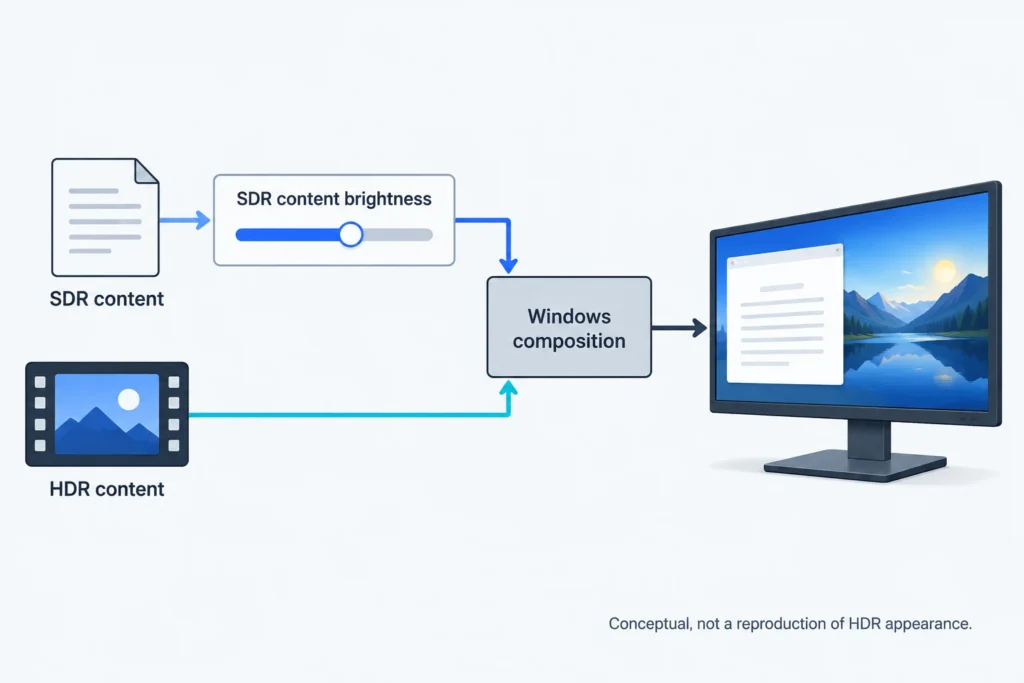
In Windows 11, open Settings → System → Display, select the affected monitor, and open HDR. With Use HDR enabled, adjust SDR content brightness while watching your white page. In Windows 10, the equivalent control is HDR/SDR brightness balance under Windows HD Color settings. On an external monitor, this changes SDR brightness relative to HDR, not the monitor’s HDR peak brightness. Close and reopen an app if it doesn’t respond to the adjustment.[1]
Stop where the page feels comfortable in your usual room lighting. Most people can’t use HDR settings to completely calibrate their monitor to that, and built-in laptop panels are different from external monitors.[1]
Paler colors are a different issue. A wide gamut monitor can blow up SDR colors when they are not confined to their correct color space, and HDR mode’s color management can remove that extra exaggeration. Windows has the capability to manage SDR colors, so “SDR always oversaturates” is not an acceptable explanation. I’m not immediately going to push saturation back up, as less vivid can mean less exaggerated, but that doesn’t mean the picture is correct either.[3][4]
If everything looks wrong, check the monitor and signal
Look in your model’s documentation for the HDR picture modes, the input format control picture modes, and the brightness controls. In the case of the Dell S2721DGF, there are Smart HDR picture modes which are independent from the RGB/YPbPr input format controls. It also specifies 400 nits peak brightness of the HDR content. The other modes may also change processing and the input format controls may change how the signal is interpreted. The brightness control gives you an idea of the limits of the display. They aren’t three different ways to fix the same issue.[5]
Try a different documented picture mode, and make note of the HDR picture mode you are using for reference. If you have grayscale blacks in your HDR content and/or your desktop, the signal range is set to limited, and the RGB is being interpreted as Full, blacks can appear darker, but the reverse can cause detail to be crushed. Limited range is not the issue. The source and the monitor need to be on the same page.[5][7]
NVIDIA Control Panel > Display > Change Resolution > Use NVIDIA Color Settings
Using an NVIDIA card, open the NVIDIA Control Panel, go to Display settings, and select “Use NVIDIA Color Settings”. If the output is RGB, compare Output dynamic range to the monitor’s documented input expectations. Make sure you have an understanding of the original value to revert the changes if needed.[7]
Did this start after you added a dock or adapter? Try a direct GPU-to-monitor connection using a supported connection you already have. A different result gives you a reason to investigate that path; the same result gives you less reason to buy a cable blindly. I can’t name the culprit without your model, GPU, connection, and affected apps, but that comparison is more useful than replacing parts on suspicion.[1]
Calibration can describe limits, not remove them
Windows HDR Calibration is a Windows 11 app, not a Windows 10 tool. You need an HDR-capable display with HDR enabled and a graphics driver supporting WDDM 2.7 or later, then you run the app full-screen on that display. The Display tab in dxdiag shows the Driver Model. The separate saturation adjustment also requires supported graphics hardware; Windows 10’s HDR video calibration isn’t the same tool.[1][2]
Three patterns-minimum luminance, maximum luminance, and maximum full-frame luminance- are used by the app to build a display profile. For maximum accuracy, the monitor should be set to its intended HDR mode, any optional picture-enhancement processing should be disabled for calibration, and each luminance slider should be adjusted until the corresponding pattern disappears. I wouldn’t enter the specification-sheet peak value in those cases: The monitor’s tone mapping will affect what you see in those patterns, and the disappearance of those patterns shouldn’t necessarily be interpreted as an absolute measurement of the panel’s physical capabilities.[2]
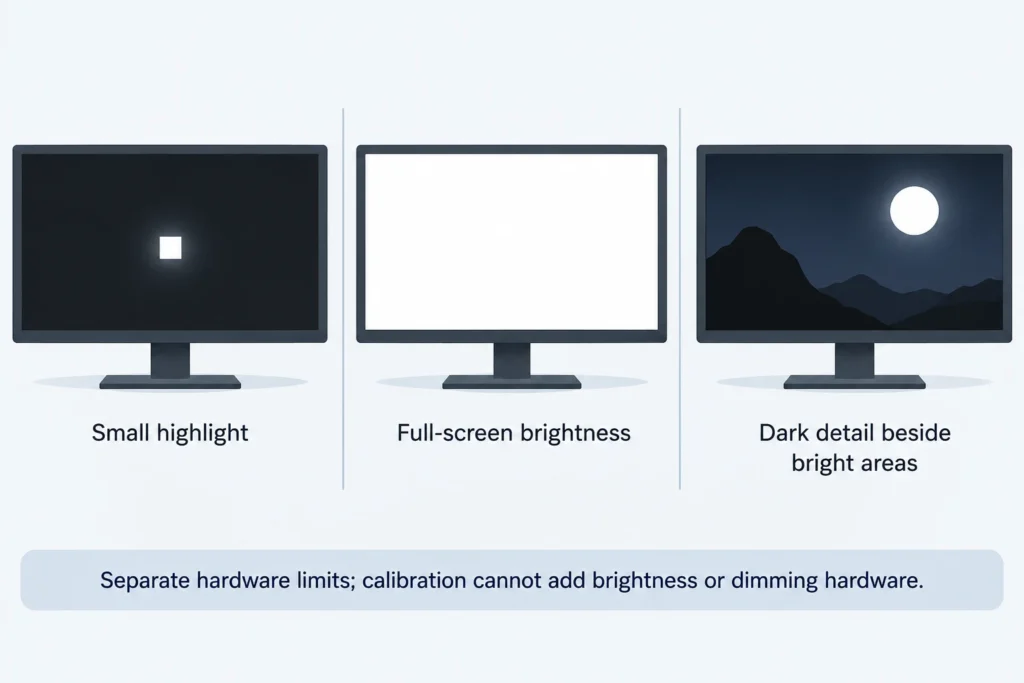
There are limits as to what calibration can achieve. It can’t add local dimming zones, deepen the panel’ physical black levels, or increase the monitor’s light output. So that’s what I keep in mind before I spend hours adjusting sliders.[2][6]
Things like small, bright highlights, or full-screen images (when viewed on the entire screen) put different loads on a display. Brightness and black level are tested separately, so an HDR signal, or a single number representing peak brightness, doesn't tell the whole story. You should refer to the actual model being tested, and not apply current certification criteria to older monitors.[6]
Leave HDR on only when it earns its place
I'm assuming the HDR content is enjoyable, and the adjusted desktop image is comfortable. If work is mainly in SDR, then you can enjoy HDR while working in SDR. You can change the HDR setting based on the work you're doing. Some displays will have a button to do this, or you can do it in the Windows display settings.[1][9]
If you've checked the relevant settings, and the model is limited by the capabilities of the display, then SDR is the way to go. Not all displays are the same, and you don't always have to enable HDR. The goal should be to have HDR when it really provides a benefit.
Sources and references
- Microsoft: HDR settings in Windows
- Microsoft: Calibrate your HDR display using the Windows HDR Calibration app
- Microsoft: Use DirectX with Advanced Color on high/standard dynamic range displays
- Intel: After Enabling HDR in Windows, the Colors Are Washed Out (2026-08-11)
- Dell: Dell S2721DGF Monitor User's Guide, Rev. A00 (2020-07)
- VESA: DisplayHDR Performance Criteria under CTS 1.2
- NVIDIA: To change the RGB dynamic range
- Google / YouTube: Upload high dynamic range (HDR) videos
- Microsoft: Keyboard shortcuts in Windows