
An external monitor can offer more graphics power, activate a different GPU, alter charging and charging sources, and affect cooling. All of these can impact fan noise, and performance. Louder fans don't necessarily mean something is wrong, and I would compare fan noise against the same task under the same power and display settings before blaming the monitor or replacing the laptop.[2][3][7][8][12]
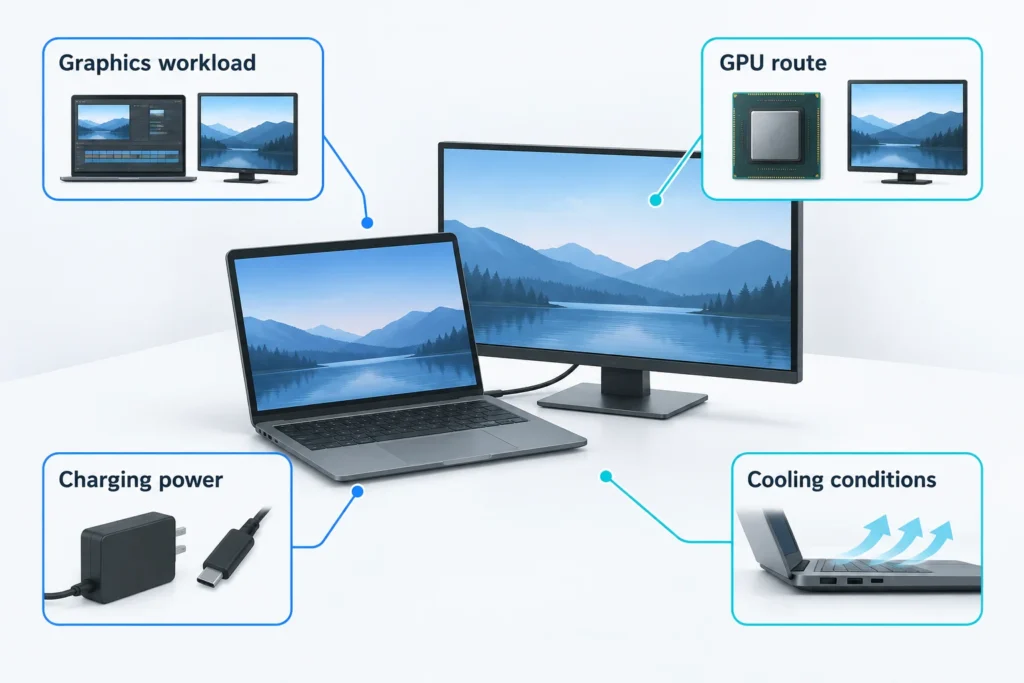
Picture me, in an imagined desk setup, plugging in a new monitor and hearing the fans rise while a game feels sluggish. I’m annoyed: the bigger screen was supposed to be the improvement. Then I notice I’ve also replaced the laptop’s charger with one USB-C cable from the monitor. I’d put the original charger back before shopping for cooling accessories.
Noise, stutter, or slower work?
Start with what you actually notice: lower game FPS, a longer export, less-fluid scrolling, or just louder fans. Fans respond to temperature, while thermal throttling means processor clocks are reduced because of a thermal limit. I wouldn’t diagnose throttling by ear. If the task finishes just as quickly, the extra noise hasn’t established a performance problem.[2][3]
The practical checks here are for Windows 11. In Settings > System > Display > Advanced display, select the external monitor and note its resolution and refresh rate. Moving from a 120 Hz laptop panel to a monitor set to 60 Hz can make scrolling and pointer movement look less fluid even when tasks take the same time. Watch for refresh-rate choices that also change resolution, you could otherwise change two things while trying to test one.[1]
A comparison worth trusting
In this test, you need to set Windows + P to PC Screen only, and then place an external monitor in Second Screen Only mode. This separates the displays without also physically moving the laptop. Closing the lid may introduce another confounding variable when testing the monitor.[3][5][8]
Test the game in an extended desktop mode. Repeat this test as many times as necessary to get a baseline for fan noise. Record details for the baseline rather than relying on memory. You can then test for game extend desktop mode once you have the baseline.
| What to record | Useful detail |
|---|---|
| Task and result | Same scene or file; FPS, completion time, or visible stutter |
| Display settings | Resolution and refresh rate; game render resolution and frame cap separately |
| Power | Charger or dock used, battery trend, Windows power mode, manufacturer profile |
| Configuration | Internal-only, external-only, or extended; connection port and dock |
| Cooling and GPU activity | Lid position, placement, fan behavior, active GPU and engine |
Charging isn’t the same as having enough power
That tidy one-cable desk setup may have quietly replaced your laptop’s power supply. Dell has reported performance, charging and battery discharge issues from using inadequate adapters. The charging icon is a poor reassurance. It simply indicates that power has been connected, not if power is sufficient for the workload.[8]
An inadequate adapter, coupled with a battery that is falling under load, suggests the charger is the next best comparison. For the monitor or dock, look at the power delivered to the laptop, not the total power of the dock. Compare that to your model’s full-performance adapter requirement and supported charging type, including if the adapter is recognized by the laptop. I can’t give you a universal wattage here, the missing model is more important than an impressive number.[8]
Also, check Settings > System > Power & battery for the power mode, including choices for plugged-in vs battery power, if available. Note the laptop manufacturer’s Quiet, Balanced or Performance profile. Performance-oriented profiles usually allow more heat and fan activity, making the laptop louder, and potentially explaining the original change. Keep these settings the same for the comparison.[3][6]
More pixels matter; a bigger screen doesn’t
Rendering at 3840 × 2160 means 8,294,400 pixels per frame, versus 2,073,600 at 1920 × 1080: four times the pixels. That can increase pixel-shading work, but it doesn’t promise four times the total workload or one-quarter the FPS. The game’s bottleneck and rendering techniques matter. Physical screen size isn’t in that calculation.[12]
Refresh rate is a different number. A 144 Hz monitor doesn’t order the game to render 144 frames per second, though changed synchronization or frame-cap settings can let it do more work. Nor does displaying a static document at 4K ask the same thing of the GPU as rendering a 4K game. If matching the game’s render resolution and cap restores performance, I’d keep the monitor off the suspect list: you’ve found a workload difference.[1][12]
The port can change which GPU stays active
The GPU rendering the application may not be the GPU driving the display. NVIDIA provides documentation for a feature where they integrate the display controller, which means that even with a low load on the system, the discrete GPU can be used for rendering.[7][10]
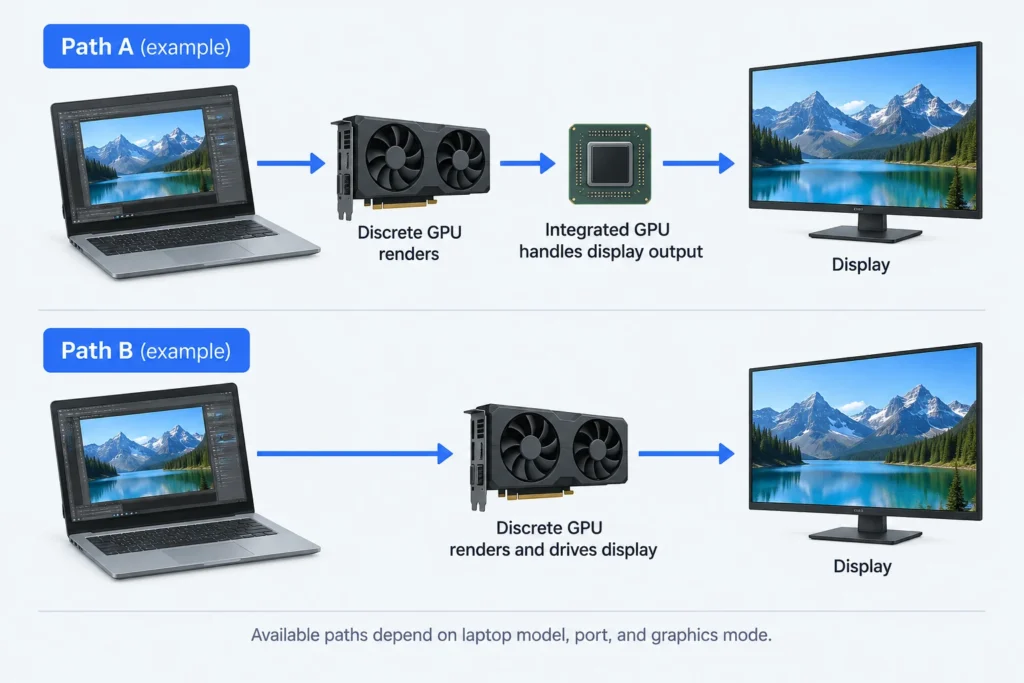
Patience is lost when advice like, “HDMI uses the dedicated GPU”, is offered. Dell's document for the Precision 7560/7760 has different routes for HDMI/Mini DisplayPort and USB-C when the system is set to hybrid graphics, and different graphics modes have different effects on the routing as well. Different laptops may have different routing options.
The best way to know how your system routes the display is to check the documentation. The answer is usually not in the shape of the connector.[7]
Task Manager can show which GPU an app is using. Ctrl+Shift+Esc>Performance>GPUs>Details>Enable GPU Engine. Enabled columns show how busy each engine is. Compare engineering activity with the app engine and card running. This can help determine if the app is the reason for activity. It won’t show if a port is wired up incorrectly or is throttling.[4]
If a direct connection shows a performance boost, keep in mind compression isn’t always the culprit for a performance drop. Generally, a compressed video signal doesn’t use as much CPU or GPU resources as an uncompressed video signal. Also, based on your workload, ports can use different GPU resources. You’re restricting the problem to a section of the path without pinpointing exactly what the restriction is.[7][11]
What the result is worth changing
When in external-only mode, note if your model can still be used in closed-lid mode. ASUS says some laptops, with closed lids during heavy workloads, can use protective throttling to prevent damage. Knowing your model’s supported operating position and actual intake/exhaust vents is important. A metal stand covering vents is not a good improvement.[3][9]
Keep whichever reversible change restores sustained performance. If placing the charger unobstructed on an open laptop-stand restores the issue, keep that change. If the charger specified in the question resolves the issue, address charging instead of buying new graphics hardware. A better direct connection allows you to skip or reconsider the dock, with the caveat mentioned above. If thorough cooling and power still do not resolve the rendering performance issue, consider setting lower rendering demands or acquiring a more capable hardware for that rendering workload.[2][3][7][8][11][12]
Protective shutdowns are different. Heavy load testing should not be repeated after one. The laptop may be protecting itself from overheating. Request for service if diagnostics or fan tests fail to get a different result. Thermal or electrical limits can’t be distinguished from hardware faults with temperature and noise readings alone. It is better to come to the service center with the changes noted, to provide something for the technicians to work with.[2][3][9]
Sources and references
- Microsoft: Change the refresh rate on your monitor in Windows
- Intel: What Is Throttling and How Can It Be Resolved?
- ASUS: [Windows 11/10] Troubleshooting, Overheating and Fan issues
- Microsoft: GPUs in the task manager (2017-07-21)
- Microsoft: How to use multiple monitors in Windows
- Microsoft: Change the power mode for your Windows PC
- Dell: Dell Precision 7560/7760 External Display Connection Guide
- Dell: Dell Computers Can Be Purchased Without an AC Adapter
- ASUS: [Notebook] Why does the system still enter hibernate mode even I set up 「Do Nothing when closing the lid」?
- NVIDIA: Display Multiplexer Reference
- Synaptics: Integrated Chipsets
- Intel: Intel® Processor Graphics Xᵉ-LP API Developer and Optimization Guide