

A device, network activity, or scheduled task could be waking your PC. Before disabling anything, open an administrator terminal and type ‘powercfg /lastwake’. I’d start here, since you’ll get a record to look into rather than a list of settings to blame. Next, check your sleep model, your device’s wake permissions, and your active timers: just because a device has permission to wake the PC doesn’t mean it did.
I’ll imagine I’m in a dark hallway at 2am, watching the monitor light up again. I’m annoyed enough to uncheck every wake option I can find, until I remember that I want the keyboard to wake it in the morning. Instead, I’ll capture a wake record. The change that’s most useful is the one that explains this interruption, not the one that removed the most checkboxes.

Did it wake, restart, or never really sleep?
Note when you selected sleep and when you find the PC active. Did the PC go quiet for hours? Did the screen turn off and come back on? Those are different clues. Returning to your open apps suggests a resume but isn’t proof. Fans and lights turning on don’t tell you for sure that Windows returned to a working session.
If it looks like a restart, open Event Viewer and go to Windows Logs > System. Look through the event logs around that time. Event ID 1074 in User32 logs a requested shutdown/restart, and may name the process that made the request. Events 41 and 6008 may indicate an unclean shutdown. Event ID 41 does not indicate why the shutdown occurred and shouldn't be used to make any power supply assumptions. Microsoft documents shared events in their Windows Server documentation, and you can use them to decipher if an event indicates a restart or a wake, not to analyze the entire computer issue.
If the PC never automatically sleeps, you can use `powercfg /requests` while it's staying awake to see what may be causing the issue. Once you have the list, don't do anything to clear it. An ongoing task may be causing the PC to stay on, and you may want to let that continue.
Run `powercfg /lastwake` to get a more in-depth list of what caused the PC to wake up.
Capture the record before another sleep cycle
- Right-click Start and open Terminal (Admin), or search for Command Prompt and choose Run as administrator. Run `powercfg /lastwake` before deliberately putting the PC back to sleep. Copy the output and note the incident time.
- Run `powercfg /a` to see what power modes the PC supports. See if you can locate "S3" or "S0 Low Power Idle" on the list. If S0 Low Power Idle is present, this means the PC is using Modern Standby.
- Use `powercfg /waketimers` to see what timers are set to wake the PC up. Use `powercfg /devicequery wake_armed` to see what devices are set to wake the PC up. You can run these commands each time you want to view the lists before the PC goes to sleep.
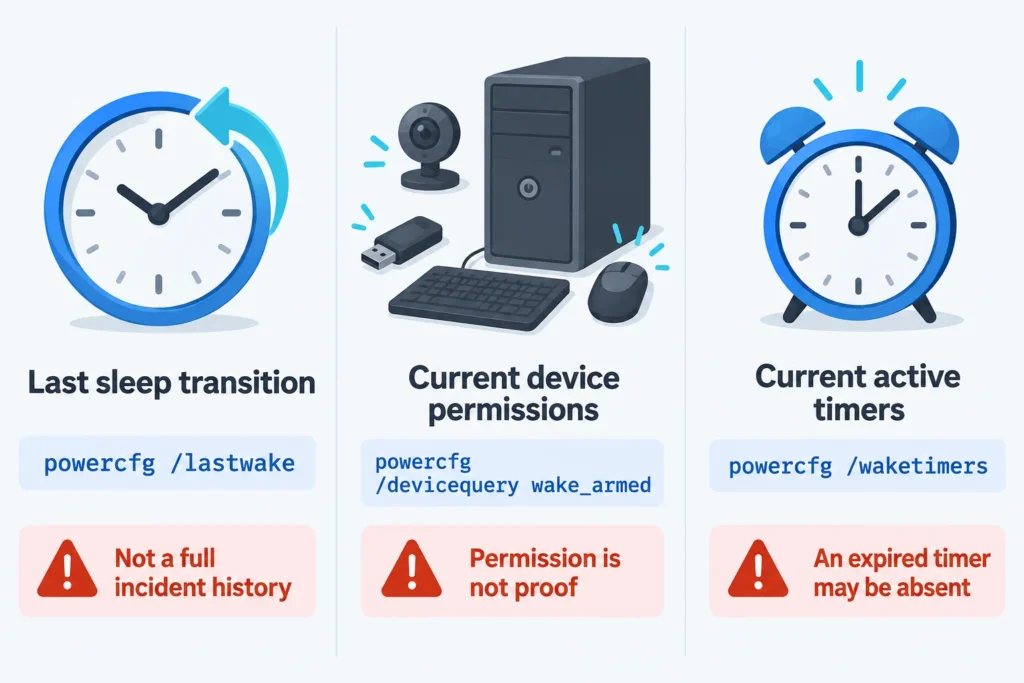
Read the outputs literally. “/lastwake” describes the last sleep transition. “/waketimers” lists timers active now. “wake_armed” lists devices allowed to wake the PC. By morning, timers may have expired and done nothing at all. If the output is empty or vague, I can’t point to the reason or the device that may have caused it. A missing attribution doesn’t indicate nothing happened or that hardware is bad.
Modern Standby can work with the screen off
S0 Low Power Idle doesn’t always mean a full, display-on wake. Modern Standby allows the PC to go into a low power state and still perform background tasks, and the behavior can be different in a plugged in vs. a battery operated PC. That’s why I’d keep the same power source during comparison tests.
To find more info about background activity of the PC, run “powercfg /sleepstudy” as admin, and find the HTML file. By default, the file covers the past three days. Look for the session spanning your timeframe and identify the state transitions and the reason for the exits. There may be a lot of activity, but that doesn’t mean the component is the reason the session ended. An exit reason may be Unknown.
Don't use the registry workaround to try to force S3 if `/a` states it isn't supported. How a platform handles sleep is up to the platform. Switching between Modern Standby and S3 isn't a supported simple in-place settings fix. Missing legacy wake controls may represent the design choice rather than a broken Windows installation.
Match the change to the evidence
If the wake record names a mouse or keyboard, check that device's settings. Open its properties in Device Manager and clear the "Allow this device to wake the computer" checkbox. This only disables a device's ability to wake the PC. Keep a known working wake method, such as the power button, to help check if your change was successful. The device named in the wake record shouldn't wake the PC, but the method you retained should.
If a named network adapter is specified, first determine if you want to allow remote wake. Some drivers may have settings to allow a magic packet to wake the PC. To do this, go to the device's properties and set the checkbox to disallow a magic packet to wake the PC. The device may still be configured to allow remote wake. Magic packet advice comes from older Windows guidance, and today's controls vary by driver and sleep model. You can also consider disallowing the network adapter to wake the PC. If you don't need remote wake, disabling the network adapter to wake the PC is an option. Don't force legacy S3 Wake-on-LAN settings on a Modern Standby PC.
Named timers provide a task to examine instead of automatically disabling them. Look for the related task in Task Scheduler and evaluate its trigger time and Conditions tab. If you control the task, you can clear “Wake the computer to run this task.” It disables the wake permission and leaves the task active. Watch for the scheduled time to pass to ensure the PC doesn’t wake. Notice that clearing the ‘Wake the computer to run this task’ check box is not a promise to perform the task at a later time, and a backed up copy may be required. It is recommended that you leave protected or managed settings alone.
I don’t recommend disabling all wake timers for the power plan to silence one task. You may lose important update or backup behaviors. A task that ran near the time in question may have simply found the PC already awake. A schedule that includes wake records tells you more than a simple time stamp.
Give the fix a chance to fail
Note the starting settings and the result you expect, then change only those. Keep your peripherals and power supply the same while you watch through the usual recurrence window. That's a few comparable nights for a nightly issue, or the next scheduled occurrence for a weekly task. A five minute sleep test isn't going to provide an answer to an overnight issue.
Continue capturing those records, and if you still can't determine a cause, provide those records, along with the times of the incidents and the SleepStudy (if available) to model-specific support, as an unexplained result isn't a reason to continue disabling things. Quiet nights can support your theory, but aren't proof.
Make the change when the unwanted wake stops, and the useful function continues to work. A quiet PC that overlooks your backups isn't a change I'd keep either.
Sources and references
- Microsoft: Powercfg command-line options
- Microsoft: System power states
- Microsoft: Modern standby SleepStudy
- Dell: How to Fix Sleep Mode Not Working on a Dell Computer in Windows
- Microsoft: Troubleshoot unexpected reboots using system event logs
- Microsoft: Modern Standby Wake Sources
- Microsoft: TaskSettings.WakeToRun property
- Microsoft: WOL Methods in NDIS 6.20
- Microsoft: Unwanted wake-up events when you enable WOL
- Microsoft: Modern Standby FAQs