
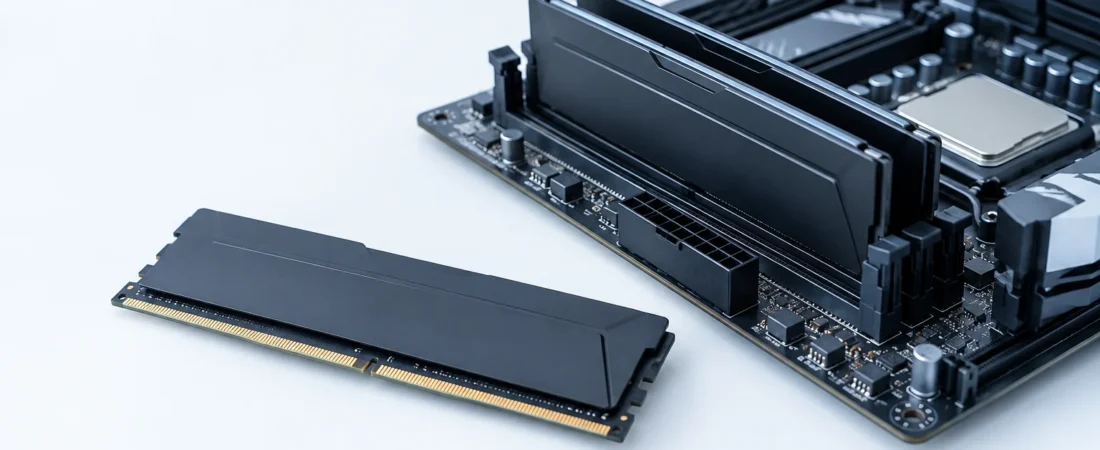
You can add RAM if your exact PC has replaceable memory and supports the modules in question. To verify if your PC is operating in dual-channel mode, cross-check the firmware’s documented channel-to-slot mapping, and verify in a software utility such as CPU-Z. Having two sticks, or a large total in gigabytes, doesn’t prove dual-channel mode on its own.[3][4][9]
Before you buy any RAM, distinguish running out of memory from using both channels. If you’re running low on memory, more capacity gives your workload some headroom. Correct channel placement gives the memory controller more headroom to work with. You may need one, the other, or neither. Often, moving memory modules addresses this configuration issue.[1][3][7]
Does your actual workload run out of room?
Open Task Manager → Performance → Memory while doing the thing that feels slow. Watch available and committed memory through the troublesome period, then repeat the workload. Does closing an unnecessary memory-heavy application help? That comparison tells you more than an idle screenshot or a single high usage percentage. Neither is a purchase order.[1][7]
The labels can be misleading. Committed memory is what Windows has promised to applications, not simply what currently occupies RAM; its limit depends on RAM and page files. Resource Monitor’s hard faults mean data had to come from storage, not that a stick is broken. Committed memory exceeding physical RAM, or paging activity alone, doesn’t establish that memory capacity is slowing your work.[1][2]
Repeated occurrences of low available memory, combined with storage-backed paging and slowdowns, is typically a good capacity indication, especially if easing the load improves performance. In the meantime, manage the page file system, disabling it reduces the commit limit.[1][2]
Let's say, in a hypothetical situation, I'm multitasking, doing a video call and some browser editing while also doing an edit. Then, I start to experience a slowdown while switching between applications. I would add a RAM module to my cart, but I'd hit a wall. I don't even know if the laptop has a free slot. At this point, I have no choice but to do some research on the exact model.
Find the memory specification for your exact machine
For a laptop or a prebuilt PC, I would look up the full model or service tag and get the memory specifications and service manuals. For a custom desktop, I would get the motherboard model and revision, processor, and GPU, as well as check the BIOS for slots. I would also look up the hardware and get system specifications using Winver. Treat Task Manager and CPU-Z numbers as a suggestive starting point; if the hardware docs say you can't add memory, don't buy more.[4][9]
First, check to see if there's anything you can add. Fully soldered memory modules typically means you can't add more. If there's an empty slot and the memory is soldered, you may be able to add more, but only within the supported capacities of that slot. If you can add more memory, make sure you match the form factor. DDR4 can't be used in a DDR5 slot, and vice versa. For laptops, SO-DIMMs can't be used in desktop systems, and vice versa. If you're adding modules, make sure they're of the same generation.[3][4][7][10]
Then look at the total and per-slot capacity limits, the number of supported modules, recommended slots, and module requirements like if it needs to be unbuffered or ECC. Compare the modules you want to get with the qualified vendor list of memory modules for your motherboard or with a memory module vendor’s exact-model compatibility list.[3][4][5][7]
Dell’s Latitude 5450, for example, specifies two DDR5 SO-DIMM slots and a 64GB maximum, with supported speed depending on the processor. I like specifications that settle the question that plainly. But those numbers belong to that model, not every Latitude or DDR5 laptop. Without your exact hardware, I can’t honestly name a module, capacity ceiling, or operating rate.[4]
Two sticks aren’t necessarily two populated channels
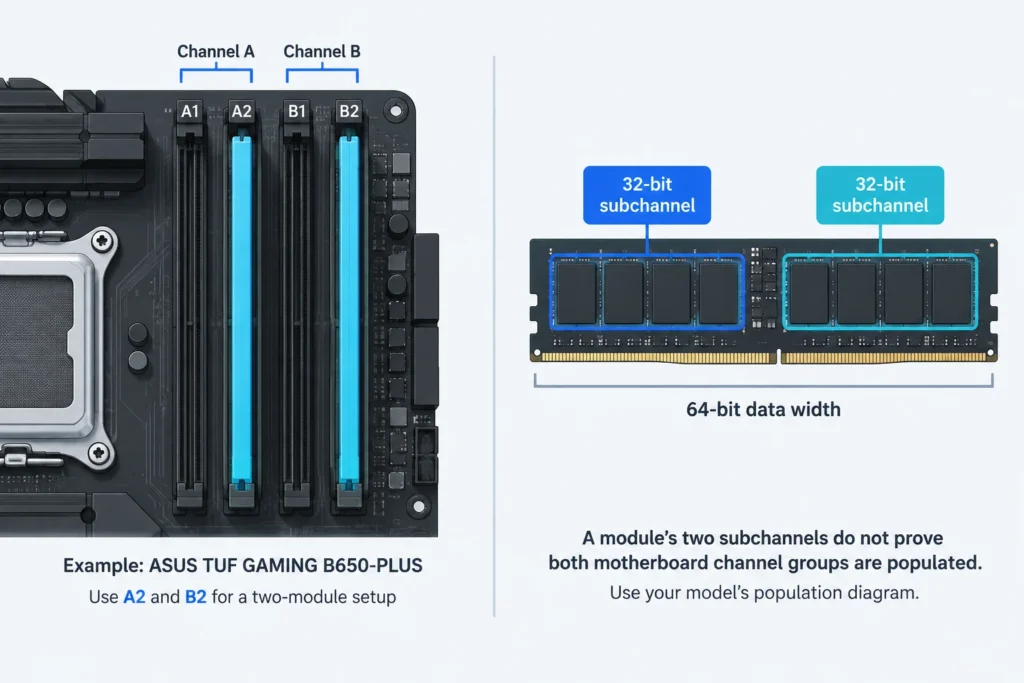
Most low-cost four-slot consumer boards have two slots per channel. Putting both modules in one channel’s slots leaves the other channel unpopulated, even if the total capacity looks impressive.
Populating the slots in the correct channel is important.[3][6]
For the TUF GAMING B650-PLUS, Channel A has the A1 and A2 slots and Channel B has the B1 and B2 slots and recommends that modules be placed in A2 and B2. However, that doesn’t mean you can count slots from the CPU and assume channels on other motherboards. Be sure to read the slot names printed on the motherboard.[3]
DDR5 introduces a naming trap. A standard DDR5 module has 2 x 32-bit subchannels within its 64-bit data width. That doesn’t mean both motherboard channel groups are populated. Diagnostic labels such as “2 x 32-bit” or “4 x 32-bit” require a tool/platform context; I wouldn’t render them into definitive single/dual channel verdicts.[9][10]
| Installed memory | Total capacity | Documented mode |
|---|---|---|
| One 32GB module | 32GB | Single-channel |
| Two 16GB modules | 32GB | Dual-channel |
Add a module, or replace the set?
Mixing modules isn’t an issue to be concerned about solely because a motherboard is populated when a module is added. An addition may be supported and may be less expensive. A replacement may give you less uncertainty, especially on claimed speeds: Corsair states that even when part numbers match, different ICs may be used in separate kits and combined rated performance may not be validated. Making assumptions is not recommended, especially when it comes to speeds.[7][8]
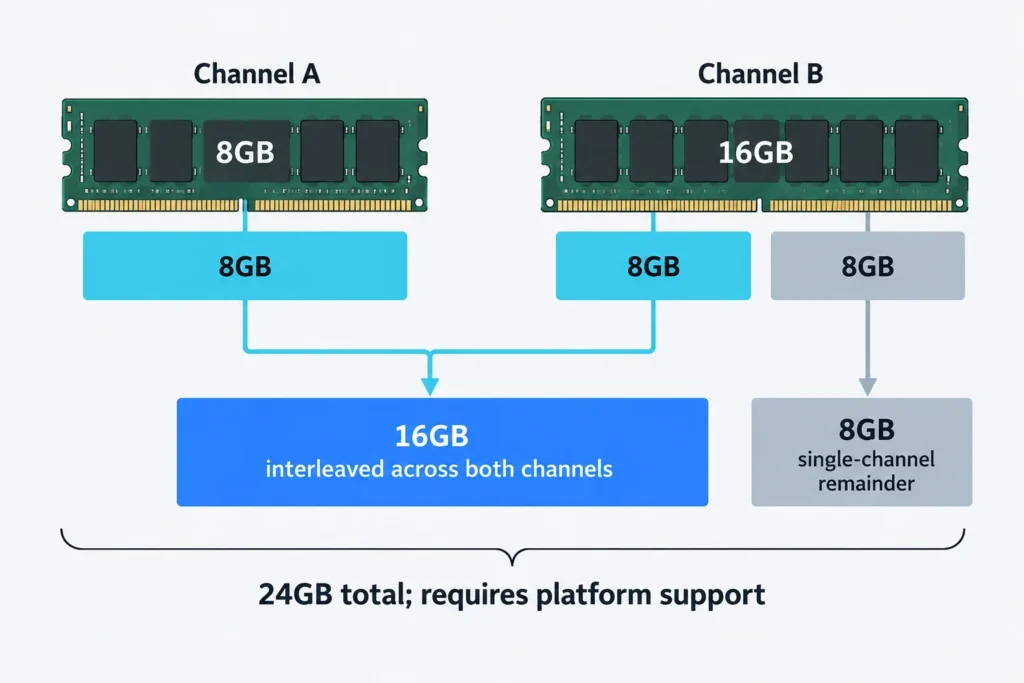
Symmetric capacity doesn’t guarantee symmetric operation. Asymmetric interleaving is supported on some platforms. In that case, a 8GB module in one channel plus a 16GB module in the other channel creates a 24GB total (8GB from each side forms a 16GB interleaved region, leaving a 8GB single-channel region). That is relatively simple math, but whether your platform supports it is something you’d need to determine.[3][6]
Filling all the available slots can also reduce supported transfer rates. AMD lists DDR5-5600 for two single- or dual-rank DIMMs on the Ryzen 7 9700X, versus DDR5-3600 for four. Just because a system can support a higher speed for a smaller population doesn’t mean that a larger population will run at that speed. It does mean that when comparing supported populations, you have to consider the difference in speed for that trade-off. More room at a lower rate could be a good trade-off if capacity is the limiting factor for your work.[5]
Install it, then check what actually changed
- Before making any changes, save a basline of the total system capacity, modules detected, speeds, and any XMP/EXPO profiles or settings. If memory overclocking is activated, disable it. Shut down the system and boot it up with the new settings. Record the old settings for comparision.
- Complete shut down and unplug power. For a laptop, disconnect the internal battery. Some models require physical disconnection of the battery, while others, like the Dell Latitude 5450, can be put in service mode to disconnect the battery. Find the isolation method for your model, leave the machine closed until it is resolved. Unplugging the charger doesn't disconnect the battery. Use an ESD strap and hold modules from the edges.
- Install in the documented slots, aligning the notch without forcing the module. Desktop DIMMs press into their sockets; laptop SO-DIMMs commonly insert at an angle and then lower into clips. The first boot may take longer for memory training, so don’t repeatedly interrupt it. Consider a BIOS update only if there’s a documented compatibility issue affecting your configuration, not simply because you’ve bought RAM.
- Check firmware detection, then Windows. Look for the expected total capacity and, where firmware exposes them, each module’s slot and capacity. Match the detected population to the channel map. CPU-Z’s Memory tab shows current operation; its SPD tab shows module information and stored profiles. Use the channel label as a cross-check, not a verdict detached from the slot population.
- Run MemTest86’s default four-pass test, then repeat the workload that prompted the upgrade. Duration varies with the system and capacity. A clean test increases confidence, but it can’t rule out every intermittent fault.
One easy source of needless worry is comparing different speed units. A DDR clock of about 2400 MHz in CPU-Z corresponds to 4800 MT/s, because DDR transfers data twice per clock cycle. A faster profile listed under SPD isn’t necessarily active. You don’t need XMP/EXPO to get dual-channel operation or a successful capacity upgrade; it’s optional performance tuning.[3][7][9]
If the new configuration fails to boot, or if tests indicate missing capacity, the configuration is not ready to keep. Remove power and isolate any internal batteries before reseating modules. If the original modules are restored, is the problem still present? If needed, test modules in the documented one module slot at default settings. I wouldn't condemn a stick from a failed configuration.[3][7][12]
Assuming the checks for detection, channel population, and the operating rate all look good, and testing shows no issues, return to the work that caused you to leave your desk and shop for memory. Did it get the memory it needed? That’s a good result to keep, as well as an increase to your Task Manager memory values.
Sources and references
- Microsoft: How to determine the appropriate page file size for 64-bit versions of Windows
- Microsoft: Virtual memory in 32-bit version of Windows
- ASUS: TUF GAMING B650-PLUS User's Manual, revised edition V3 (2023-04)
- Dell: Latitude 5450 Owner's Manual, Memory
- AMD: AMD Ryzen 7 9700X specifications
- Intel: System Memory Controller Organization Mode (DDR4/5 Only) (2025-05-30)
- Kingston Technology: Desktop/Notebook Memory, Support
- Corsair: RAM: FAQ
- CPUID: CPU-Z official software and documentation page
- Kingston Technology: DDR5 Memory Standard
- Dell: Latitude 5450 Owner's Manual, Before working inside your computer
- PassMark Software: MemTest86, Execution Time