
The purchase of a new PC is often viewed as ‘the end’ of their buying process for many people just beginning to purchase a computer. Yet, actually, it starts their ‘risk’ period. Buying either type of computer involves more than just purchasing the computer; You have to consider the amount of data that will be placed on the computer, the total time of your return period is accidentally wasted, whether or not you’ll have to buy duplicate software for your new computer, and any defects you can’t find on your new computer before your easy return period ends.
Windows already includes tools for updates, activation, security, backup, recovery, and device protection, but many buyers skip them because they want to start installing games, apps, or school files right away. That is how a good purchase turns into an annoying one. (support.microsoft.com)

TL;DR
- Save your receipt, warranty, order confirmation, and serial number on day one. The FTC recommends keeping the receipt with the warranty because it helps prove when you bought the product and that you are the original owner. (consumer.ftc.gov)
- Run Windows Update, then check optional driver updates before you install a pile of apps. Microsoft says Windows Update handles recommended drivers, while optional driver updates still need a manual check. (support.microsoft.com)
- Use the built-in security first. Windows Security includes Microsoft Defender Antivirus, and Microsoft warns that running multiple anti-malware apps at the same time can slow or destabilize a system. (support.microsoft.com)
- Set up backup before the machine becomes important. Windows Backup can restore settings and many apps, File History can protect files, and a recovery drive gives you another recovery path if Windows will not boot. (support.microsoft.com)
- Test the boring hardware early: ports, webcam, microphone, Wi-Fi, Bluetooth, speakers, sleep/wake behavior, and the display. It is not glamorous, but it is one of the best ways to avoid a return headache later.
Use the SAFE-PC audit before you install everything
Beginner users have an easy guideline with the SAFE-PC audit, scoring one point for each completed item. A score of 6 indicates that your new computer is fully installed. A score of 4 or 5 indicates to you that the computer will function correctly; however, your security is not complete. If dissatisfied with your score, stop adding extras on your system until you have completed the basic setup.
- S – Save proof: Keep the receipt, warranty PDF, retailer order page, and photos of the serial number. That paperwork makes returns, exchanges, and warranty claims smoother. (consumer.ftc.gov)
- A – Apply updates and activation: Confirm Windows is activated and run Windows Update, including optional driver updates if needed. (support.microsoft.com)
- F – Fortify sign-in: Use Windows Security, set up Windows Hello, and turn on device encryption if your system supports it. (support.microsoft.com)
- E – Evaluate hardware: Test the screen, ports, webcam, keyboard, trackpad or mouse, speakers, microphone, and wireless connections while returns are still simple.
- P – Protect files: Turn on Windows Backup or File History, and create a recovery drive if this is your main machine. (support.microsoft.com)
- C – Cut waste: Skip duplicate antivirus subscriptions, review bundled trials, and choose sensible power settings instead of chasing random performance tweaks on day one. (support.microsoft.com)
That last point matters more than it sounds. On a laptop, Windows 11 power settings can reduce power use and improve battery life, which may help the machine stay useful longer before it starts to feel worn out. It is not a flashy optimization. It is ownership hygiene. (support.microsoft.com)
Your first 90 minutes: the setup order that protects your money
- Document the purchase before you do anything else. Save the emailed receipt, screenshot the order page, photograph the box label and serial number, and download the written warranty if one is available. The FTC specifically advises saving the warranty and receipt together. (consumer.ftc.gov)
- Finish initial setup, then check activation. In Windows, go to Settings > System > Activation and make sure the device shows as activated. This is a small step, but it is easier to fix licensing issues immediately than after you have already migrated your files. (support.microsoft.com)
- Run Windows Update, restart, and check again. Then look for optional driver updates. Microsoft says Windows 11 uses Windows Update for recommended drivers, but optional driver updates are not installed automatically. (support.microsoft.com)
- Open Windows Security and make sure real-time protection is on. Run a quick scan before you start browsing and downloading everything. For most beginners, this removes the need to buy another antivirus product on day one. Microsoft also warns that multiple anti-malware apps can cause slowdowns or instability. (support.microsoft.com)
- Set up backup while the PC is still clean. If you use a personal Microsoft account, Windows Backup can back up settings, apps, and selected folders through OneDrive. If you keep important local files, File History is worth considering as a separate layer. (support.microsoft.com)
- Create a recovery drive if this is your only computer, a school machine, or a work-from-home machine. Microsoft says the recovery media can help restore the PC even after a drive replacement or a full wipe, but it does not include your personal files. That is why backup and recovery media are not the same thing. (support.microsoft.com)
- Set up sign-in and theft protection. Configure Windows Hello with a PIN, fingerprint reader, or compatible camera. If device encryption is available, turn it on and make sure you know where the recovery key is stored. On supported systems, Microsoft says device encryption can turn on automatically when you sign in or set up with a Microsoft account or work or school account. (support.microsoft.com)
- Only after the boring tasks are done should you start cleaning up the system. Remove obvious trialware you know you will not use, keep the vendor support utility until the machine is stable, and adjust power mode and sleep settings to match how you actually use the computer. (support.microsoft.com)
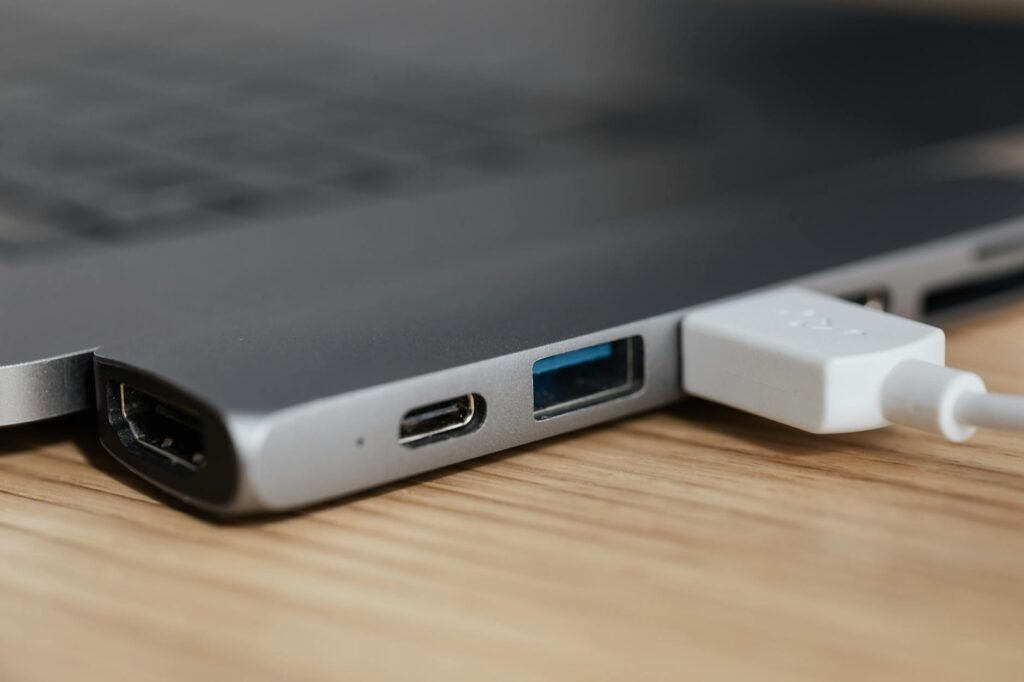
A realistic example: where setup saves more than the warranty upsell
Consider a realistic household purchase: a $1,149 laptop, a $279 monitor, a $119 dock, and an $89 keyboard. That is $1,636 before tax. At checkout, the store offers a $249 protection plan. The buyer skips the upsell for now, spends $79 on an external backup drive instead, and uses the SAFE-PC audit that night.
During the first hardware test, the monitor shows a stuck pixel and the dock drops its Ethernet connection twice. Because the issues are caught during a hypothetical 14-day easy-return window, the buyer exchanges both items with minimal friction. The real savings are not just the $249 plan that was not purchased on impulse. They are the avoided downtime, the avoided shipping hassle, and the avoided argument over whether the problem belongs under a limited warranty or a store return.
That does not mean extended coverage is always bad, but the FTC notes that service contracts and extended warranties cost extra and can overlap with repairs already covered by the written warranty, so comparison should come first. (consumer.ftc.gov)
What deserves same-day attention, and what can wait
| Task | Timing | Why it saves money | Who can delay it |
|---|---|---|---|
| Save receipt, warranty, and serial number | Today | Makes returns and warranty claims easier. The FTC recommends keeping the receipt with the warranty. (consumer.ftc.gov) | Nobody |
| Check activation | Today | Avoids licensing headaches after you migrate files or make hardware changes. (support.microsoft.com) | Nobody |
| Run Windows Update and optional drivers | Today | Fixes compatibility and stability problems before they waste your time. (support.microsoft.com) | Nobody |
| Turn on Windows Security and Windows Hello | Today | Built-in protection is already there, so you may avoid paying for overlapping tools right away. (support.microsoft.com) | Nobody |
| Set up Windows Backup or File History | Today | Reduces the cost of mistakes, resets, drive failure, or accidental deletion. (support.microsoft.com) | Only if this is a secondary device with no important files yet |
| Create a recovery drive | Today or this week | Gives you another recovery path if the PC will not boot, but it does not replace file backup. (support.microsoft.com) | You can wait a few days if you have another working computer |
| Buy paid antivirus | Usually later or skip | Windows already includes built-in security, and multiple anti-malware apps can create performance issues. (support.microsoft.com) | Most beginners |
| Tune BIOS, overclock, or install every RGB utility | Later | These tweaks do not protect your purchase and can complicate troubleshooting before you have a stable baseline. | Nearly everyone |
| Adjust power and sleep settings | This week | Better battery and energy settings can stretch runtime and reduce needless wear on a portable machine. (support.microsoft.com) | Desktop owners with no battery concerns |
Common mistakes that turn a good deal into an annoying one
- Paying for another antivirus immediately, even though Windows Security is already built in. For many beginners, that is unnecessary on day one. (support.microsoft.com)
- Assuming cloud sync equals full recovery. Microsoft is clear that a recovery drive does not include personal files, so backup and recovery media solve different problems. (support.microsoft.com)
- Skipping optional driver updates after the first Windows Update pass. Microsoft says optional driver updates are separate and not installed automatically. (support.microsoft.com)
- Throwing away the box and forgetting to save the serial number. That is exactly the kind of paperwork gap that makes a warranty claim harder. (consumer.ftc.gov)
- Waiting too long to test ports, webcam, speakers, microphone, sleep behavior, and Wi-Fi. Many defects are not obvious until you actually use the device the way you plan to use it.
- Thinking every repair outside the brand store voids the warranty. The FTC says a manufacturer generally cannot require specific parts or services to keep warranty coverage unless it provides them for free or has an FTC waiver, though written warranties can still have other limits. (ftc.gov)
- Using a local account without understanding the tradeoff. A local account may fit your privacy preferences, but Windows Backup is built around personal Microsoft accounts, and automatic device encryption behavior can differ if you do not use one. (support.microsoft.com)
- Installing random pop-up cleanup tools or responding to fake virus warnings. The FTC warns that tech support scammers use virus claims and remote-access tricks to get money and control of your computer. (consumer.ftc.gov)
When the basic plan hits a wall
Sometimes you do the checklist and still run into limits. One common example is encryption. Some systems will not show Device encryption at all, and manual BitLocker management is limited to Windows Pro, Enterprise, or Education editions. That does not always mean something is broken. It may simply mean the device or Windows edition does not support the feature the way you expected. (support.microsoft.com)
Another limit is backup account type. Microsoft says Windows Backup is currently focused on consumer devices using a personal Microsoft account, not a work or school Microsoft account. If this is an employer-owned or school-managed machine, ask what backup standard you are supposed to follow instead of assuming the home setup works the same way. (support.microsoft.com)
Driver problems can also outlast the first setup pass. Microsoft recommends Windows Update first, but if a device still misbehaves afterward, the next step is the hardware maker’s support page for a compatible driver. And if the PC will not start at all, Windows recovery options or a recovery drive become the backup plan. (support.microsoft.com)
One more 2026 reality check: if you are buying refurbished gear, pay attention to the operating system. Microsoft says support for Windows 10 ended on October 14, 2025. A cheap Windows 10 machine may still power on, but it should not be treated as if it is on the same support footing as a Windows 11 system. (support.microsoft.com)
Warning: This article is for general information, not legal, repair, or financial advice. Return policies, warranty terms, and implied warranty rights can vary by seller and by state. Read the written warranty, keep your records, and if a costly claim is denied, consider contacting your state consumer protection office or a qualified repair professional. (consumer.ftc.gov)
How to pressure-test your setup before the return window gets awkward
- Open Activation and confirm Windows says the device is activated. (support.microsoft.com)
- Open Windows Update and make sure there is no pending restart, then check optional driver updates one more time. (support.microsoft.com)
- Open Windows Security and verify real-time protection is on. Run a quick scan if you have already started installing apps. (support.microsoft.com)
- Open your backup tool and make sure it actually ran. If you use File History or another file backup method, restore one unimportant test file so you know recovery works before you need it. (support.microsoft.com)
- If this is your main PC, create and label a recovery drive, then store it somewhere you will remember. Microsoft recommends recreating recovery media periodically so it reflects newer updates. (support.microsoft.com)
- Perform a sweep of your hardware for 10 minutes. Check every USB port, and every peripheral (charger, webcam, mics, headphones, speakers, wi-fi, bluetooth, sleep/wake, and display on each brightness). It is important that if any of these devices and capabilities have not worked correctly, you can find out now, and avoid being caught without using one of these devices at an inconvenient moment.
Bottom line
A beginner PC is not really set up when the wallpaper looks right. It is set up when the purchase is documented, the software is updated, the security is on, the files are protected, and the hardware has been tested while fixing a problem is still easy. Do those jobs first, and the new gear you just paid for is much more likely to stay a good value. (consumer.ftc.gov)
FAQ
Do I need paid antivirus on a brand-new Windows PC?
Usually not on day one. Windows Security includes Microsoft Defender Antivirus and firewall protection, and Microsoft warns that running multiple anti-malware apps can slow or destabilize a PC. If you later want extra features, compare them against what is already built in before paying. (support.microsoft.com)
Is Windows Backup enough by itself?
It is better than doing nothing, but it is not the whole story. Windows Backup can restore settings and some app experience on supported setups, while File History is focused on file protection. A recovery drive is different again, because it helps recover Windows but does not include your personal files. (support.microsoft.com)
Can I use a local account instead of a Microsoft account?
Yes, but make it a deliberate choice. Microsoft says Windows Backup is focused on consumer devices using a personal Microsoft account, and supported systems can turn on device encryption automatically when you sign in or set up with a Microsoft account or work or school account. A local account can mean giving up some convenience. (support.microsoft.com)
Should I create a recovery drive even if the PC is brand new?
If this is your only computer or an important school or work machine, yes. Microsoft says a recovery drive can help restore the PC even after a drive replacement or full wipe. Just remember it does not back up your personal files, so you still need a separate file backup plan. (support.microsoft.com)
Does an independent repair shop automatically void my warranty?
Not generally. The FTC says a manufacturer usually cannot require you to use specific parts or services to keep warranty coverage unless it provides them for free or has an FTC waiver. But written warranties can still contain limits, procedures, and exclusions, so read the document before assuming anything. (ftc.gov)
Should I buy the store’s extended warranty at checkout?
Not automatically. The FTC notes that service contracts and extended warranties cost extra and may cover repairs that the existing written warranty already covers for the same period. Compare accidental-damage terms, deductibles, shipping rules, and manufacturer coverage before deciding. (consumer.ftc.gov)
References
- Microsoft Support: Install Windows Updates – https://support.microsoft.com/en-us/windows/update-windows-10-3c5ae7fc-9fb6-9af1-1984-b5e0412c556a
- Microsoft Support: Automatically get recommended and updated hardware drivers – https://support.microsoft.com/en-gb/windows/automatically-get-recommended-and-updated-hardware-drivers-0549a8d9-4842-8acb-75fa-a6faadb62507
- Microsoft Support: Stay protected with the Windows Security app – https://support.microsoft.com/en-us/windows/stay-protected-with-the-windows-security-app-2ae0363d-0ada-c064-8b56-6a39afb6a963
- Microsoft Support: Protect my PC from viruses – https://support.microsoft.com/en-us/windows/protect-my-pc-from-viruses-b2025ed1-02d5-1e87-ba5f-71999008e026
- Microsoft Support: Activate Windows – https://support.microsoft.com/en-us/windows/activate-windows-11305dbc-ef5d-1c08-3ba7-4c7a2cb8f404
- Microsoft Support: Device Encryption in Windows – https://support.microsoft.com/en-us/windows/device-encryption-in-windows-cf7e2b6f-3e70-4882-9532-18633605b7df
- Microsoft Support: BitLocker Drive Encryption – https://support.microsoft.com/en-us/windows/bitlocker-drive-encryption-76b92ac9-1040-48d6-9f5f-d14b3c5fa178
- Microsoft Support: Configure Windows Hello – https://support.microsoft.com/en-gb/windows/configure-windows-hello-dae28983-8242-bb2a-d3d1-87c9d265a5f0
- Microsoft Support: Back up and restore with Windows Backup – https://support.microsoft.com/en-au/windows/back-up-and-restore-with-windows-backup-87a81f8a-78fa-456e-b521-ac0560e32338
- Microsoft Support: Backup and restore with File History – https://support.microsoft.com/en-us/windows/backup-and-restore-with-file-history-7bf065bf-f1ea-0a78-c1cf-7dcf51cc8bfc
- Microsoft Support: Recovery Drive – https://support.microsoft.com/en-us/windows/recovery-drive-abb4691b-5324-6d4a-8766-73fab304c246
- Microsoft Support: Recovery options in Windows – https://support.microsoft.com/en-us/windows/recovery-options-in-windows-31ce2444-7de3-818c-d626-e3b5a3024da5a?