
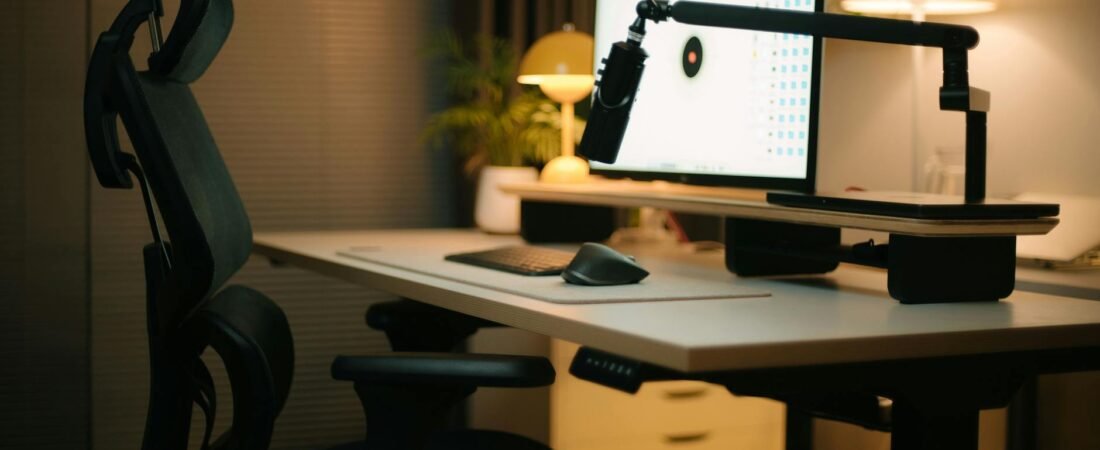
- A clean setup usually comes from fewer visible items, fewer cable paths, and a faster end-of-day reset, not from luxury accessories.
- Use the CLEAR Desk Filter before buying anything: Core task, Layout, Existing substitute, Adjust cheaply, Reset speed.
- Spend first on screen height, cable control, and a stable keyboard-and-mouse zone.
- Delay monitor arms, premium keyboards, large docks, and decorative add-ons until a cheap workaround clearly fails.
- A realistic budget build can often land around $150 to $250 if you reuse one or two things you already own.
- Pressure-test the setup for a week with the 30-3-1 Audit before upgrading again.
You can buy the expensive clean PC configuration quite easily: a monitor stand, matching devices, a shelf for your desk, a docking station, light bar, and a collection of cabled products. On the other hand, there is a more cost-effective solution – it takes a bit longer to put together. The cost-effective version will have fewer decisions made to achieve the clean appearance, rather than using a premium grade of (quality of) product.
That distinction matters. OSHA’s computer workstation guidance says there is no single correct posture or arrangement that fits everyone, and its advice emphasizes simple, inexpensive principles instead. So the right budget setup is the one that fits your actual work and your actual desk, not the one that best copies a photo online. (osha.gov)
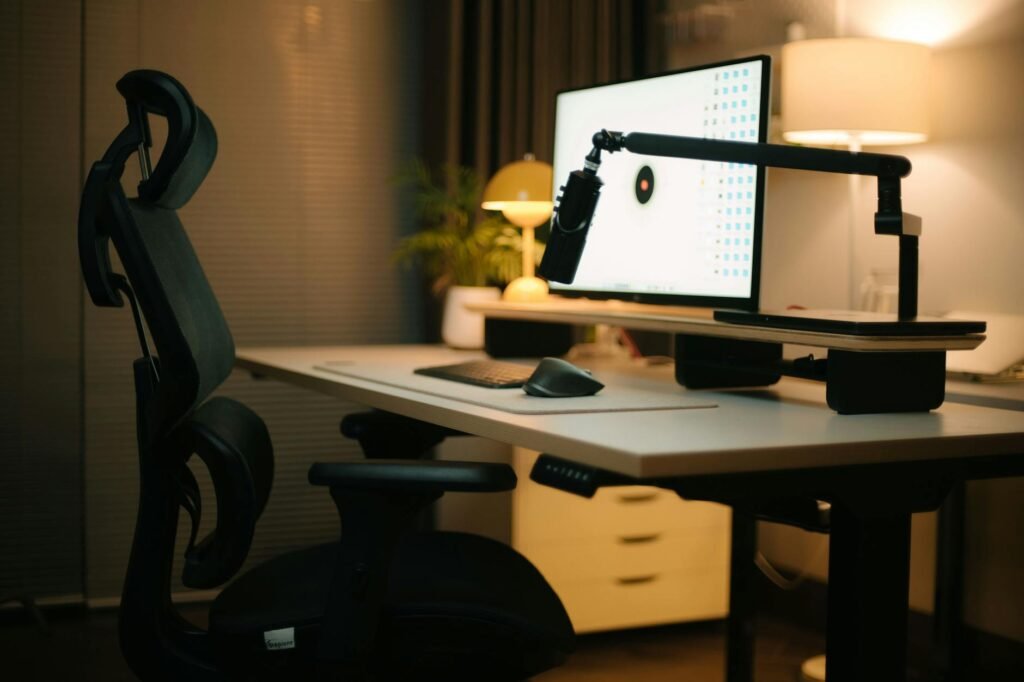
Use the CLEAR Desk Filter before you buy anything
The bulk of overspending generally occurs before the purchase of the initial cable. You notice a cluttered environment, jump to the conclusion that you need to buy new equipment, and proceed to make a purchase. The CLEAR Desk Filter interrupts this process allowing you to identify if you actually have a problem or just saw something trendy.
- Core task: Does this item directly help your main use, such as work, study, gaming, or browsing?
- Layout: Will it reduce what stays visible on the desk from your seated view?
- Existing substitute: Can something you already own do at least 80% of the job?
- Adjust cheaply: Could a riser, Velcro tie, cable clip, lamp reposition, or software setting solve it instead?
- Reset speed: Will it help the desk return to clean in 30 seconds?
Give each line a score between 0-2. A total score of 8-10 indicates you should buy or keep what you have. A score of 5-7 indicates that you should try to create ways around using these items before making any changes. A score of 0-4 usually indicates that you are cluttered with lots of fancy gadgets you’ve purchased prior to reducing the cable count in your office. You will want to use this filter to help eliminate unnecessary expenditures on fancy keyboards, pedal racks, etc., as well as those miscellaneous goodies like HDMI cords.

Build around the three things that actually shape a clean desk
To achieve a minimalist zoom set-up on a tight budget, you need to create an area for your screen, a place to put in your keyboard & mouse, and plan for the cords/wires that are going to be run to power your screen. If you can get these three areas correct, the desk will/should feel complete. If they aren’t, no matter what you purchase, the desk will not feel complete. In practice, the three areas/locations of the above are one (1) screen at an appropriate height, one (1) comfortable keyboard-and-mouse location, and one (1) predictable mesh of cords/wires dropping down from the back of your screen.
| Problem | Cheapest clean fix | Good-enough budget | Upgrade only if |
|---|---|---|---|
| Monitor sits too low | Books, spare shelf, or basic riser | $0-$25 | The stand is unstable or the screen still sits too low |
| Laptop eats desk space | Simple laptop stand plus external keyboard | $15-$30 | You reconnect several devices every day and need one-cable docking |
| Visible cable mess | Reusable Velcro ties and a few adhesive clips | $8-$20 | Your desk has many permanent devices and needs an under-desk tray |
| Keyboard area feels cramped | Move monitor back, center keyboard, remove decorative items | $0 | Your desk is physically too shallow for your work |
| Need audio for calls | Wired earbuds or headphones you already own | $0-$25 | You spend hours in meetings and need a better mic |
| Glare or poor lighting | Reposition desk or lamp before buying a light bar | $0-$35 | The room layout cannot be changed and you work there at night |
Minimalism does not equal small. If you work in an office using spreadsheets on a daily basis, switching to a smaller keyboard without a numeric keypad could make your work more difficult than it would otherwise. If you are using software like Photoshop or working with large documents, having one good-sized monitor may make more sense than trying to create a dual monitor workstation with two smaller monitors. Budget-friendly minimalism can be accomplished by eliminating duplicative items, not by eliminating useful items.
A realistic $194 reset
Here is a composite example. A reader has a 48-inch desk, a work laptop, and two work-from-home days each week. The first shopping cart is polished but expensive: monitor arm $89, premium mechanical keyboard $119, wireless mouse $59, USB-C dock $139, light bar $45, desk shelf $60, and cable kit $25. Total: $536 before tax. Running that list through CLEAR changes the plan.
- Used 24-inch monitor: $85
- Basic laptop stand: $22
- Full-size wired keyboard: $18
- Simple mouse: $12
- Reusable Velcro ties: $9
- Adhesive cable clips: $8
- Slim task lamp: $24
- Desk mat to visually anchor the space: $16
- Total: $194
There are a few features which help to create your “Minimum Viable Solution” and they are:
1. Create a Primary Screen
2. To create up some space at the bottom of your laptop you can use a Laptop Stand
3. Use your Keyboard and Mouse to define your “Work Zone”
4. Use a few Cable Ties to eliminate the “damaging” look of the cables
5. Create a desk that looks great during Day and Night by using a Lamp
Although there may not be anything super exciting in this list of features, what we have accomplished is taken an array of unrelated items that created the “Old Desk” and transformed it into one cohesive unit (“New Desk”).
Also, if you already have a lamp that you can reuse (or a stable riser) the total can decrease again as well.

Prices and used-market availability vary by city. If you buy open-box or refurbished gear, treat the warranty and return window as part of the price. The FTC says that if a seller offers a warranty, it must be available for you to read before you buy, online or in person. It also notes that some items may be sold “as is,” depending on state law, so save the receipt and read the listing carefully. This article is general information, not legal advice; for a warranty dispute, contact your state consumer protection office or a qualified attorney. (consumer.ftc.gov)
The 90-minute setup plan
- Clear the desk down to the essentials: computer, monitor, keyboard, mouse, and one light source.
- Center the screen on your working position instead of shoving it aside to work around the stand footprint.
- Raise the screen with a free riser first. Buy a stand only if the free fix is unstable or visually messy enough that you will not keep it.
- Create one input zone: keyboard centered to your body, mouse close enough that your elbow stays near your side.
- Route cables by destination, not by gadget: one drop for power, one for data, one charging spot for small devices.
- Remove everything that does not support today’s work, including spare chargers, unopened mail, extra notebooks, and gadgets that live there by habit.
- Use the setup for three days before ordering add-ons. The item that still annoys you after three days is the one worth paying to fix.
Use software before you buy more hardware
A lot of people try to buy their way out of window management. Before you add a second monitor, use the screen you already have better. Microsoft’s Windows Snap tools let you arrange windows with the mouse or keyboard, including Windows key plus arrow keys and Snap layouts with Windows key plus Z. For email, documents, chat, browser tabs, and light spreadsheet work, that can make a single monitor feel much more structured. (support.microsoft.com)
Do the same with power settings. ENERGY STAR says enabling a desktop computer’s power management features can save a home office about $15 per year, and it notes that screen savers do not save energy and can even keep the CPU from shutting down. If you are choosing between similarly priced monitors, ENERGY STAR also says certified models are, on average, 7% more energy efficient than standard options. (energystar.gov)
Cheap upgrades that actually earn their spot
- A basic monitor riser or a stable stack of books. This is often the best dollar-for-dollar visual fix.
- Reusable Velcro ties instead of single-use zip ties, because your setup will change and you should be able to redo it.
- Adhesive cable clips only where a cable wants to fall, not every few inches across the desk.
- A simple desk mat if you want the keyboard, mouse, and notebook to read as one zone instead of scattered objects.
- One lamp with a shade or diffuser, placed to the side, before a light bar or LED strip.
- A laptop stand before a dock. The stand creates space immediately; the dock is only worth it when repetitive plugging is the actual problem.
Cheap should not mean uncomfortable. OSHA’s workstation guidance emphasizes straight hands and wrists, relaxed shoulders, elbows close to the body, and feet supported by the floor or a footrest if the desk height is not adjustable. A book riser and a simple footrest can do more for daily comfort than a premium keyboard if the screen height and body position are wrong. (osha.gov)
Common mistakes that make a minimal setup look messy
- Buying cable management before reducing cable count.
- Copying influencer layouts designed for photos instead of your tasks.
- Paying extra for matching peripherals when one or two visible mismatches do not hurt function.
- Choosing the smallest keyboard possible, then buying separate accessories to restore the missing keys.
- Using a monitor arm to solve a desk-depth problem it cannot fix.
- Filling newly opened space with décor and chargers until the desk looks crowded again.
- Switching everything to wireless without a charging routine, then adding more chargers and clutter to compensate.
When the bargain plan stops working
In some scenarios, the best option may not be the least expensive one. If you plug in your laptop to power and network connections (such as an ethernet cable) every day, then getting a basic docking station could be worthwhile just to minimize effort required to connect cables. If you regularly work with spreadsheets or programming while using two monitors, you could recoup the cost of your second monitor more quickly than you would the cost of purchasing additional cables. Finally, if you find yourself working too closely to the monitor due to your shallow desk space, it is possible that your desk is causing this issue rather than your peripherals.
- If one monitor feels cramped, try a larger used business monitor before jumping to dual displays.
- If the monitor stand eats too much desk space, then a basic arm becomes a functional purchase instead of a style purchase.
- If your feet do not rest flat, add a small footrest before blaming the chair. OSHA specifically notes that a footrest can help when desk height is not adjustable. (osha.gov)
- If glare is the issue, change desk orientation or lamp placement before replacing the monitor. OSHA recommends positioning bright windows at right angles to the screen and slightly tilting the monitor down to reduce reflections. (osha.gov)
- If you buy refurbished or open-box, favor clear warranty terms and a real return window over the absolute lowest price. (consumer.ftc.gov)
How to pressure-test the setup
Before you buy anything else, run a one-week 30-3-1 Audit. It is simple, but it tells you whether the desk is actually minimal or just newly rearranged.
- 30 seconds: At the end of the day, can you return the desk to its clean state in 30 seconds or less?
- 3 visible lines: From your seated view, can you keep visible cable runs to three or fewer?
- 1 charging zone: Do your phone, earbuds, and other small devices charge in one predictable spot instead of drifting around the room?
- 1 annoyance log: Write down the single thing that keeps bothering you each day. If the same issue shows up four times in a week, that is the next thing worth paying to fix.
Also verify comfort and glare, not just appearance. OSHA recommends relaxed shoulders, elbows near the body, supported feet, indirect or shielded lighting, and workstations arranged so bright windows hit the screen from the side instead of straight on. If the desk looks clean but leaves you craning your neck or fighting reflections, it is not finished yet. (osha.gov)
Bottom line
A clean minimal PC setup does not require expensive gear. It requires editing. Spend first on screen height, cable control, and a stable work zone. Delay style purchases until a real week of use shows that they solve a real problem. Done that way, a $150 to $250 setup can look better, work better, and feel calmer than a much more expensive desk built backwards.
Is a monitor arm worth it for a budget minimal setup?
Usually, an arm is utilized as a last resort for converting a stand into a mount if the height problem can be resolved by using a stable riser; otherwise, an arm will generally be used later than expected.
Should I buy a dock right away?
Usually no. A dock does not justify being purchased unless you regularly connect and disconnect multiple devices throughout each day. You can achieve nearly all of the visual enhancements for a straightforward laptop and monitor through a stand and basic cable management at significantly less expense than having to buy a dock.
Is one monitor enough for a clean setup?
In most cases yes, but for the majority of users with mostly web browsers, email, documents and chat, plus very few spreadsheets, a single monitor that has an improved way to manage windows is usually adequate. However, if you have to keep on comparing larger files or monitoring multiple applications plus all day, getting a second monitor would be warranted.
Are used monitors and refurbished accessories a bad idea?
Not necessarily. They can be excellent value, especially business monitors and simple wired peripherals. Check stand stability, ports, dead pixels, return policy, and warranty terms. If a warranty is offered, the FTC says it should be available for you to read before purchase. (consumer.ftc.gov)
What should I avoid spending money on first?
Skip premium keyboards, decorative lighting, desk shelves, matching accessories, and advanced cable systems until the setup has been used for at least a week. Those purchases are easy to admire and easy to overbuy.
How can I make my setup look cleaner without buying anything?
To clean your desk, remove duplicate items, find something stable that is already in your possession to elevate your screen. Center the keyboard and create only one place to charge your device(s). Don’t clutter the desk with gadgets that you never use. The reason that most desks look neater than others have less items on their desks than do matchdesk items.
References
- OSHA computer workstations overview – https://www.osha.gov/etools/computer-workstations
- OSHA good working positions for computer workstations – https://www.osha.gov/etools/computer-workstations/positions
- OSHA workstation environment guidance – https://www.osha.gov/etools/computer-workstations/workstation-environment
- Microsoft Support: Snap Your Windows – https://support.microsoft.com/en-us/windows/snap-your-windows-885a9b1e-a983-a3b1-16cd-c531795e6241
- ENERGY STAR monitors guidance – https://www.energystar.gov/products/monitors
- ENERGY STAR computers guidance – https://www.energystar.gov/products/computers
- FTC Consumer Advice: Warranties – https://consumer.ftc.gov/articles/warranties