
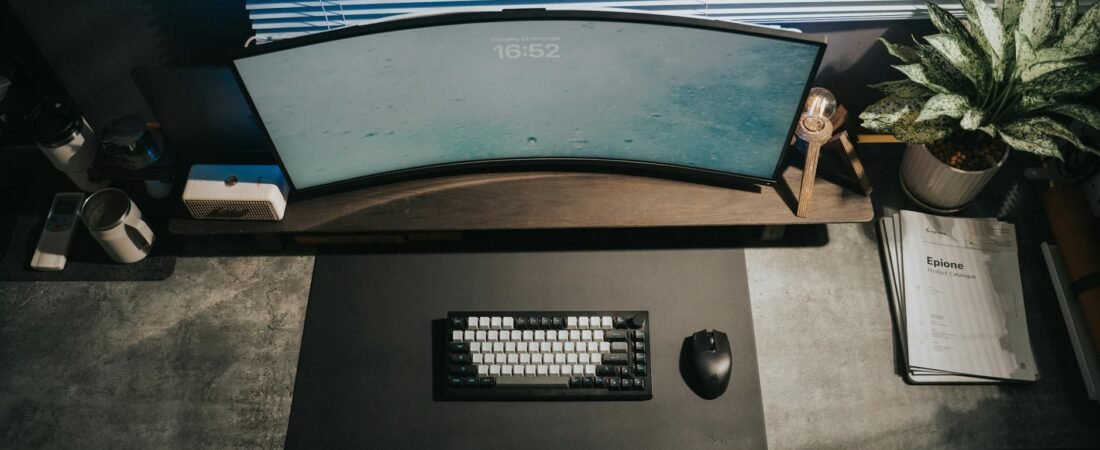
Most desk setups do not need a dramatic makeover. They need a few boring fixes in the right places. OSHA’s computer workstation guidance is built around simple, inexpensive changes, and it also notes that there is no single perfect posture that fits everyone. That is the right frame for budget-minded upgrades: buy the item that removes strain, frees space, or cuts daily friction, not the accessory that only makes the desk look more expensive. (osha.gov)
Use the C.L.E.A.R. Desk Filter before you buy
Before you add anything to your setup, run it through the C.L.E.A.R. Desk Filter. Only buy an upgrade that scores at least four out of five. This helps avoid the common mistake of stacking organizers, shelves, and gadgets onto a desk that still does not feel better to use. The goal is a workstation that asks less from your neck, hands, and attention, not one that simply holds more stuff. OSHA’s guidance is useful here because it focuses on neutral positioning, easy reach, and support rather than on any one ideal-looking setup. (osha.gov)
- Comfort: Does it improve screen height, hand position, foot support, or glare control?
- Layout: Does it free up the main work zone in front of the keyboard and mouse?
- Everyday friction: Does it remove an annoyance you notice several times a day, such as cable snags, no place for notes, or constantly looking down at a phone?
- Affordable: Is it meaningfully cheaper than replacing a desk, chair, or monitor?
- Reversible: Can you return it, repurpose it, or remove it easily if it fails?
Note
Price examples below are examples current as of May 23, 2026. Treat them as budget markers, not guarantees, because retailer pricing and availability can change often.
Warning
This article is informational, not medical advice. If you have ongoing numbness, tingling, headaches, or pain that does not improve after setup changes, talk with a clinician or a workplace ergonomics professional.
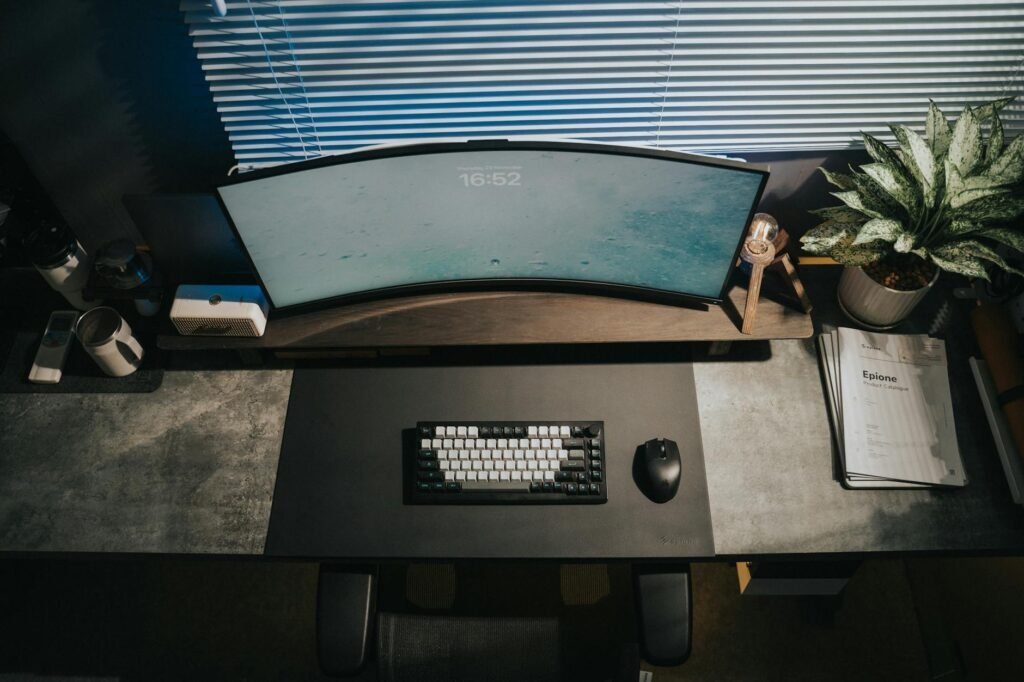
The upgrades that usually earn their space
| Upgrade | Typical cost example | What it fixes | Best for | Skip if |
|---|---|---|---|---|
| Monitor stand with drawer | $17 to $29.99 in current examples. (target.com) | Raises the screen and creates storage underneath, which can help both neck comfort and desk space. (osha.gov) | Single-monitor desks or compact desks | You need frequent height changes or have a very heavy display |
| Laptop stand | About $31.99 to $39.99 in current examples. (staples.com) | Gets the screen higher, but it only works well for longer sessions when paired with separate input devices. (osha.gov) | Laptop-first setups | You will keep typing on the raised laptop |
| External keyboard and mouse | Roughly $19 to $25 for basic current combo examples. (walmart.com) | Lets your hands sit lower and closer even when the laptop screen is raised. (osha.gov) | Anyone using a laptop as a main computer | You already have comfortable peripherals |
| Footrest | Roughly $22 to $34 in current examples. (walmart.com) | Supports the feet when desk height and chair height do not match. (osha.gov) | Shorter users and fixed-height desks | Your feet already rest flat and your knees feel fine |
| Adjustable desk lamp | About $25 to $40 in current Target examples. (target.com) | Improves visibility for paper tasks and may reduce glare when aimed at the desk instead of the screen. (osha.gov) | Evening work, shared rooms, paper notes | Your main glare problem is a window placement issue |
| Cable tray and reusable ties | About $7.99 to $9.99 in current IKEA examples. (ikea.com) | Moves cords off the work surface and makes the desk easier to clean and use. (ikea.com) | Small desks, shared desks, laptop chargers everywhere | You already have almost no cable clutter |
| Tablet or document stand | About $3.99 to $13.45 in current examples. (ikea.com) | Keeps source material higher and closer to the screen area instead of pulling your head down all day. (osha.gov) | People who work from notes, phone, or tablet | You almost never look at a second device while working |
Notice what is missing from that list: expensive monitor arms, oversized under-desk drawers, and decorative desk accessories. Those can help in some setups, but they are rarely the first purchase that changes daily comfort. Start with the cheapest item that improves screen position, hand position, or lighting, and only then spend on storage extras. (staples.com)
1) A monitor riser or laptop stand
If your screen is too low, you usually lean forward, tuck your chin down, or round your shoulders without noticing. OSHA says the monitor should sit in front of you at a height that lets you look straight ahead rather than tilting your head up or down, and UCLA advises keeping the top third of the screen around seated eye level and about an arm’s length away. A basic riser is often enough to get there. On a small desk, a riser with a drawer is often better than a plain block because it also creates a home for sticky notes, dongles, and chargers that would otherwise sit beside the mouse. (osha.gov)
For a laptop, the same logic applies, but there is a catch. Raising the laptop helps the screen while making the keyboard angle worse if you keep typing on it. That is why a laptop stand is a good first buy only when you also plan to separate your hands from the screen. Current retail examples put simple laptop stands in roughly the low-$30s to about $40, which is still far cheaper than replacing a desk. (osha.gov)
2) An external keyboard and mouse for laptop users
Laptop users often try to solve two problems with one object. They want the screen high and the keyboard low, but a laptop cannot do both at once. OSHA’s purchasing guide recommends an external keyboard and input device for laptops and tablets, and UCLA makes the same point: an external keyboard lets you raise the screen to a more appropriate height and distance. If you rarely use a number pad, a smaller keyboard can also bring the mouse closer to your body, which reduces reach. Basic keyboard-and-mouse combo examples are currently available around $19 to $25, making this one of the best comfort-per-dollar upgrades on the list. (osha.gov)

3) A footrest when the desk is the real problem
A footrest is not universally necessary, but it is often the cheapest way to improve a fixed-height desk setup. The usual chain reaction goes like this: the desk is a little too high, so you raise the chair to match the keyboard, then your feet stop resting flat, then your lower back and legs start feeling off by mid-afternoon. OSHA specifically notes that feet should be fully supported by the floor or a footrest, and its chair guidance recommends a footrest when the seat cannot be lowered without making the keyboard or monitor too high. In current retail examples, workable footrests show up around the low-$20s to mid-$30s. (osha.gov)
4) A desk lamp that lights the desk, not the screen
People often blame the monitor when the real problem is glare. OSHA recommends indirect or shielded lighting and positioning the workstation so bright windows sit at right angles to the screen. Mayo Clinic also notes that bright lighting and glare can make it harder to see the monitor and strain the eyes. That makes an adjustable desk lamp a very practical buy if you read paper notes, work at night, or share a room where overhead lighting is too harsh. The trick is aiming light at the keyboard or notebook, not at the display. Current Target examples put many desk lamps in roughly the $25 to $40 range. (osha.gov)
5) Cable management that actually gives the desk back
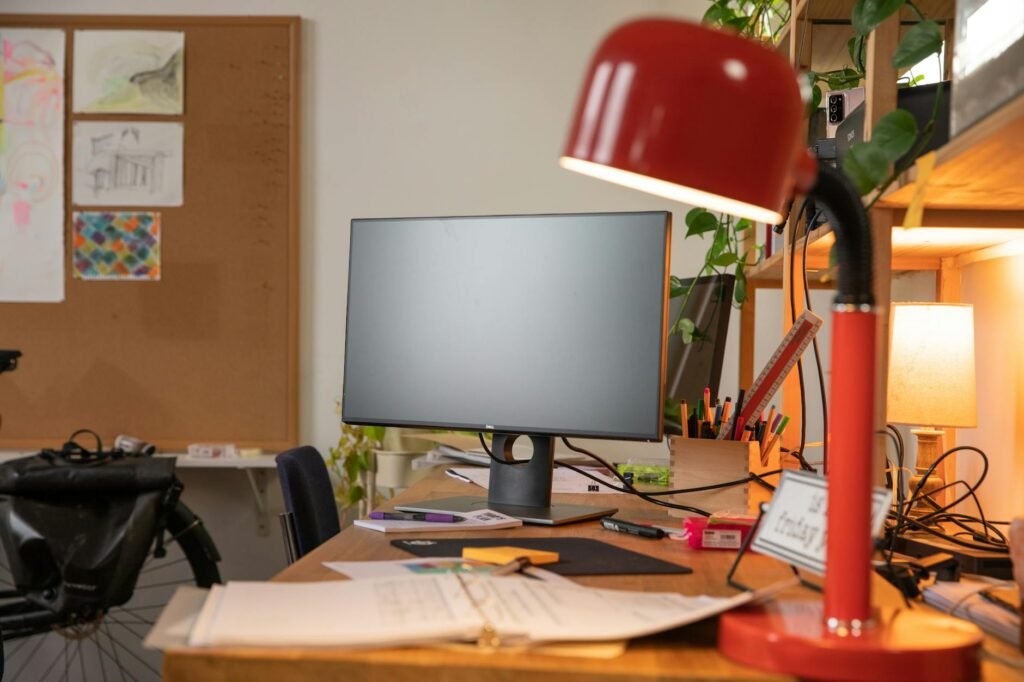
Cable management sounds cosmetic until you look at where the cords actually sit. Chargers, power bricks, and extra loops of cable often take up the same zone where your mouse, notebook, or coffee mug wants to be. A basic tray mounted under the desk plus reusable ties is one of the cheapest ways to free usable depth on a narrow desk. IKEA’s current examples put a cable tray at $9.99 and a cable management set at $7.99. That is a small spend for something that makes the desk easier to wipe down, easier to move around on, and less visually noisy every day. (ikea.com)

6) A tablet or document stand for the second thing you keep looking at
If you keep glancing down at a phone, a paper to-do list, or printed instructions, the cheapest useful upgrade may be a stand rather than more storage. OSHA’s document holder guidance and UCLA’s workstation setup advice both point toward keeping source material closer to the monitor area when possible. In practice, that means less neck dipping and less clutter spread across the keyboard zone. This category can stay very cheap: a simple headset-and-tablet stand is currently listed at $3.99 at IKEA, and a basic document holder example is around $13.45 at Walmart. (osha.gov)
A realistic $111 reset for a cramped laptop desk
Consider a renter working from a 42-inch desk with a 14-inch laptop, no room for a second monitor, and a charger brick constantly sitting where the mouse should go. Using the C.L.E.A.R. filter, the smart first pass is not a new desk. It is a $39.99 laptop stand, a roughly $19.32 basic wireless keyboard-and-mouse combo, a $33.99 footrest, a $9.99 cable tray, and a $7.99 cable kit. That total is about $111.29 before tax. The result is not glamorous, but it solves the three problems that matter: the screen moves up, the hands move down, and the desk surface opens up. That is usually a better first move than buying a $250 desk before proving the current one is actually too small. (staples.com)
Buy in this order if your budget is tight
- Fix screen height first. If you use a separate monitor, start with a simple riser. If you use a laptop, start with a stand only if an external keyboard and mouse are part of the same plan. (osha.gov)
- Separate hands from screen second. Laptop users often get the biggest comfort jump when the screen and keyboard stop competing for position. (osha.gov)
- Add a footrest only if your feet no longer rest flat after you set chair height for typing. That keeps it from becoming a needless extra. (osha.gov)
- Fix glare before you buy fancy display accessories. Reposition the monitor, then add a task lamp if you still need better light on paper or the keyboard. (osha.gov)
- Move cables off the desk after the layout is set. Doing this earlier can mean redoing the same work twice. (ikea.com)
- Wait at least a week before the next purchase. If the setup is still uncomfortable, the next spend should probably target furniture, not another accessory.
Common mistakes that waste money
- Buying a laptop stand and continuing to type on the raised laptop for full workdays. That fixes the screen and breaks the hand position. (osha.gov)
- Adding a big wrist rest before fixing keyboard height and mouse reach. Palm support is not a substitute for proper placement. (ergonomics.ucla.edu)
- Buying under-desk storage without checking leg clearance. Storage that hits your knees is not an upgrade.
- Spending monitor-arm money before trying a basic riser. Current examples put simple risers well below the cost of a monitor arm. (target.com)
- Treating cable clutter as purely visual. On a small desk, cables steal real working room. (ikea.com)
- Trying to solve a bad chair or bad desk entirely with accessories. Sometimes the cheap fix is only a stopgap. (osha.gov)
When the cheap fix stops being enough
There is a point where accessories stop being the smart answer. If your shoulders rise every time you type, a footrest may support your feet but it will not lower the keyboard. If the screen cannot be centered or adjusted low enough, a monitor arm may be worth the jump; one current Staples example is $59.99. If you are tempted by under-desk drawers because the desktop is overflowing, notice the price: current examples are often around $62.99 to $79.99. At that point, a rolling cart, a wall shelf, or saving for a deeper desk may be the better financial move. And if the chair itself cannot provide usable back support or seat-height range, stop collecting add-ons and start a replacement fund instead. (osha.gov)
How to pressure-test the advice in one week
- Take one photo from the side before you change anything and one after. You should see less chin drop, less forward reach, and fewer items crowding the mouse zone.
- Run two full one-hour work blocks. Notice whether you still lean in, tuck your feet under the chair, or keep moving cords out of the way.
- Check three basics at the end of each block: screen straight ahead, keyboard and mouse easy to reach with relaxed shoulders, and feet supported. (osha.gov)
- If you use paper notes, a phone, or a tablet, keep it on the stand for three days. If you still keep looking down, the stand is in the wrong place or you may need a different type. (osha.gov)
- Use micro-breaks or task changes as a final test. OSHA and UCLA both point to regular movement and brief pauses as part of a workable setup, not an optional extra. (osha.gov)
Bottom line
The best inexpensive upgrades for the PC are based on changing your desk height, screen position, and reducing friction/movement. These products include a screen stand, external mouse/keyboard (if using a laptop), a footrest if your desk is too high, an adjustable lamp to minimize glare, basic cable management to keep wires organized, and a stand for Documents or second devices you refer to often. Use the C.L.E.A.R. filter before making each purchase. This will allow you to save money and provide you with a more functional workspace.
FAQ
Is a monitor arm better than a monitor riser?
Only if you need frequent height changes, want to free the full area under the screen, or have a layout a fixed riser cannot handle. For many desks, a simple riser solves the problem for much less money. Current examples put some risers around $17 to $29.99 and a monitor arm around $59.99. (target.com)
Do I need a footrest if my chair already adjusts?
Not automatically. Buy one only if your chair is set correctly for typing but your feet no longer rest flat or your knees and hips feel off after a while. That is the use case OSHA points to. (osha.gov)
Is a laptop stand worth it without an external keyboard and mouse?
Usually not for longer work sessions. Official workstation guidance recommends an external keyboard and input device for laptops because otherwise you improve screen height while forcing a worse hand position. (osha.gov)
What is the best setup upgrade under $20?
If your screen is already at a comfortable height, cable management or a tablet or document stand can be the highest-value buy under $20. If the screen is too low, a basic monitor stand in the high teens can beat both. (target.com)
Should I buy storage or ergonomic items first?
Start with screen height, hand position, foot support, and glare. Add storage after that, unless clutter is physically blocking the keyboard or mouse. Storage is useful, but comfort problems tend to cost you more in daily frustration. (osha.gov)
References
- OSHA Computer Workstations eTool – https://www.osha.gov/etools/computer-workstations
- OSHA Workstation Desks Guidance – https://www.osha.gov/etools/computer-workstations/components/desks
- OSHA Workstation Purchasing Guide – https://www.osha.gov/etools/computer-workstations/checklists/purchasing-guide
- OSHA Good Working Positions – https://www.osha.gov/etools/computer-workstations/positions
- OSHA Workstation Chairs Guidance – https://www.osha.gov/etools/computer-workstations/components/chairs
- OSHA Workstation Environment Guidance – https://www.osha.gov/etools/computer-workstations/workstation-environment
- OSHA Document Holders Guidance – https://www.osha.gov/etools/computer-workstations/components/document-holders
- Mayo Clinic Office Ergonomics – https://www.mayoclinic.org/health/office-ergonomics/MY01460
- Mayo Clinic Eye Strain Treatment – https://www.mayoclinic.org/diseases-conditions/eyestrain/diagnosis-treatment/drc-20372403?p=1&pStoreID=epp.
- UCLA Ergonomics: 4 Steps to Set Up Your Workstation – https://ergonomics.ucla.edu/office-ergonomics/4-steps-set-your-workstation
- UCLA Ergonomics: Keyboard – https://ergonomics.ucla.edu/computer-equipment/keyboard
- Target Brightroom Monitor Stand With Drawer – https://www.target.com/p/-/A-83901168