

Most desk pain is not a character flaw. It is usually a layout problem. People often blame the chair, buy a new one, and then keep working with a monitor that is too low, a mouse that is too far away, and a keyboard that forces the wrists upward. OSHA’s guidance is useful here because it focuses on design goals rather than one perfect pose: head balanced over the torso, shoulders relaxed, elbows close to the body, lower back supported, wrists in line with the forearms, and feet supported. It also notes that there is no single “correct” arrangement that fits everyone. (osha.gov)
Start with arrangement, not shopping
The cheapest useful ergonomic upgrade is usually better order. Set the chair and feet first. Then place the keyboard and mouse so your arms can relax. Then set the monitor to match your eyes. Only after that should you decide whether you actually need a footrest, monitor arm, keyboard tray, new chair, or different input device. This matters for your budget as much as your body, because a poorly arranged expensive setup can feel worse than a basic setup with the geometry right. OSHA’s workstation guidance repeatedly ties the chair, desk, keyboard, mouse, and monitor together rather than treating any one item as a magic fix. (osha.gov)
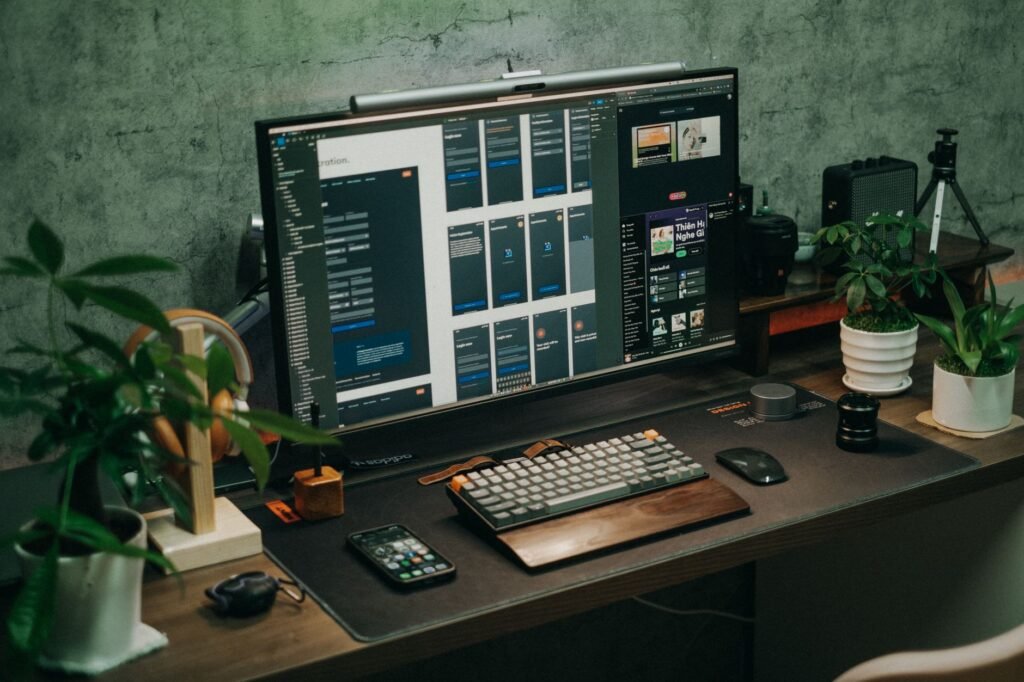
The Desk Truce Scorecard
Use this five-part scorecard before you buy anything. Give yourself 0, 1, or 2 points in each row. It is built to reflect the same neutral-posture goals OSHA uses in its workstation checklist and monitor, keyboard, chair, and mouse guidance. (osha.gov)
| Area | 0 points | 1 point | 2 points |
|---|---|---|---|
| Feet and chair | Feet dangle or chair cannot pull in comfortably | Feet are supported, but back or arm position still feels off | Feet are supported, back is supported, and shoulders stay relaxed |
| Keyboard position | Keyboard is too high, off-center, or forces bent wrists | Mostly centered, but forearms or wrists still do not line up well | Keyboard is centered and wrists stay in line with forearms |
| Mouse position | Mouse is far away, on a different level, or causes reaching | Mouse is close, but shoulder or wrist still feels tense | Mouse sits right beside the keyboard and the arm stays close to the body |
| Monitor placement | Monitor is too low, too high, too close, or off to the side | Monitor is usable, but you still lean or tilt to see well | Monitor is straight ahead, about arm’s length away, with the top at or slightly below eye level |
| Movement and accessories | No regular breaks and frequent awkward phone or paper use | Some breaks or accessory fixes, but not consistently | Regular movement breaks and frequently used items placed within easy reach |
0-4 = You need to fix your layout before you think about buying premium gear. 5-7 = You probably need only one piece of missing adjustability, like monitor height or foot support. 8-10 = Your setup is pretty close to perfect. You’ve just got hot spots like wrist contact stress, phone use, or accidental screen time.
The 10-minute reset
- Clear under-desk clutter so your chair can pull in and your feet have a place to land. (mayoclinic.org)
- Set chair height so your feet are flat. If that makes the keyboard or monitor too high, add a footrest or a stable substitute and keep going. (osha.gov)
- Move the keyboard directly in front of you and put the mouse right beside it on the same surface. (osha.gov)
- Raise or lower the primary monitor until the top of the screen is at or slightly below eye level and straight in front of you. (osha.gov)
- If you use a laptop all day, add an external keyboard and mouse before you add anything else. (osha.gov)
- Set a timer for a five-minute movement break each hour. Use it to stand, walk, stretch, refill water, or switch tasks. (cdc.gov)
Chair setup comes first because it sets the height of everything else. A useful target is simple: entire soles on the floor or a footrest, back supported, and shoulders relaxed. If your chair has armrests, they should lightly support your forearms without forcing your shoulders up or blocking the chair from getting close to the desk. If the armrests fight the desk, remove them or stop using them. If the chair lacks lumbar support, OSHA suggests a temporary fix such as a rolled towel or removable cushion. (osha.gov)

Next, fix the keyboard and mouse as a pair. The keyboard belongs directly in front of you. Your shoulders should stay relaxed, elbows close to the body, and wrists straight and in line with your forearms. The mouse should sit next to the keyboard, not several inches away on a higher desktop corner. If the desk or tray is too small for both, that is not a mouse problem; it is a surface problem. A larger tray, a mouse platform, or a more compact keyboard can help. Also watch the hard front edge of the desk. Mayo Clinic notes that extended contact with a hard edge can create contact stress. Wrist or palm rests can help, but OSHA says your hands should float above the support while typing; the pad is for resting, not for pinning your wrists down during keystrokes. (osha.gov)

Then set the monitor. Put it directly in front of you, not off to the side. OSHA says at least 20 inches away, and both OSHA and Mayo Clinic describe a general comfortable range of about 20 to 40 inches, or roughly arm’s length, so you can read without leaning your head and torso forward. The top of the screen should be at or slightly below eye level. If you wear bifocals or trifocals, OSHA notes that you may need the monitor lower than usual or may benefit from computer-specific lenses. If you work from paper, a document holder at about the same height and distance as the monitor can cut down on repeated head dropping and neck rotation. (osha.gov)
Laptop users usually need the clearest correction. OSHA’s purchasing guide says laptop keyboards are generally not suitable for prolonged typing because they are smaller, can have hard edges, and force the keyboard too far away if the screen is positioned correctly. The practical answer is a stand or riser for the laptop, plus an external keyboard and mouse. If you spend a lot of the day on calls, add a headset rather than pinching the phone between shoulder and ear. Keep frequently used items close enough that you can reach them with elbows near your sides, not with a long arm stretch. (osha.gov)
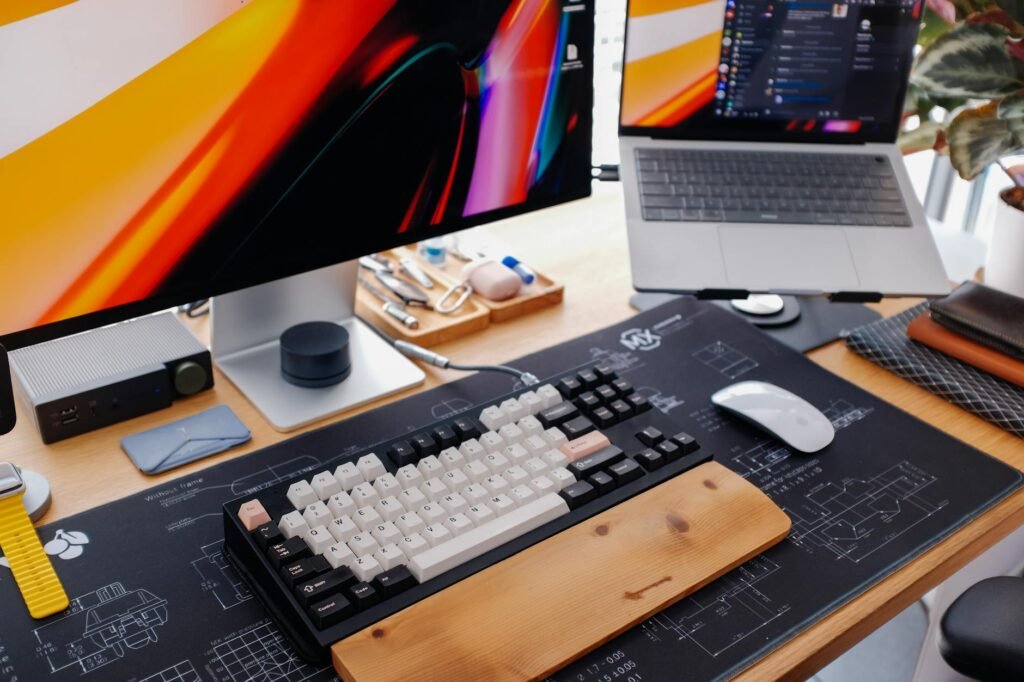
One more correction matters because no static setup is perfect: movement. OSHA says even good posture should change during the day, with small chair adjustments, standing, stretching, and walking around periodically. NIOSH reports that musculoskeletal discomfort and eyestrain were lower when regular breaks were supplemented with hourly five-minute breaks. A standing desk can help with that variability, but it is not a cure if the monitor, keyboard, and mouse heights are still wrong. (osha.gov)
A cheaper fix-first plan
Consider a realistic example. A remote worker using a 29-inch dining table and a laptop is ready to spend $900 on a premium chair because their neck and wrists hurt by noon. A better sequence is to fix the arrangement first: $35 for a laptop stand, $30 for an external keyboard, $25 for a mouse, and $20 for a footrest or a stable household substitute. If the back still feels unsupported after a week, then look at a chair upgrade. Even adding a used ergonomic chair for $150 brings the total to about $260, which is $640 less than the original impulse purchase. The point is not that a premium chair is bad. It is that geometry should earn the upgrade, not follow it.
| If this is what you feel | Check this first | Low-cost move | Spend-more backup |
|---|---|---|---|
| Neck tightness by midmorning | Monitor too low, too high, or off-center | Raise or lower the screen; enlarge text; center the primary display | Monitor arm or adjustable monitor stand |
| Wrist ache or red lines at the desk edge | Keyboard too high or a hard front edge pressing into the arm | Lower the keyboard if possible; pad the edge; stop planting the wrists while typing | Adjustable keyboard tray or matched palm rest |
| Shoulder burning on mouse side | Mouse too far away or armrest pushing the arm outward | Move the mouse beside the keyboard; lower or remove the armrest; reduce pointer force | Compact keyboard, larger tray, or different-size mouse |
| Low-back fatigue after an hour | Feet unsupported or a lumbar gap behind the lower back | Add a footrest or stable books; use a rolled towel for lumbar support | Adjustable chair with better backrest fit |
| Whole-body discomfort from laptop work | Screen and keyboard cannot both be in the right place on a laptop alone | Add a stand, external keyboard, and external mouse | Docking setup with a full-size monitor |
Common mistakes that keep the fight going
- Buying a new chair before checking whether the desk, keyboard, and monitor can actually match your body. OSHA treats these as an integrated system, not separate purchases. (osha.gov)
- Centering yourself between two monitors when only one gets most of your attention. OSHA’s checklist says the primary monitor should be directly in front of you. (osha.gov)
- Using a wrist rest like a brake pedal. OSHA says hands should move freely and be elevated above the support while typing; the pad should contact the heel or palm when resting. (osha.gov)
- Leaving the mouse on a different level from the keyboard. That often turns a wrist problem into a shoulder problem. (osha.gov)
- Ignoring tiny text or glare, then leaning forward to compensate. Larger text, better brightness, and a cleaner sight line are often cheaper than new furniture. (osha.gov)
- Keeping paper documents flat on the desk if you reference them all day. A document holder can be a neck fix, not just an accessory. (osha.gov)
When the first fix is not enough
The most common failure case is a desk that is simply the wrong height. If the desk is too high and cannot be adjusted, Mayo Clinic suggests raising the chair and supporting the feet with a footrest or even a small stool or sturdy books. If the desk is too low and cannot be changed, Mayo suggests raising the desk with sturdy boards or blocks under the legs. OSHA adds that a keyboard tray may be necessary when the work surface or chair cannot be adjusted properly, and it notes that pencil drawers can interfere with thigh clearance. In other words, sometimes the layout problem is not your posture. It is the furniture. (mayoclinic.org)
Another limit is assuming a specialty accessory will rescue a bad base setup. OSHA notes that alternative keyboards may help maintain neutral wrist postures, but the available research does not conclusively show they prevent discomfort and injury on their own. So if your desk keeps your elbows too high or your mouse too far away, a split keyboard may not fix the main issue. The same goes for standing desks. They are helpful when they let you vary posture, but prolonged static standing should also be avoided. If symptoms keep showing up outside work hours, or you notice numbness, weakness, swelling, reduced grip strength, or persistent pain in the wrists, forearms, neck, or back, it is smart to involve a licensed clinician and, if relevant, your employer’s ergonomics or occupational health resources. (osha.gov)
How to verify your setup actually works
- While you work regularly, use your phone to take two pictures at the same time – one picture should be taken from the side and the other from a front view. Avoid posing in front of the camera so that you capture what you typically do rather than what a typical person could do in front of a camera for 10 seconds.
- Run the five-question pressure test: Is your head over your shoulders? Are your shoulders relaxed? Are your elbows close to your body? Are your wrists straight? Are your feet supported? Those are the same problem areas OSHA uses in its evaluation checklist. (osha.gov)
- Track discomfort three times a day for one week on a 0 to 10 scale. Note the task too: typing, mousing, meetings, paperwork, or laptop-only work. Patterns matter more than one bad hour.
- If you changed the monitor and mouse but your discomfort still spikes on calls or while reading paper, fix phone or document placement next. OSHA specifically flags both as sources of awkward neck posture and reaching. (osha.gov)
- Compare one week with hourly five-minute movement breaks against one week without them. If your end-of-day discomfort drops, the setup was only part of the problem. (cdc.gov)
This article is for general educational purposes and is not medical advice. If pain is persistent, worsening, or comes with numbness, weakness, swelling, or reduced grip strength, contact a licensed clinician. (osha.gov)
Bottom line
You do not need a perfect Instagram office. You need a desk that lets your body stay quiet: screen straight ahead, keyboard centered, mouse close, back supported, feet supported, and enough movement during the day that no single posture hardens into a problem. Fix the geometry first. Then spend only on the piece your setup still cannot do without. (osha.gov)
Do I need an expensive ergonomic chair to solve desk pain?
Not necessarily. What matters first is whether the chair can support your back, let your feet rest on the floor or a footrest, and allow your arms to work without shrugging the shoulders. OSHA also notes temporary fixes such as a rolled towel for lumbar support when a chair is otherwise usable. (osha.gov)
Where should my laptop go if I work from it all day?
On a stand or riser so the screen can sit at a proper height, with an external keyboard and mouse for typing. OSHA says laptop keyboards are generally not suitable for prolonged typing, and Mayo Clinic makes the same basic recommendation for desk use. (osha.gov)
Should my wrists stay on a pad while I type?
No. OSHA says your hands should move freely and be elevated above the wrist or palm support while typing. The support is for resting, and it should contact the heel or palm of the hand rather than the wrist itself. (osha.gov)
How should I set up two monitors?
If one screen is clearly primary, put that one directly in front of you and place the second beside it. If you split time evenly, place them side by side within a comfortable viewing angle so you minimize head turning. (osha.gov)
Is a standing desk enough to fix my setup?
Usually not by itself. A sit-stand desk is useful because it makes posture changes easier, but OSHA still recommends neutral monitor, keyboard, and mouse placement, and its checklist warns against prolonged sitting or standing. (osha.gov)
What if I work with paper documents and a screen all day?
Use a document holder that places the papers at about the same height and distance as the monitor. OSHA says this can reduce awkward head and neck movement and related discomfort. (osha.gov)
References
- OSHA Computer Workstations eTool – https://www.osha.gov/etools/computer-workstations/
- OSHA Good Working Positions – https://www.osha.gov/etools/computer-workstations/positions
- OSHA Chairs – https://www.osha.gov/etools/computer-workstations/components/chairs
- OSHA Keyboards – https://www.osha.gov/etools/computer-workstations/components/keyboards
- OSHA Pointer/Mouse – https://www.osha.gov/etools/computer-workstations/components/pointer-mouse
- OSHA Monitors – https://www.osha.gov/etools/computer-workstations/components/monitors
- OSHA Wrist/Palm Supports – https://www.osha.gov/etools/computer-workstations/components/wrist-palm-support
- OSHA Document Holders – https://www.osha.gov/etools/computer-workstations/components/document-holders
- OSHA Telephones – https://www.osha.gov/etools/computer-workstations/components/telephones
- OSHA Evaluation Checklist – https://www.osha.gov/etools/computer-workstations/checklists/evaluation
- OSHA Purchasing Guide – https://www.osha.gov/etools/computer-workstations/checklists/purchasing-guide
- CDC NIOSH: Working from Home – https://www.cdc.gov/niosh/bulletin/2020/working-from-home.html?utm_source=openai-generated-reference-list&utm_medium=editorial&utm_campaign=desk-ergonomics-reference-check%20https://www.cdc.gov/niosh/bulletin/2020/working-from-home.html