
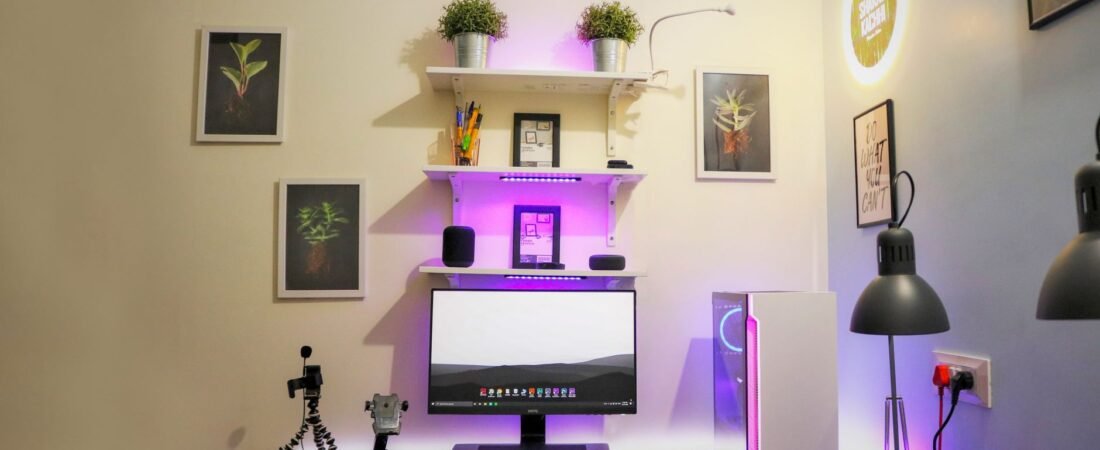
Most of the tips for minimal desk design are really just recommendations for how to make your desk look “clean” on camera but don’t actually help you create a work environment that is comfortable enough to sit at for 6-8 hours every day without straining your neck, dealing with messy cords or having lots of products you bought on impulse. Having a well-designed workspace should make you feel less stressed because the design matches how you work, not because everything is stored away in matching containers.
A better definition is simple: a minimal desk setup keeps only the items that improve posture, task flow, or power management. OSHA’s computer workstation guidance is helpful here because it focuses on neutral body positioning, enough room for the keyboard and mouse, a monitor in front of you, and proper feet and back support, rather than any one perfect-looking layout. (osha.prod.pace.dol.gov)
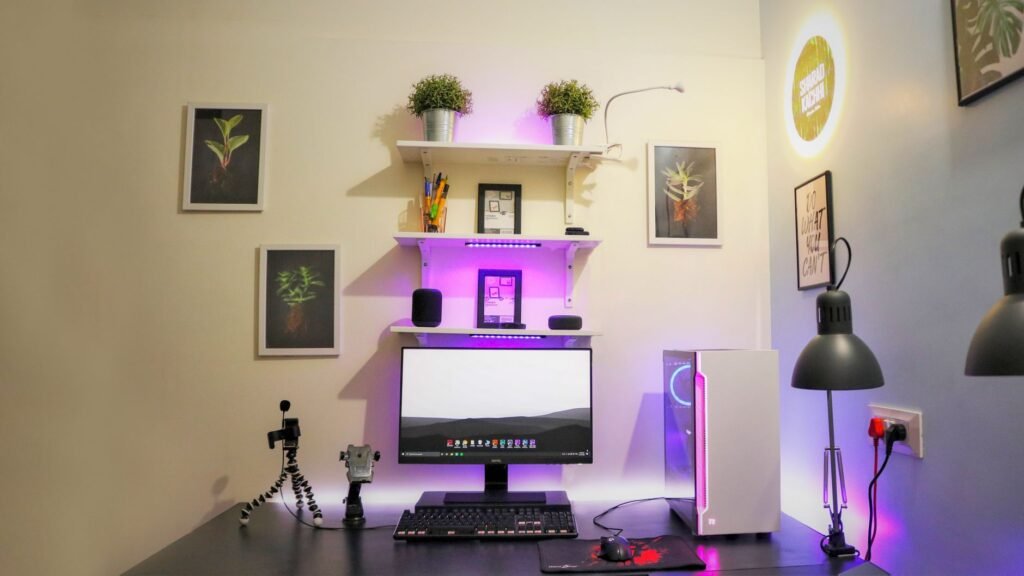
- Start with fit, not aesthetics. OSHA’s workstation guidance centers on neutral posture, enough room for the keyboard and mouse, and a screen placed in front of you. (osha.prod.pace.dol.gov)
- For most people, the first dollars should go to chair fit, screen height, and keyboard-mouse placement before shelves, pegboards, or decorative extras. (osha.prod.pace.dol.gov)
- If you use a laptop at a desk for long stretches, Mayo Clinic says an external keyboard and mouse plus a laptop stand can better mimic a desktop setup. (mayoclinic.org)
- Keep frequently used tools in the primary work zone and keep clutter out from under the desk so you are not forced to reach or sit too far back. (osha.gov)
- A switched power strip can simplify cables and reduce standby use. DOE says standby power can account for 5% to 10% of residential energy use. (energy.gov)
Use the LESS Score before you buy anything
Before you make any purchases, filter your items with the LESS Score. This is a spending filter intended for the minimalist desk only, it is not a style guide/checklist. Do not place anything on the surface that does not help you solve a daily problem.
- L – Logged use: Score 2 if you will use it most workdays, 1 if only sometimes, 0 if it is mostly aspirational.
- E – Ergonomic payoff: Score 2 if it improves neck, wrist, back, or reaching position; 1 if the improvement is small; 0 if it changes nothing physical.
- S – Space return: Score 2 if it clears surface area or reduces cable spread; 1 if the space impact is neutral; 0 if it adds clutter.
- S – Spend discipline: Score 2 if it replaces another item or prevents a larger purchase; 1 if it is modestly useful; 0 if it duplicates something you already own.
- Decision rule: 7 to 8 means buy with confidence, 4 to 6 means test only if it replaces something else, and 0 to 3 means wait 30 days.
Tip
A new desk is often not the first fix. OSHA and Mayo both point to simple adjustments such as monitor placement, foot support, and clearing legroom before assuming you need to replace the whole workstation. (osha.gov)
What usually earns a permanent place on the desk
A minimal desk is not empty. It usually includes a stable work surface, a seating solution that lets you keep your feet supported, one screen solution, one keyboard and mouse solution, one light source if needed, and one controlled power hub. OSHA’s recurring targets are straightforward: shoulders relaxed, elbows close, wrists straight, monitor in front, and enough depth and legroom to avoid awkward reaching. (osha.prod.pace.dol.gov)

| Item | Buy first when… | Usually optional when… | Low-cost fallback |
|---|---|---|---|
| Chair fit or foot support | Your feet do not rest flat, your lower back is unsupported, or the desk forces raised shoulders. Supported feet and back are part of neutral posture. (osha.prod.pace.dol.gov) | Your current chair already adjusts to your body and lets you sit close to the desk comfortably. | Use a footrest, sturdy books, or raise the chair if the desk height cannot change. Mayo and OSHA both describe foot support as a valid fix. (mayoclinic.org) |
| Screen solution | You spend hours looking down at a laptop or twisting toward an off-center screen. Monitors should sit in front of you, with the top at or slightly below eye level. (osha.gov) | You use the desk only briefly or mainly for non-screen tasks. | Use a laptop stand, or even a stable box or stack of books, so the screen sits higher. CDC notes this can help when a separate monitor is not available. (cdc.gov) |
| Keyboard and mouse | You type or click for long stretches. OSHA and Mayo both say the keyboard should be directly in front of you, the mouse within easy reach on the same surface, with straight wrists and elbows close to the body. (osha.gov) | You rarely type and the desk is used for short sessions only. | If the budget is tight, buy the external mouse first, then add a keyboard when you start using a riser or stand. |
| Task light | You lean toward paper, work at night, or see glare on the screen. OSHA recommends placing the monitor perpendicular to windows and keeping task lighting from reflecting on the display. (osha.gov) | Daylight and overhead lighting already let you read and work without glare. | Reposition the desk or lamp before buying specialty lighting. |
| Power strip or surge protector | You have multiple low-power devices and want one shutoff point. DOE says switched strips can turn devices truly off, reducing standby use. (energy.gov) | You only power a laptop and one lamp. | If you buy one, verify what it is. UL notes that a power strip and surge protector are not the same thing, and you should check certification and electrical rating. (ul.com) |
| Cable control | Cords are pushing your mouse, notebook, or feet out of position. | Your cords already stay behind the desk and do not affect work area or legroom. | A few reusable ties or clips are enough. Do not buy cable gadgets before fixing screen and chair fit. |
| Second monitor, monitor arm, desk shelf | Only if one of these solves a measured problem such as lack of depth, heavy document review, or a task that truly needs more screen space. | You want the look of a more elaborate setup more than the function. | Use the monitor stand you already have, or move storage off the desktop first. |
A realistic $500 reset
Here is a sample budget, not a market survey. Maya works from home four days a week on a 14-inch laptop and gets neck stiffness by midafternoon. She already owns a sturdy table, so she does not replace the desk. Instead, she sets a hard cap of $500 and spends it this way: used adjustable chair, $140; 24-inch monitor, $170; laptop stand, $35; compact keyboard, $45; mouse, $25; lamp, $35; UL-certified switched strip, $25; cable tray and ties, $25. Total: $500. (ul.com)
The furniture, monitor, and keyboard/mouse set are the highest scoring items on my list because they all allow me to change my body position every day, while the lamp and power strip eliminate friction and reduce clutter. What the author did not purchase is the real lesson here, which is there are no desktop shelves, speaker stands, multiple monitors, decorative parallax and oversized mats, and matching storage containers. Minimalist configurations typically become more expensive as people purchase accessory items to make up for a poorly laid out core.
Set it up in one afternoon
- Clear the desk completely. Put back only the screen, keyboard, mouse, one note-taking tool, one light source, and one power hub.
- Center the screen directly in front of you. Keep it about an arm’s length away; Mayo gives a useful range of 20 to 40 inches, with the top of the screen at or slightly below eye level. (mayoclinic.org)
- Adjust chair height and foot support so your lower back is supported and your feet are flat on the floor or on a footrest. (osha.prod.pace.dol.gov)
- Place the keyboard directly in front of you with relaxed shoulders, elbows close to the body, and straight wrists. Keep the mouse on the same surface and within easy reach. (osha.gov)
- Move the lamp or desk so bright windows hit from the side, not straight onto the screen. OSHA recommends placing the monitor perpendicular to windows and keeping task lighting off the display. (osha.gov)
- Create three zones: a primary zone for the keyboard, mouse, and notebook; a support zone for the lamp and phone; and a parking zone for everything else.
- Route every cable along one path to a single strip. If you need more outlets, check the rating and use a certified product that matches the load. (ul.com)
Common mistakes that make a desk look minimal but work worse
- Using a laptop by itself for full workdays. A laptop forces a trade-off between screen height and keyboard height, which is why Mayo and CDC point to external input devices or a separate monitor for desk use. (mayoclinic.org)
- Buying storage before fixing screen height and chair fit.
- Letting a full-size keyboard or tiny tray push the mouse too far away. OSHA warns that poor keyboard-tray sizing can force extra reaching for the mouse. (osha.gov)
- Storing boxes or tech under the desk and stealing your own legroom. OSHA says to limit items stored under the work surface. (osha.gov)
- Putting the monitor where the room allows instead of where your body needs it, especially parallel to a bright window. (osha.gov)
- Assuming every multi-outlet strip is a surge protector. UL says they are different products. (ul.com)
When the stripped-down plan is not enough
If you share a dining table, move rooms often, or work part time from home, build a portable minimal kit instead of a permanent display setup. A foldable laptop stand, compact keyboard, mouse, and small pouch for cables may be enough. CDC notes that if you cannot use a separate monitor, an external keyboard and/or mouse can still let you position devices more independently, and a book or box can elevate the screen. (cdc.gov)
If your job involves printed documents, handwriting, a second computer, audio gear, or design tools, a stricter minimalist look may backfire. OSHA warns that limited work-surface space can push components into undesirable positions and create awkward reaching. In that case, the right answer may be a deeper desk, a document holder, or a second screen, not just more discipline. (osha.gov)
Warning
This content is for informational purposes only; it should not be used as medical advice. Consult with a qualified professional (eg. clinician or ergonomist) if you are experiencing long-term symptoms such as continuous numbness; chronic headaches; eye strain; neck, shoulder, lower back, or wrist pain.
How to verify the setup instead of trusting the vibe
- Take one side photo and one front photo on day 1 and day 10. You should be able to see the screen centered, elbows near the body, wrists straight, and feet supported. (osha.prod.pace.dol.gov)
- For two workweeks, rate neck, shoulder, and wrist discomfort at noon and at the end of the day on a 1 to 10 scale.
- Keep a list of every item you actually touch. If something sits untouched for 10 workdays, it probably belongs in storage, not on the desktop.
- Count reaches. If you repeatedly reach outside the primary zone for a charger, notepad, or mouse, change placement before buying more gear. (osha.gov)
- Do a glare test: turn the monitor dark and look for bright reflections. If you see them, reposition the desk or lamp. (osha.gov)
- Inspect the strip and cord for damage, never run the cord under a rug, and if breakers trip often, talk to an electrician. (ul.com)
Bottom line
Most minimal desks have more than just a few items on them; however, the most economical overall would be the one that employs all the items. Spend your first dollars on any item that promotes good posture, allows for easy access to your daily tools (as an example) and reduces cable/power cords friction. All other expenditures should be delayed until later. If you’re honest with yourself about the LESS Score, then you will generally find yourself with a calmer-looking desk, at a much lower cost than the more aesthetically pleasing desk.
Do I need an external monitor if I already have a laptop?
Not always. For lighter use, a stand plus external keyboard and mouse may be enough. For long desk sessions, a separate monitor is often the cleaner long-term solution because the screen and input devices can be positioned independently. (mayoclinic.org)
What should I buy first if my budget is only $100?
Purchasing the most affordable solution with maximum posture benefit, typically a laptop stand/riser or an external mouse/keyboard if needed, may require a laptop stand. If the chair height is not ideal, consider spending the money on some foot support or a quality used chair.
Is a standing desk necessary for a minimal setup?
No. A minimal setup needs fit more than novelty. OSHA’s guidance focuses on neutral positions and enough room to change posture, not on a specific desk style. (osha.gov)
How many things should actually stay on the desk surface?
For most people, one screen, one keyboard, one mouse, one note-taking tool, one light source if needed, and one drink is enough. Everything else should earn its place with a high LESS Score.
Should I buy a surge protector or just a power strip?
If you want surge protection, verify that you are buying an actual surge protector, not just a strip with extra outlets. UL says the two are not the same, and you should also check the product’s certification and electrical rating. (ul.com)
References
- OSHA Computer Workstations overview – https://www.osha.gov/etools/computer-workstations
- OSHA Good Working Positions – https://www.osha.gov/etools/computer-workstations/positions
- OSHA Desks – https://www.osha.gov/etools/computer-workstations/components/desks
- OSHA Monitors – https://www.osha.gov/etools/computer-workstations/components/monitors
- OSHA Keyboards – https://www.osha.gov/etools/computer-workstations/components/keyboards
- OSHA Workstation Environment – https://www.osha.gov/etools/computer-workstations/workstation-environment
- OSHA Document Holders – https://www.osha.gov/etools/computer-workstations/components/document-holders
- Mayo Clinic Office ergonomics – https://www.mayoclinic.org/healthy-lifestyle/adult-health/in-depth/office-ergonomics/art-20046169?p=1
- CDC NIOSH Ergonomics – https://www.cdc.gov/niosh/ergonomics/index.html
- CDC NIOSH Working from Home bulletin – https://www.cdc.gov/niosh/bulletin/2020/working-from-home.html
- Department of Energy on standby power – https://www.energy.gov/energysaver/articles/3-easy-tips-reduce-your-standby-power-loads
- UL guide to power strips and surge protectors – https://www.ul.com/insights/guide-power-strips-and-surge-protectors