
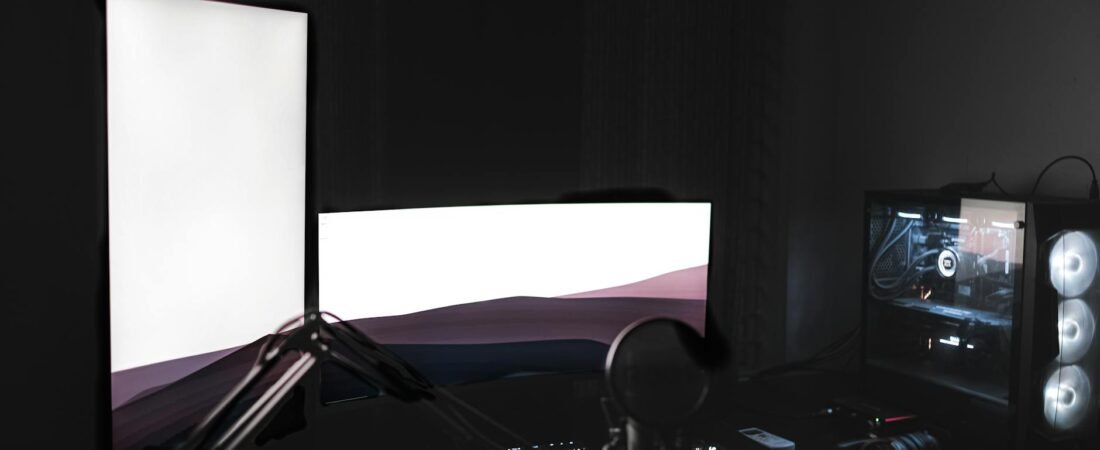
One desk can provide you with functionality (working) across three distinct use cases without needing to be a mess of useless items, if you purchase the right desk in the right order. The order in which to consider the needs of your workspace is based on (i) daily comfort, then (ii) workflow and lastly (iii) creating an aesthetically pleasing area. This might seem boring compared to all the cool equipment available for purchase today but if you use this guideline, you will not be duplicating the same desk two times.
Table of Contents
- Use the GWS Scorecard before you spend
- Choose the monitor layout first
- A sample budget for a one-desk setup
- Set it up in this order
- Streaming settings that usually make more sense than a dual-PC build
- When the one-desk plan starts to break
- Common mistakes that get expensive
- How to pressure-test the setup before return windows close
- Bottom line
- References
- Start with layout, not accessories. Monitor placement, desk depth, chair fit, and lighting affect all three jobs at once.
- Use one primary monitor directly in front of you. OSHA says the screen should generally sit about 20 to 40 inches from your eyes, with the top line at or below eye level. (osha.gov)
- For most readers, a single-PC setup is the right first move. Twitch notes that x264 can hit CPU performance hard, while GPU encoding can preserve gameplay better; OBS also warns that a technically compatible system still may need tuning. (help.twitch.tv)
- Do not ignore upload headroom. YouTube says your total stream bitrate should stay below available upload bandwidth and recommends leaving about 20% room. (support.google.com)
- If a work-issued laptop is part of the mix, dock it into the same desk instead of forcing one personal PC to do everything. OSHA says laptops used as a primary computer should follow desktop ergonomic rules and use a separate keyboard and input device. (osha.gov)
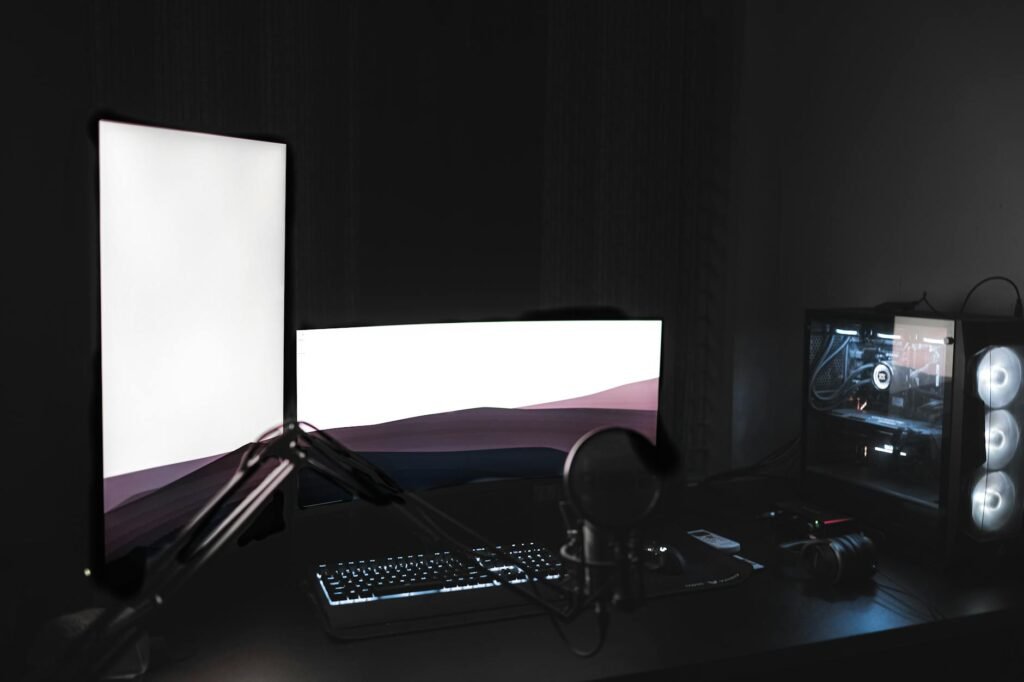
Use the GWS Scorecard before you spend
This article uses the GWS Scorecard as a basis to assess planned purchases. Each item is given a score of 0, 1, or 2 within 3 different categories; 0 means the item does not help much, 1 means the item helps in only 1 of the 3 categories but still has trade-offs, and 2 means the item improves that role without negatively affecting either of the other roles.
- Buy now: total score of 4 to 6.
- Delay: total score of 3 unless it fixes pain, posture, or a real workflow bottleneck.
- Skip for now: total score of 0 to 2.
- Tie-breaker rule: if two items score the same, buy the one you touch for more hours each week.
A monitor can help to perform at a level of 5 out of a 6 on a workforce and/or streaming basis as an additional monitor is beneficial to gameplay as well. Chair scores usually come in at 4 and 5 because they truly improve an extended period of use by no one seeing you at all. The rating of decorative lighting panels may only come in at 1 to 2 on a scale, as you may still be having audio problems and may be experiencing neck pain by the time lunch is over. The truthfulness of this type of rating helps you to control your setup budget.
Choose the monitor layout first
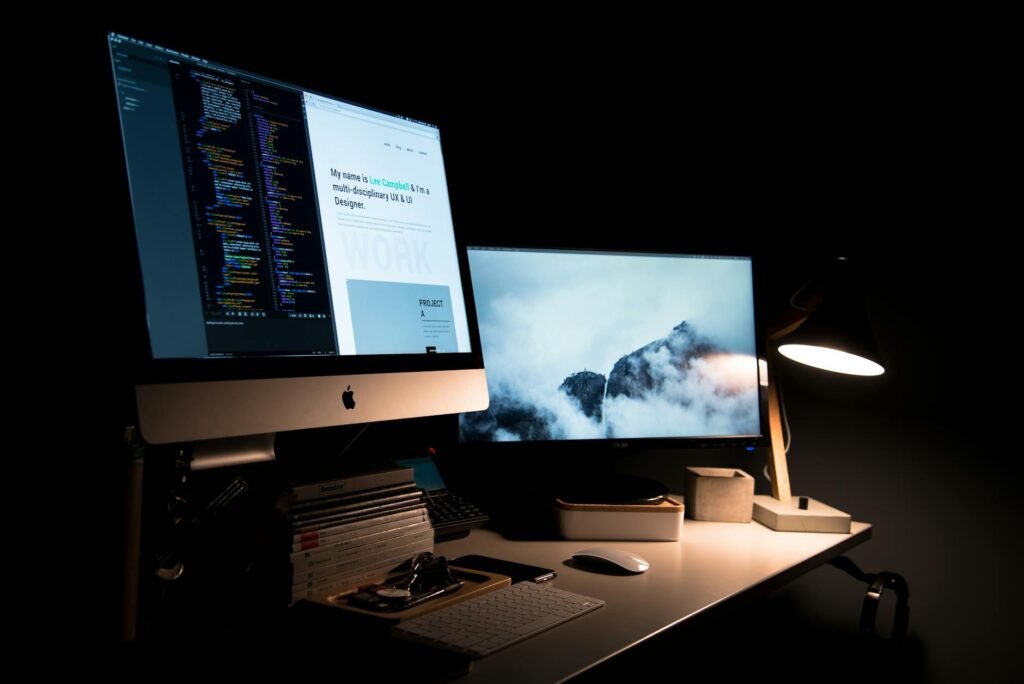
The overall layout of the space is critical to determining many aspects of your workspace, including the depth of your desk and where cables will go, how far away from each other microphones and webcams need to be mounted, and whether or not you can keep your shoulders relaxed instead of twisting to look at a side screen while working. Most mixed-use workstations should have a primary monitor for both gaming and focused work, as well as a secondary monitor dedicated to chat applications, files, Slack, and a work laptop.
| Layout | Best for | Why it works | Main trade-off | Budget priority |
|---|---|---|---|---|
| 27-inch main monitor + 24- to 27-inch side monitor | Best all-around choice for most people | Keeps games or primary work centered while chat, docs, email, or OBS live on the second screen | Needs more desk width and more cable management | Usually the safest first choice |
| 34-inch ultrawide + laptop stand | Readers whose work hours outweigh stream hours | Excellent for spreadsheets, timelines, and side-by-side windows | Can be pricey and less flexible for full-screen gaming plus stream tools | Worth it only if the workday dominates |
| 27-inch main monitor + portrait side monitor | Writers, coders, and streamers who keep chat or docs open | Vertical space is efficient for chat, scripts, and long documents | Less comfortable for full-screen video reference on the side | Great value if communication and documents matter more than cinematic gaming |
| Single main monitor + docked work laptop used separately | Tight spaces or strict employer device rules | Cheapest way to share one desk without mixing devices | More input switching and less multitasking room | Good fallback, not ideal long term |
Once you pick a layout, place the primary screen directly in front of you. OSHA says the main monitor should usually sit about 20 to 40 inches from your eyes, and its top line should be at or below eye level. If you use two monitors evenly, OSHA says they should sit next to each other within a comfortable viewing angle with minimal head movement. In Windows, take the extra minute to identify the screens and drag them into the same arrangement you use on the desk so the mouse path feels natural. (osha.gov)
A sample budget for a one-desk setup
Here is a planning example, not a price survey. Suppose Jordan already owns a capable gaming PC and wants one desk that can handle a full workweek plus two evening streams. Jordan sets a hard upgrade cap of $1,200 and uses the GWS Scorecard instead of shopping by hype.
- $350 for a better chair because Jordan sits in it 40-plus hours a week.
- $250 for a second monitor because it improves work and stream control immediately.
- $140 for a monitor arm and laptop stand to reclaim desk space and improve screen height.
- $130 for a USB microphone because clean audio matters more than a better webcam at the start.
- $70 for a basic webcam that is good enough for calls and occasional face-cam use.
- $110 for lighting, a USB hub, cable tray, and small accessories that reduce daily friction.
- $150 for desk changes or a contingency buffer instead of impulse accessories.
Don’t refer to items that did not get included in the purchase, like another PC, a more advanced camera system, a separate audio interface, or an additional decorative finish. First, Jordan must address poor posture, screen distance, audio interference, and unplugged cables; once a system is operational at testing levels, if the results remain poor in real use, the next expenditure should target the actual bottlenecks encountered during testing.
Set it up in this order
- Map your real week. Write down how many hours you spend on focused work, games, calls, and live streaming. The desk should serve the biggest bucket first.
- Pick the layout before you buy extras. One main screen plus a side screen is the cleanest default for hybrid use.
- Set chair and keyboard height before touching the monitors. OSHA says elbows should be about the same height as the keyboard, shoulders should stay relaxed, and wrists should stay straight rather than bent up, down, or sideways. (osha.gov)
- Place the main monitor directly in front of you and far enough back that you can read without leaning. OSHA’s general range is about 20 to 40 inches. If you raise the chair to match the desk, support your feet with the floor or a footrest. (osha.gov)
- Control the room, not just the PC. OSHA recommends arranging the workstation to reduce glare from windows and overhead lights and placing the screen at right angles to strong light sources. (osha.gov)
- Add the stream chain after the desk feels right. Put the mic where it can get close to your mouth without blocking the screen, put the webcam at roughly eye level, and run OBS Auto-Configuration Wizard before assuming you need new hardware. OBS says compatible hardware does not automatically mean a system is ready for your chosen stream load. (obsproject.com)
- Finish in software. In Windows, use Display settings to identify, detect, and arrange screens, then choose Extend so the layout matches your physical desk. (support.microsoft.com)
Streaming settings that usually make more sense than a dual-PC build
A lot of readers jump too quickly to the idea of a separate streaming PC. Most do not need one yet. Twitch’s official guidance says x264 can use a lot of CPU and lower game performance, while GPU encoding can let you play and stream with less impact. Twitch’s standard 1080p60 guidance uses 6,000 kbps, CBR, and a 2-second keyframe interval; 720p60 uses 4,500 kbps and 720p30 uses 3,000 kbps. YouTube’s live guidance also recommends CBR, a 2-second keyframe interval, and says you should leave room in your upload bandwidth instead of pushing the line to its limit. As a practical takeaway, a 1080p60 Twitch target plus audio often means you want roughly 8 Mbps of stable upload headroom, not a speed test that only briefly spikes there. (help.twitch.tv)
- If your game performance matters more than squeezing every last encoder setting, start with hardware encoding on the same PC before shopping for dual-PC gear. (help.twitch.tv)
- If your upload speed is inconsistent, lower resolution or frame rate before buying a better camera. A stable stream beats a prettier one that drops frames. (help.twitch.tv)
- If OBS launches but the stream still struggles, use the Auto-Configuration Wizard and simplify scenes before assuming the whole PC is underpowered. (obsproject.com)
- If you stream only occasionally, spend on audio and lighting before you spend on advanced capture hardware. Viewers will forgive a basic camera faster than muffled audio.
When the one-desk plan starts to break
There are real limits to the all-in-one idea. OBS says a system that meets basic requirements still may not be capable of your chosen stream load. Some jobs also require a managed laptop, separate security controls, or employer-approved software. And if a laptop is your main work machine, OSHA says it should be set up like a desktop with a separate keyboard and input device. (obsproject.com)
- If work security is the blocker, keep the work laptop and gaming PC separate but share the same monitors, keyboard, mouse, and mic with a dock or KVM switch.
- If upload stability is the blocker, record locally, stream at a lower setting, or move from 1080p60 to 1080p30 or 720p60 before buying more hardware. (help.twitch.tv)
- If room noise is the blocker, solve fans, echo, and mic placement before you upgrade the rest of the signal chain.
- If desk space is the blocker, move to a cleaner two-display layout or use a laptop stand before you decide the entire room needs a rebuild.
Common mistakes that get expensive
- Buying the highest-refresh gaming monitor first, then realizing the desk is too shallow to place it at a comfortable distance.
- Centering your body between two screens even though only one is truly primary. OSHA says the primary monitor should sit directly in front of you. (osha.gov)
- Treating a laptop as a full-time workstation without a separate keyboard and mouse. (osha.gov)
- Spending on visual extras before chair fit, lighting control, and mic quality are handled.
- Testing the setup while idle instead of during a real game, real work tabs, and a real stream scene.
How to pressure-test the setup before return windows close
- Run a 30-minute posture test. If you are leaning in, tilting your head, or floating your feet, fix monitor height, distance, or chair setup first. (osha.gov)
- Run a workday test. Open the apps you actually use, take a real video call, and see whether the second screen reduces window shuffling or just creates clutter.
- Run a private stream test. YouTube recommends testing with real audio and movement similar to the actual event and monitoring stream health. (support.google.com)
- Check display logic. In Windows, confirm the cursor moves naturally across screens and that the wrong monitor is not designated as the main display. (support.microsoft.com)
- Do a seven-day reset. Anything that stays unplugged, muted, or minimized all week failed the GWS Scorecard and should be returned, repurposed, or moved down the upgrade list.
Bottom line
Typically the hybrid workstation model PC at its best would not be the most complex, but rather the one that remains ergonomically secure throughout your work session as well as giving you consistent game play experience – as well as having ease accessing the live stream without having to contend with your physical environment, such as room, furniture layout and upload speed.
Begin with the desk configuration, use the GWS Scorecard for eliminating any purchase options of little value, and add advanced streaming hardware only after you have performed a real usage evaluation that determines that you need them.
Is one monitor enough for gaming, work, and streaming?
It can be enough for lighter work and occasional streaming, but a second screen is often the highest-value upgrade because it separates the main task from chat, docs, email, or OBS. If you use multiple monitors evenly, OSHA recommends placing them beside each other with minimal head movement. (osha.gov)
Should I build a dual-PC setup right away?
Usually not. Twitch says CPU-based x264 encoding can reduce game performance, but GPU encoding can preserve it better, which is why a tuned single-PC setup is the smarter first step for most readers. Add a second system only after testing shows your real bottleneck. (help.twitch.tv)
What matters more first: a better chair or a better webcam?
For most people, the chair. You use it for every work block and every game session, while the webcam matters mainly for meetings and face-cam streams. If your current chair or monitor placement forces awkward posture, fix that first. (osha.gov)
Can a work laptop and gaming PC share the same desk?
Yes. In many cases, that is the cleanest solution. Dock the work laptop into the same monitor and input setup, especially if employer rules make a true all-in-one personal machine unrealistic. OSHA also says laptops used as a primary computer should use the same ergonomic principles as desktops, including a separate keyboard and input device. (osha.gov)
How much upload speed do I need for a 1080p60 stream?
As a practical rule, think beyond the advertised plan speed. Twitch’s standard 1080p60 guidance uses 6,000 kbps, and YouTube recommends leaving about 20% headroom in your available upload bandwidth. As a rough rule of thumb, that means you may want around 8 Mbps of stable upload or better, not a connection that only occasionally reaches that number. (help.twitch.tv)
References
- OSHA: Computer Workstations – Monitors – https://www.osha.gov/etools/computer-workstations/components/monitors
- OSHA: Computer Workstations – Chairs – https://www.osha.gov/etools/computer-workstations/components/chairs
- OSHA: Computer Workstations – Keyboards – https://www.osha.gov/etools/computer-workstations/components/keyboards
- OSHA: Computer Workstations – Workstation Environment – https://www.osha.gov/etools/computer-workstations/workstation-environment
- OSHA: Computer Workstations – Evaluation Checklist – https://www.osha.gov/etools/computer-workstations/checklists/evaluation
- Microsoft Support: How to use multiple monitors in Windows – https://support.microsoft.com/en-us/windows/how-to-use-multiple-monitors-in-windows-329c6962-5a4d-b481-7baa-bec9671f728a
- Twitch Help: Broadcasting Guidelines – https://help.twitch.tv/s/article/broadcasting-guidelines?language=en_US
- OBS Project: System Requirements – https://obsproject.com/kb/system-requirements
- YouTube Help: Choose live encoder settings, bitrates and resolutions – https://support.google.com/youtube/answer/2853702?hl=en-UK
- YouTube Help: Streaming tips – https://support.google.com/youtube/answer/2853856?hl=en&ref_topic=9257984