
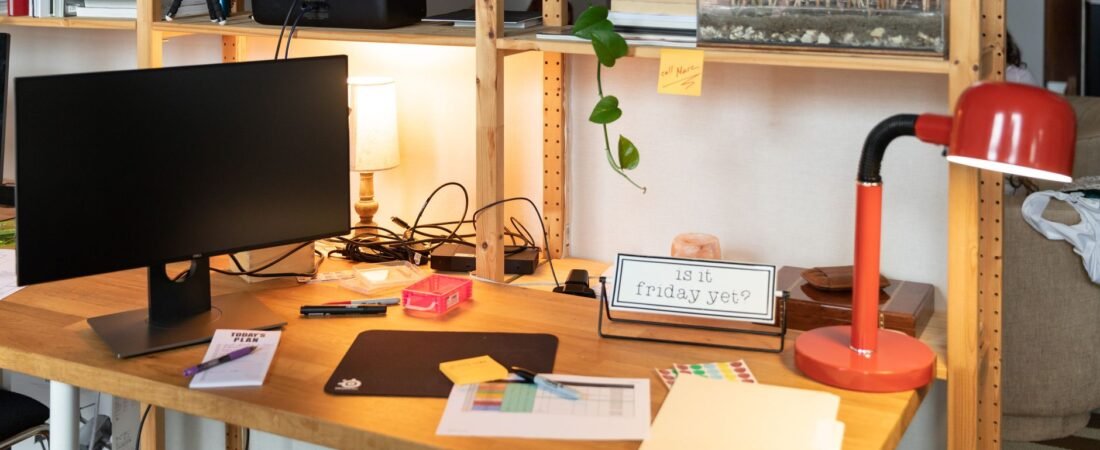
A desk that feels disorganized, small, and exhausting often stems from one main issue: nothing is where it should be permanently. Power cords become scattered when they’re moved around, screens get placed wherever they can fit – meaning your body adopts the incorrect posture for that particular object, and when your laptop charger needs to charge your phone, headphones, and tablet all at the same time, it’s going to be difficult to keep unplugging and plugging things back in together during the workday instead of actually working.
That is useful news for your budget, because the fix is often simpler than people expect. In many home offices, the highest-return changes are basic: clear leg space, center the screen, keep the keyboard and mouse together, give power one home, and stop treating temporary cords like permanent infrastructure. OSHA’s workstation guidance makes a similar point: simple, inexpensive changes can make a desk safer and more comfortable. (osha.gov)
- Set the chair and your feet first. A workable desk starts with relaxed shoulders, elbows close to the body, back support, and feet flat or fully supported before you fine-tune the screen. (osha.gov)
- Put the monitor directly in front of you, about an arm’s length away, with the top of the screen at or slightly below eye level. (mayoclinic.org)
- Keep the keyboard and mouse on the same surface and close enough that you are not reaching or twisting. (mayoclinic.org)
- If a laptop is your main computer, add a separate keyboard and mouse or use a docked setup instead of working off the laptop alone all day. (osha.gov)
- Use extension cords temporarily, not as permanent desk power, and turn on sleep settings so your setup is safer, tidier, and cheaper to run. (cpsc.gov)
Start with layout, not accessories
Cable clutter, poor body position while sitting, and having to plug/unplug your devices have all been considered as separate frustrations for most people. More frequently than not, all three of these frustrations are actually just different manifestations of one specific problem: your desk has no consistent zones for your body, your screen, and your power source. By stabilizing those zones, you will have a clearer view of surplus equipment. The purchase of even more organizers prior to that being completed is simply going to create more items to manage around.
OSHA is also clear that there is no single perfect posture or one workstation arrangement that fits everyone. The practical target is a custom fit that keeps you close to neutral and lets you change positions during the day. That is an important spending rule: buy the cheapest item that fixes your specific mismatch instead of assuming you need a full desk makeover. (osha.gov)
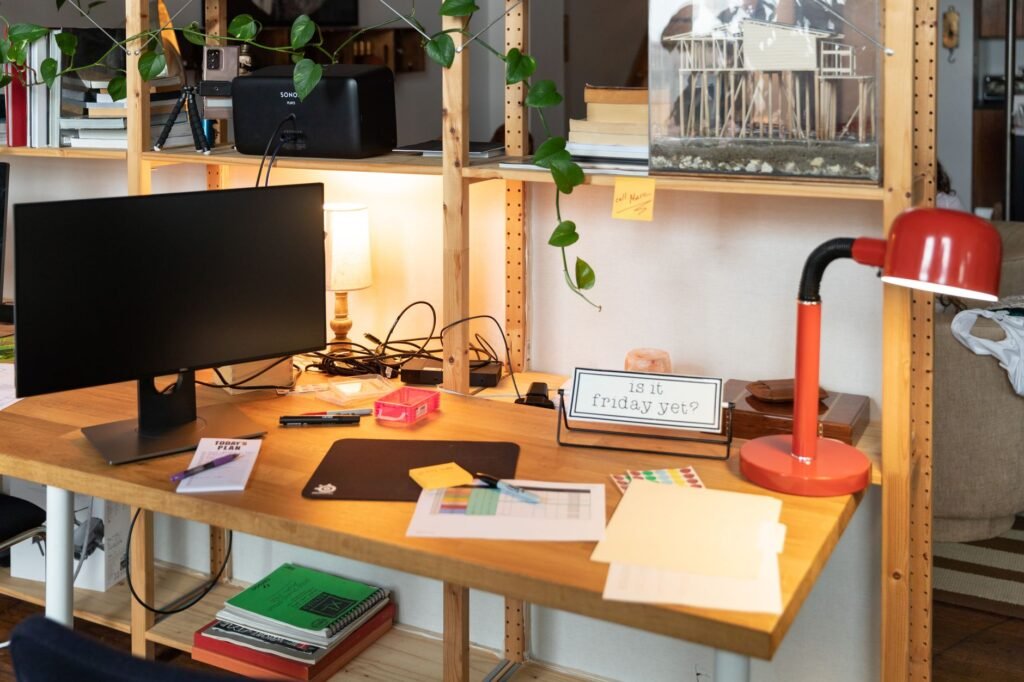
Use the RAIL Desk Audit before you buy anything
The RAIL Desk Audit offers a quick assessment of what is incorrect. The audit uses a scale from 0-2 to evaluate each category: R (Reach): Are you able to use your keyboard, mouse, phone, and notebook without leaning? A (Alignment): Is your monitor at eye level and does not cause you to elevate or bend your neck? I (Inputs): Do your daily use devices have dedicated power ports? L (Lines): Do your cables follow one specific path and are not hanging into your leg space or crossing the floor? The purpose of this desk audit is not to have the perfect looking desk; it is to have a desk that no longer produces friction.
| Area | 0 points | 1 point | 2 points |
|---|---|---|---|
| Reach | You lean, twist, or reach for the keyboard, mouse, or phone every day. | Only one essential item forces a reach or awkward angle. | Your main tools are usable with elbows near your torso and no leaning. |
| Alignment | The laptop screen is too low, the monitor is off-center, or your feet are unsupported. | One part works, but another part forces a compromise. | The screen, chair, and feet all work together without obvious strain. |
| Inputs | You replug chargers, displays, or accessories several times a week. | Most devices are stable, but one or two still share power or ports. | Your daily devices have permanent cables, charging, or dock access. |
| Lines | Cables cross the floor, hang near your legs, or are hard to identify. | Some cable control exists, but it still looks improvised. | Cables follow one route, stay out of leg space, and key plugs are easy to identify. |
If you score a 0 – 4 rebuild your layout and DO NOT proceed to purchase additional fixes. If you have scored between a 5 – 6 you may be able to fix most of your problems with targeted repairs. If you scored between a 7 – 8 you likely don’t need to purchase any additional supplies for repairs, rather you’ll only require small changes to improve your current layout.
The simple desk setup checklist
- Clear the under-desk zone first. Remove storage boxes, loose power bricks, and dead cables so your legs can move and both feet can stay supported. OSHA’s checklist treats leg clearance and foot support as basics, and a footrest is a standard fix when desk height forces the chair up. (osha.gov)
- Set chair height before screen height. Start with relaxed shoulders, elbows near your torso, back supported, and thighs supported. If that leaves your feet dangling, add a footrest instead of lowering the chair until your wrists are out of position. (osha.gov)
- Center the screen. Put the monitor directly in front of you, about 20 to 40 inches away, with the top of the screen at or slightly below eye level. If you wear bifocals, lowering the screen a bit more can reduce neck extension. (mayoclinic.org)
- Fix the laptop compromise. If the laptop is your primary computer, stop choosing between a screen that is too low and a keyboard that is too high. Add a separate keyboard and mouse, and use a stand, riser, or dock so the screen can sit where your eyes need it. (osha.gov)
- Keep the keyboard and mouse on one plane. Put both on the same surface, close enough that you are not reaching, with wrists straight and forearms roughly parallel to the floor. (osha.gov)
- Create one power home. Mount or place a power strip or surge protector at the back or underside of the desk so the charger cluster lives in one spot. Use extension cords only when necessary and only temporarily, and replace any cord that is cracked, worn, or hot while in use. (cpsc.gov)
- You should apply the 5-Unplug Rule on every electronic device you own. If unplugged from the wall more than five times in a typical week, that electronic device should have a separate plug, charger, or dock to accommodate its use. When deciding whether a dock for that device would be beneficial or not, the 5-Unplug Rule can help you determine the usefulness of that dock!
- Route by destination, not by gadget. Send power cables down the back edge, data cables along the shortest clean path, and label the two or three plugs you would need to pull quickly in an outage or reset. Keep cords out of leg space and away from the chair path. (osha.gov)
- Fix glare before buying a new screen. OSHA recommends placing the display at right angles to windows and keeping direct light from reflecting on the monitor. Often, blinds, lamp placement, and a quick cleaning do more than a display upgrade. (osha.gov)
- Turn on sleep settings. DOE says power management is one of the simplest ways to cut office-equipment energy use, and it notes that enabling these features can save up to $30 per year on a computer setup. (energy.gov)
A realistic $189 reset on a tight home-office budget
Consider a composite example. A renter works at a 24-inch-deep desk with a laptop and one monitor. The monitor sits off to the side because the laptop takes center position. The laptop charger gets unplugged to charge a phone. A headset cable lives on the floor. Instead of replacing the desk, the reader sets a $189 cap: $29 for a surge protector mounted under the desktop, $18 for clips and a sleeve, $72 for a basic USB-C dock, $35 for an external keyboard and mouse, and $35 for a footrest. The monitor moves to center, the laptop moves to the side on a stand, every daily device gets a permanent port, and the floor clears.
Which items shouldn’t be on the shopping list? A high-end chair, decorative shelf, lamp two and monitor light bar. These maybe a few of these items are possible options in future, however they do not provide solutions to the issues faced by this reader. The main point of this budgeting exercise is to prioritize your expenditure based upon the ability of an item to alleviate your daily workflow; instead of how nice it may look in a product image.
If your budget is under $200, permanent power and proper screen-and-input placement usually beat aesthetic organizers every time.
What to buy first, and what can wait
| Daily problem | First buy | Why it usually earns priority | What can often wait |
|---|---|---|---|
| Laptop screen too low | Stand or riser plus separate keyboard and mouse | It lets screen height and hand position stop fighting each other. | A new chair, unless your current chair lacks basic support. |
| You replug the same devices constantly | Dock, second charger, or dedicated phone cable | It removes repeated port swapping and daily friction. | Extra charging accessories you will not use every day. |
| Power bricks and chargers are scattered | Mounted power strip or surge protector | It creates one permanent power home for the desk. | Decorative boxes or bins that hide the problem without fixing it. |
| Your feet dangle once your arms are in a good position | Footrest | It preserves correct arm position without sacrificing leg support. | A standing desk converter. |
| Cables cross the floor or brush your legs | Cable tray, sleeve, and labels | It makes the setup easier to clean, easier to reset, and less annoying to use. | Desk decor, lighting extras, or cosmetic accessories. |
Common mistakes that make a desk feel worse
- Buying storage before deciding where power lives.
- Stacking a monitor on books until it ends up too high. OSHA notes that too-high screens push the head and neck into awkward postures. (osha.gov)
- Letting the mouse drift too far to the side, which adds shoulder reach instead of keeping the arm close to the body. (osha.gov)
- Using a laptop alone for full-day work instead of adding separate input devices. (osha.gov)
- Running an extension cord under a rug or leaving damaged cords in place. CPSC says extension cords are temporary and can overheat if damaged or overloaded. (cpsc.gov)
- Trying to solve all discomfort with a chair when the real problem is screen height, desk depth, glare, or lack of movement. (osha.gov)
When the first plan still is not enough
Some desks cannot be fixed with clips and good intentions. If the desktop is too high, a footrest may solve leg support but not keyboard height. That is when a keyboard tray becomes practical. If desk depth is shallow, a monitor arm or a flatter display can create the 20-to-40-inch viewing distance OSHA describes. If you use two monitors, keep the primary display directly in front of you unless your time is split evenly between them. (osha.gov)
If the nearest outlet is in the wrong place, do not solve a permanent layout problem with a chain of temporary cords. CPSC says extension cords should be used only temporarily, and cords should not run under carpets, through doorways, or anywhere heat and wear will go unnoticed. If plugs feel hot, insulation is damaged, or outlet placement makes safe routing impossible, the better answer is a different desk location or a licensed electrician. Persistent numbness, tingling, headaches, or neck and shoulder pain also deserve a professional look. Ergonomics guidance can improve setup, but it is not a substitute for medical care. (cpsc.gov)
- Too-high desk: raise the chair for arm position, add a footrest, then consider a keyboard tray if the work surface is still too high. (osha.gov)
- Shallow desk: pull the desk slightly away from the wall or add a monitor arm so viewing distance improves. (osha.gov)
- Shared household desk: use a dock and labeled plugs so the whole setup can reset quickly after meals or homework.
- Bifocals or progressives: lower the screen a bit rather than forcing a chin-up posture. (osha.gov)
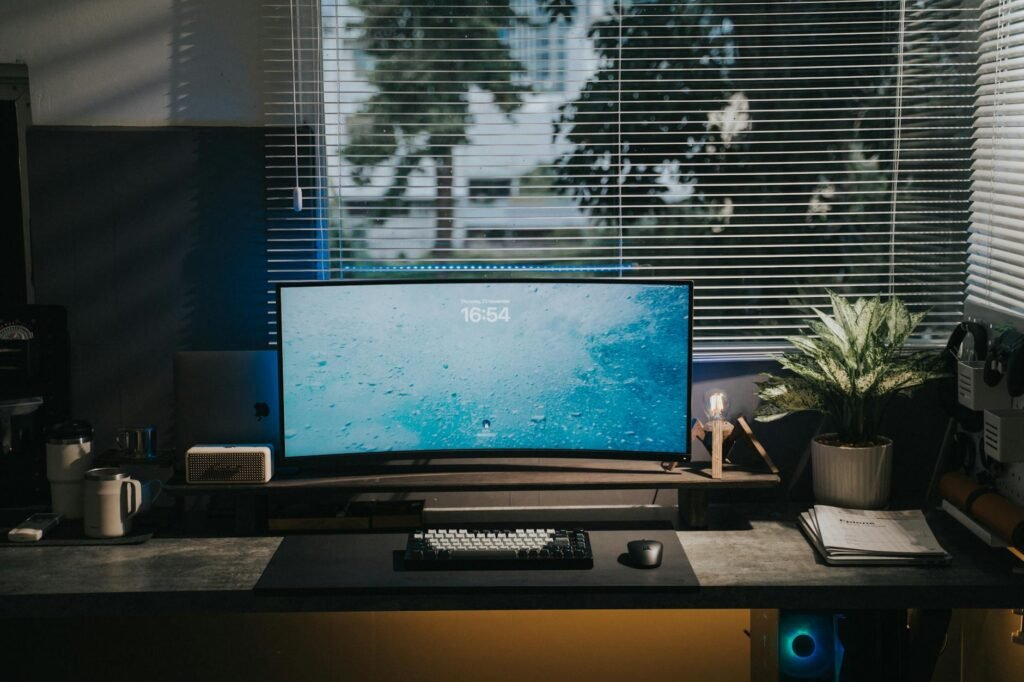
How to pressure-test the setup for one week
A desk only counts as fixed if it still works on a normal Tuesday afternoon, not just right after cleanup. Give the layout one full workweek and measure it.
- Take one photo from the front and one from the side while you work normally. Look for an off-center screen, lifted shoulders, mouse reach, and cables hanging into leg space.
- Count replug events for five workdays. If the total is still above five, your power map is not stable and a dedicated cable or dock is justified.
- At 10 a.m. and 3 p.m., rate neck, shoulder, wrist, and low-back discomfort from 0 to 10. The goal is not perfect comfort. The goal is lower and more stable discomfort.
- Inspect cords and plugs at the end of the week. Stop using any extension cord, strip, or plug that is hot, cracked, or visibly worn. (cpsc.gov)
- Confirm your monitor and computer actually enter sleep mode after idle time. DOE notes that power management is often available but still needs to be enabled by the user. (energy.gov)
- If the photos and discomfort scores do not improve after two weeks, move from tweaking to diagnosis. Desk height, screen height, and port access are the usual culprits, and an ergonomics evaluation can help. (ors.od.nih.gov)
Bottom line
The most cost-efficient and practical solution for upgrading your desk is not necessarily about getting a larger or nicer desk but about creating an efficient workspace for your body, resulting in a neutral working posture. Having your monitor in the center of your view is important, and having all your electronic devices plugged into a power supply permanently is critical as well. Run your RAIL Desk Audit and start by addressing your highest friction problem and making decisions about if a dock, second power supply and/or cable management needs to be part of your workspace based on the Five-Replug Rule for that device. By doing this, you will save money, create more free space and stop having to set up your workstation every day!
Informational only: this article covers general desk setup, not medical diagnosis or electrical repair. If you have persistent numbness, tingling, headaches, or worsening pain, or if you notice damaged cords, hot plugs, scorched outlets, or overloaded strips, contact a qualified clinician, ergonomics professional, or licensed electrician. (cpsc.gov)
FAQ
Do I need a monitor arm to fix posture?
Not always. If your current stand can put the screen directly in front of you, roughly 20 to 40 inches away, with the top at or slightly below eye level, a monitor arm may be unnecessary. It becomes more useful when the desk is shallow or the stand lacks enough height adjustment. (mayoclinic.org)
Is a dock worth it if I only use a laptop?
A dock is usually worth it when the laptop is your primary computer, you reconnect power and peripherals every day, or you need the screen placed differently from the keyboard. If you only plug in power and one accessory occasionally, a second charger and an external mouse may be enough. (osha.gov)
Can I leave an extension cord behind the desk all year?
CPSC guidance says extension cords should be used temporarily, not as permanent wiring. Do not overload them, run them under carpets, or keep using cords that are damaged or hot while in use. (cpsc.gov)
What if my feet do not reach the floor once my elbows are in the right place?
That usually means the chair height is solving the desk height problem while creating a leg-support problem. Keep the chair where your shoulders and elbows work best, then add a footrest or lower the keyboard surface if possible. (osha.gov)
How far should the monitor be from my eyes?
A practical target is about an arm’s length away. Mayo Clinic says about 20 to 40 inches, and OSHA uses a similar range, with text size and screen size affecting the exact spot. (mayoclinic.org)
Do I need to sit in one perfect posture all day?
No. OSHA says there is no single correct posture for everyone and recommends changing your working position regularly during the day. A setup should support you well, but it should also make movement easy. (osha.gov)
References
- OSHA eTools: Computer Workstations – https://www.osha.gov/etools/computer-workstations
- OSHA eTools: Good Working Positions – https://www.osha.gov/etools/computer-workstations/positions
- OSHA eTools: Monitors – https://www.osha.gov/etools/computer-workstations/components/monitors
- OSHA eTools: Evaluation Checklist – https://www.osha.gov/etools/computer-workstations/checklists/evaluation
- Mayo Clinic: Office ergonomics – https://www.mayoclinic.org/healthy-lifestyle/adult-health/in-depth/office-ergonomics/art-20046169
- U.S. Consumer Product Safety Commission: Power Up With Safety – https://www.cpsc.gov/s3fs-public/ExtensionCordsPowerStrips.pdf
- U.S. Consumer Product Safety Commission: Household Extension Cords Can Cause Fires – https://www.cpsc.gov/s3fs-public/5032.pdf
- U.S. Department of Energy: Energy Efficient Computers, Home Office Equipment, and Electronics – https://www.energy.gov/energysaver/energy-efficient-computers-home-office-equipment-and-electronics