
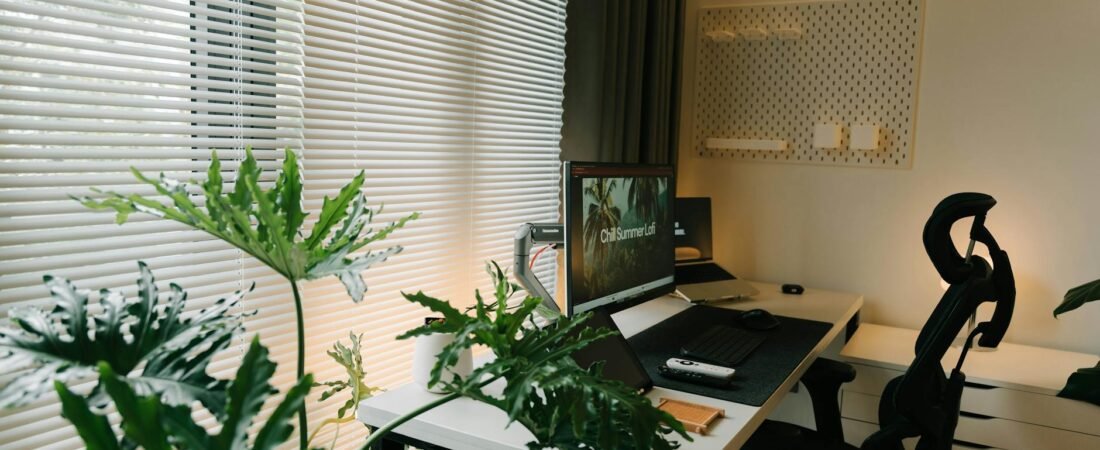
If you spent serious money on a chair, monitor arm, keyboard, or standing desk and you still feel stiff, sore, or oddly tired by midafternoon, the problem usually is not that you bought the wrong price tier. It is that desk comfort is a fit problem, not a luxury problem. OSHA’s computer workstation guidance makes two points that explain most of the mystery: there is no single perfect arrangement for everyone, and every part of the workstation affects the others. Cornell’s checklist makes the same point more bluntly: change one link in the chain without adjusting the rest, and you can make another body region worse. (osha.gov)
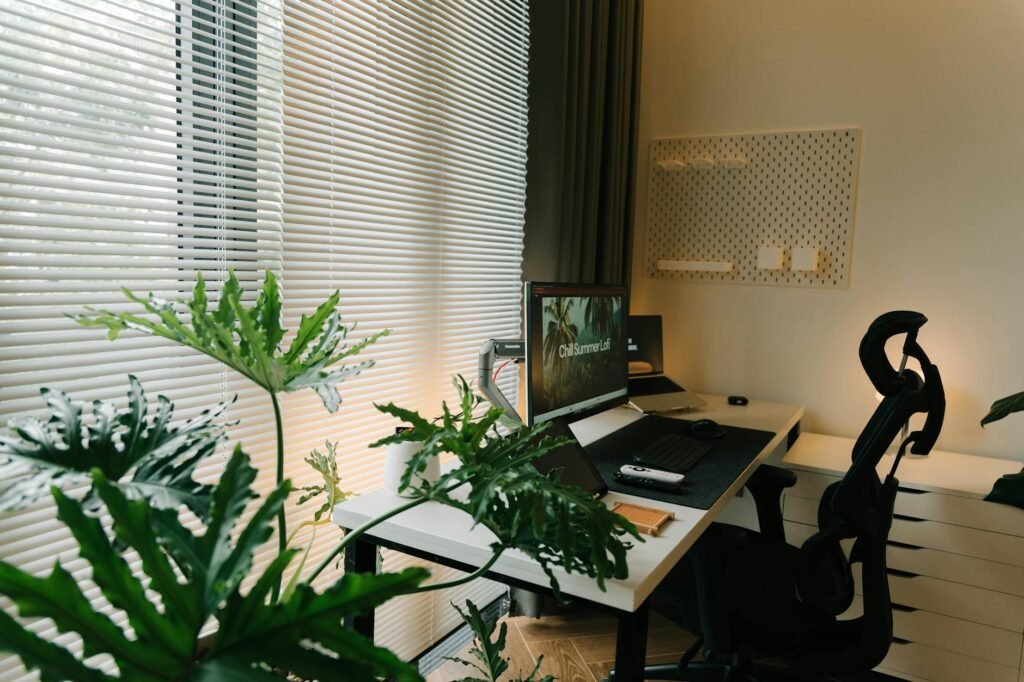
Expensive gear usually fails for one boring reason: mismatch
People often buy desk gear one piece at a time. A premium chair gets added to a fixed-height desk. A large monitor gets mounted, but the keyboard stays too far forward. A beautiful full-size keyboard pushes the mouse too far to the right. A standing desk gets used mostly in one height preset that still leaves the shoulders lifted. None of those are quality problems. They are geometry problems. Desk surfaces that are too high or too low can raise the shoulders or force you to reach, and keyboards or mice that are too far away can pull the elbows away from the body and make you lean forward. (osha.gov)
That is why a setup can look impressive and still feel cheap to your body. The chair may be excellent, but if you have to raise it just to meet a high desk, your feet can lose support. The monitor may be excellent, but if it is off-center or too low, your neck still does the work. The keyboard may be excellent, but if it forces extra mouse reach or awkward wrist angles, comfort still drops. In personal finance terms, this is a classic sunk-cost trap: adding premium accessories to compensate for one wrong base dimension. (mayoclinic.org)
Use the Fit Chain Audit before you buy anything else
Here is the simplest way to diagnose your setup. Call it the Fit Chain Audit. Score each link from 0 to 2: 0 means clearly wrong, 1 means workable but compromised, and 2 means solid. Your total matters less than your weakest link. If one part of the chain is failing, that is usually where your next dollar should go. The logic comes straight from OSHA, Mayo, NIOSH, and Cornell: workstation comfort depends on neutral postures, reach, sightline, support, and the ability to change position. (osha.gov)
Using the score: 8-10 indicates that the setup is mostly stable, and any adjustments needed will be minor. 5-7 will require a complete layout reset before any new purchases. 0-4 indicates that the setup is fundamentally mismatched, and even the most expensive purchase will probably just relocate discomfort. Therefore, the most important money lesson is that the weakest link should control next purchases instead of the most expensive product.
A composite example: the $1,649 setup that still hurt
Consider a realistic household example. A remote worker spends $899 on a high-end chair, $550 on a desk, $140 on a monitor arm, and $60 on a mechanical keyboard, for a total of $1,649. By any normal standard, that sounds like a serious upgrade. But by 3 p.m., the right shoulder aches, the neck feels tight, and the lower back starts to complain.
The audit shows why. The fixed desk is still too high, so the chair has to be raised and the feet lose support. The full-size keyboard pushes the mouse farther out than it needs to be. The monitor is mounted nicely, but slightly off-center because the laptop and dock take up the middle of the desk. The result is not one big failure. It is three medium-sized compromises repeated for eight hours. A $30 footrest, a cleaner center lane, and a compact keyboard would likely do more than another $700 chair swap. That diagnosis lines up with official guidance on desk height, foot support, mouse reach, and monitor placement. (osha.gov)
Where the cheapest fix usually sits
| If this is the symptom | Most likely weak link | Best next move | Upgrade level |
|---|---|---|---|
| Your feet dangle once your shoulders finally relax | Desk height does not match your seated height | Raise the chair only enough to relax the shoulders, then add foot support and clear thigh space | Low-cost add-on first |
| Your mouse-side shoulder burns or feels tight | Mouse is too far from your midline, often because of a full-size keyboard or desk clutter | Move the mouse tight to the keyboard; consider a compact keyboard or separate keypad | Low-cost add-on first |
| You lean forward to read the screen | Monitor is too low, too far, or fighting glare or small text | Center the monitor, fix height and distance, reduce glare, enlarge text before buying a new screen | Free first |
| An expensive chair still feels wrong within an hour | The chair is compensating for a fixed desk or bad screen setup | Fix desk or keyboard height before blaming the chair | Base furniture may be the real replacement |
| Standing helps for 20 minutes, then you feel worse | Standing height is wrong or you are treating standing like the default posture | Use standing as a posture change and reset keyboard and screen for standing height too | Free first |
A 48-hour reset you can do before buying more gear
- Clear the center lane. Put the keyboard directly in front of you, bring the mouse onto the same surface right beside it, and remove anything under the desk that blocks leg room. (osha.gov)
- Set chair height for your arms first, not your feet. Your goal is relaxed shoulders and elbows close to the body. Then support the feet with a footrest or stable substitute if needed. (mayoclinic.org)
- Reset the screen. Put it straight ahead, about arm’s length away, and get the top at or slightly below eye level. If you wear bifocals or progressives, lower it a bit more. (mayoclinic.org)
- Fix the lighting before blaming the monitor. Turn the screen at right angles to windows, reduce reflected glare, and enlarge text if you are leaning in to read. (osha.gov)
- Add movement rules. Use visual breaks every 20 minutes and build in short posture changes or brief breaks during the day instead of trying to sit perfectly still. (cdc.gov)
- During a 90 minute work block in real-life situation is the best time! Not just when you are […]When evaluating your setup, wear a comfortable shirt (like you would to play golf or be out at the beach) and if you notice if your discomfort is worse when you’re doing those jobs, you have some evidence as to whether or not the link(s) are still providing you with the support.
What expensive gear cannot overcome
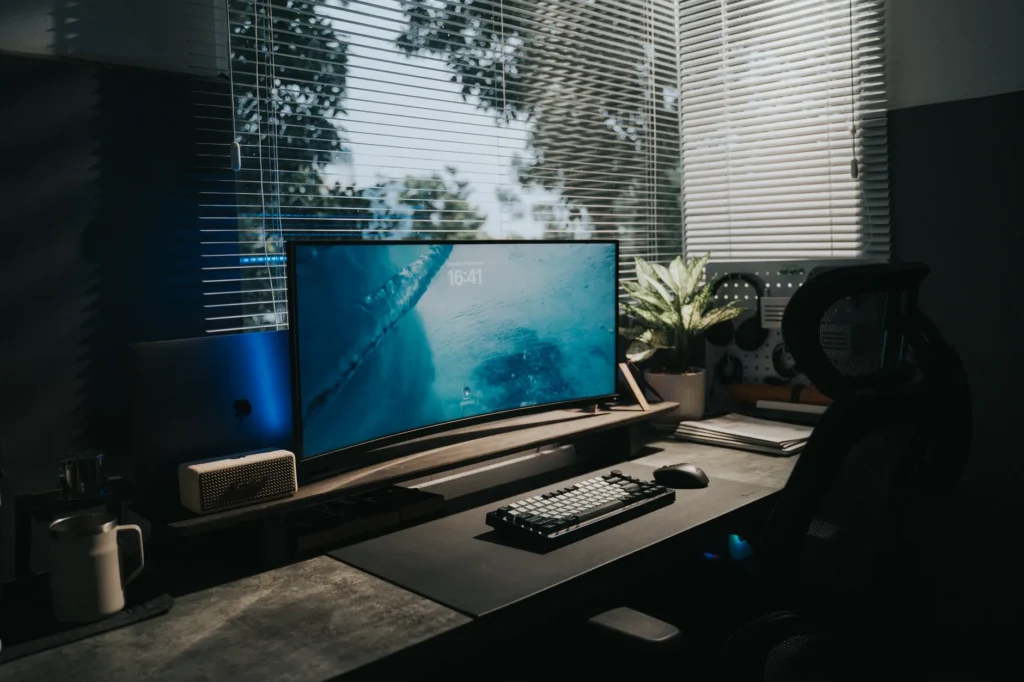
A premium chair cannot solve a desk that is the wrong height. OSHA notes that work surfaces that are too high or too low lead to awkward postures like raised shoulders and extended arms. Mayo adds that if the desk is too high and cannot be changed, raising the chair may require a footrest. In plain English: if the desk geometry is wrong, the chair is being asked to do a job it cannot do alone. (osha.gov)
An expensive keyboard can also create a mouse problem. OSHA’s purchasing guide specifically notes that a keyboard without a built-in 10-key can let the mouse sit closer, and its keyboard guidance warns that reaching to a far mouse can pull the elbow away from the body. That means a smaller, less glamorous keyboard can sometimes be the smarter ergonomic purchase than a premium full-size board. (osha.gov)
Laptops are another common money pit. Cornell points out the basic design problem: when the keyboard and screen are attached, one of them is almost always in the wrong position for all-day work. OSHA and Mayo both recommend an external keyboard and mouse for desk use, and Mayo suggests a laptop stand to make the setup behave more like a desktop. If you work on a laptop at a desk for hours, the all-in-one convenience is often the source of the discomfort. (ergo.human.cornell.edu)
Even a beautiful monitor can fail if the placement is wrong. OSHA says the screen should be directly in front of you and at or just below eye level, and Mayo gives a roughly arm’s-length distance with a 20-to-40-inch range. OSHA also warns that glare from windows and overhead light can make the screen harder to see and increase eye strain. So before you upgrade to a pricier display, fix distance, height, and room lighting. (osha.gov)
Standing desks help some people, but they are not magic. Cornell’s home ergonomics guidance treats standing as a way to interrupt prolonged sitting rather than the default posture, and a NIOSH-listed review found sit-stand workstations may reduce low back discomfort but also noted the evidence does not clearly define the ideal dosage. Translation: standing is useful when it gives you variety, not when it becomes another rigid position you hold too long. (hr.cornell.edu)

Common mistakes that waste money
- Buying a second chair before checking whether the desk is simply too high or too low. (osha.gov)
- Letting armrests keep you too far from the desk. OSHA notes that a keyboard tray may help when armrests interfere with positioning. (osha.gov)
- Using a laptop as your main desk computer with no external keyboard or mouse. (ergo.human.cornell.edu)
- Treating a standing desk as a cure instead of a posture-change tool. (hr.cornell.edu)
- Chasing “perfect posture” and staying frozen. Cornell explicitly notes that dynamic posture and frequent changes help reduce stress from long static positions. (ergo.human.cornell.edu)
- Ignoring screen glare, small text, and off-center monitor placement while blaming the chair. (osha.gov)
When the first plan is not enough
Sometimes the low-cost fixes do not work because the core furniture is wrong for the household. That is especially common with fixed-height desks, thick desktops, shallow work surfaces, and shared workstations used by people of different heights. Cornell’s checklist notes that when more than one person uses a station, easy adjustability becomes even more important. In those cases, replacing the base piece can be cheaper in the long run than stacking workarounds. (ergo.human.cornell.edu)
There are also personal limits to generic setup advice. If you wear bifocals or progressives, Mayo recommends lowering the screen a little more. If you have a history of back, neck, wrist, or nerve problems, you may need more individualized guidance from a physical therapist, occupational therapist, or clinician. And if your job locks you into long stretches of keyboarding or mouse work, your best solution may involve both equipment changes and work-pattern changes. (mayoclinic.org)
How to verify that your setup is actually better
- Take two photos: one from the side while typing and one from the front while using the mouse. Check whether the head is forward, the shoulders are lifted, or the elbows flare out. OSHA and Cornell both frame these as meaningful warning signs. (osha.gov)
- Keep a three-day comfort log. Rate neck, shoulder, lower back, and wrist comfort at the start of the day, midafternoon, and end of day on a 0-to-10 scale.
- Pressure-test the setup during the task that usually triggers the problem. Mouse-heavy work, spreadsheet work, reading, and video calls stress different links.
- Verify your movement plan, not just your furniture. If your timer never goes off, your screen breaks do not happen, or you still stay locked in place for hours, the setup is only half-fixed. (cdc.gov)
- Re-run the Fit Chain Audit after one week. If your weakest link has not improved, move from adjust to add, or from add to replace, instead of randomly shopping.
Bottom line
Your setup can feel uncomfortable even when the gear is expensive because comfort comes from fit, clearance, sightline, reach, and movement, not price alone. The smartest desk purchase is usually the one that removes the biggest mismatch first. Audit the chain, fix the weak link, and only then decide whether you actually need more gear. (osha.gov)
Do I need a standing desk to be comfortable?
Not necessarily. A sit-stand desk can help because it lets you vary posture, and NIOSH-listed evidence suggests it may reduce low back discomfort for some workers. But Cornell’s guidance is clear that standing works best as a way to interrupt prolonged sitting, not as the default posture all day. (stacks.cdc.gov)
Why does my expensive chair still hurt after an hour?
Because the chair may be compensating for a desk that is too high, a screen that is too low, or a mouse that is too far away. Mayo and OSHA both emphasize that chair height, desk height, equipment spacing, and foot support work together. (mayoclinic.org)
Are ergonomic keyboards worth it?
Sometimes, but not as a first move for everyone. OSHA says alternative keyboards can help maintain more neutral wrist postures, but the agency also notes that research is not conclusive that they prevent discomfort and injury. If your mouse reach, desk height, or screen placement is wrong, fix those first. (osha.gov)
Can a monitor arm fix neck discomfort by itself?
Only if it lets you put the screen directly in front of you, at the right height, and at the right distance. If the real problem is a high desk, bad glare, or a far-forward keyboard, a monitor arm alone will not solve it. (osha.gov)
Is a footrest really worth buying?
Often, yes. If you need to raise your chair to get the keyboard near elbow height and your feet no longer rest flat, both OSHA and Mayo point to foot support as a practical fix. It is one of the cheapest upgrades that can solve a whole-body mismatch. (mayoclinic.org)
References
- OSHA eTool: Computer Workstations – https://www.osha.gov/etools/computer-workstations
- OSHA eTool: Evaluation Checklist – https://www.osha.gov/etools/computer-workstations/checklists/evaluation
- OSHA eTool: Purchasing Guide Checklist – https://www.osha.gov/etools/computer-workstations/checklists/purchasing-guide
- OSHA eTool: Desks – https://www.osha.gov/etools/computer-workstations/components/desks
- OSHA eTool: Keyboards – https://www.osha.gov/etools/computer-workstations/components/keyboards
- Mayo Clinic: Office ergonomics – https://www.mayoclinic.org/healthy-lifestyle/adult-health/in-depth/office-ergonomics/art-20046169
- CDC/NIOSH: Working from Home – https://www.cdc.gov/niosh/bulletin/2020/working-from-home.html
- CDC/NIOSH: About Ergonomics and Work-Related Musculoskeletal Disorders – https://www.cdc.gov/niosh/ergonomics/about/index.html
- Cornell University Ergonomics Web: Computer Workstation Ergonomic Checklist – https://ergo.human.cornell.edu/CUVDTChecklist.html
- Cornell University Ergonomics Web: 5 Tips for Using a Laptop Computer – https://www.ergo.human.cornell.edu/culaptoptips.html
- Cornell Home Ergo Tips PDF – https://hr.cornell.edu/sites/default/files/2022-12/home_ergo_tips_-_hr.pdf
- CDC STACKS: Sit-Stand Workstations and Impact on Low Back Discomfort – https://stacks.cdc.gov/view/cdc/212249